Need to export your scans, stock, or asset data from Orca Scan?
This guide shows you how to export data from a sheet, choose the right file format, and decide when to use tools like Live Data URL, Webhook Out, REST API, or integrations instead of downloading a file manually.
Before you begin
Before exporting your data:
- Log into Orca Scan
- Open the sheet you want to export
- Decide whether you need:
- A downloadable file export, or
- A live connection to another system
How to export data from your sheet
1. Open your sheet
Log in to Orca Scan and go to the sheet you want to export
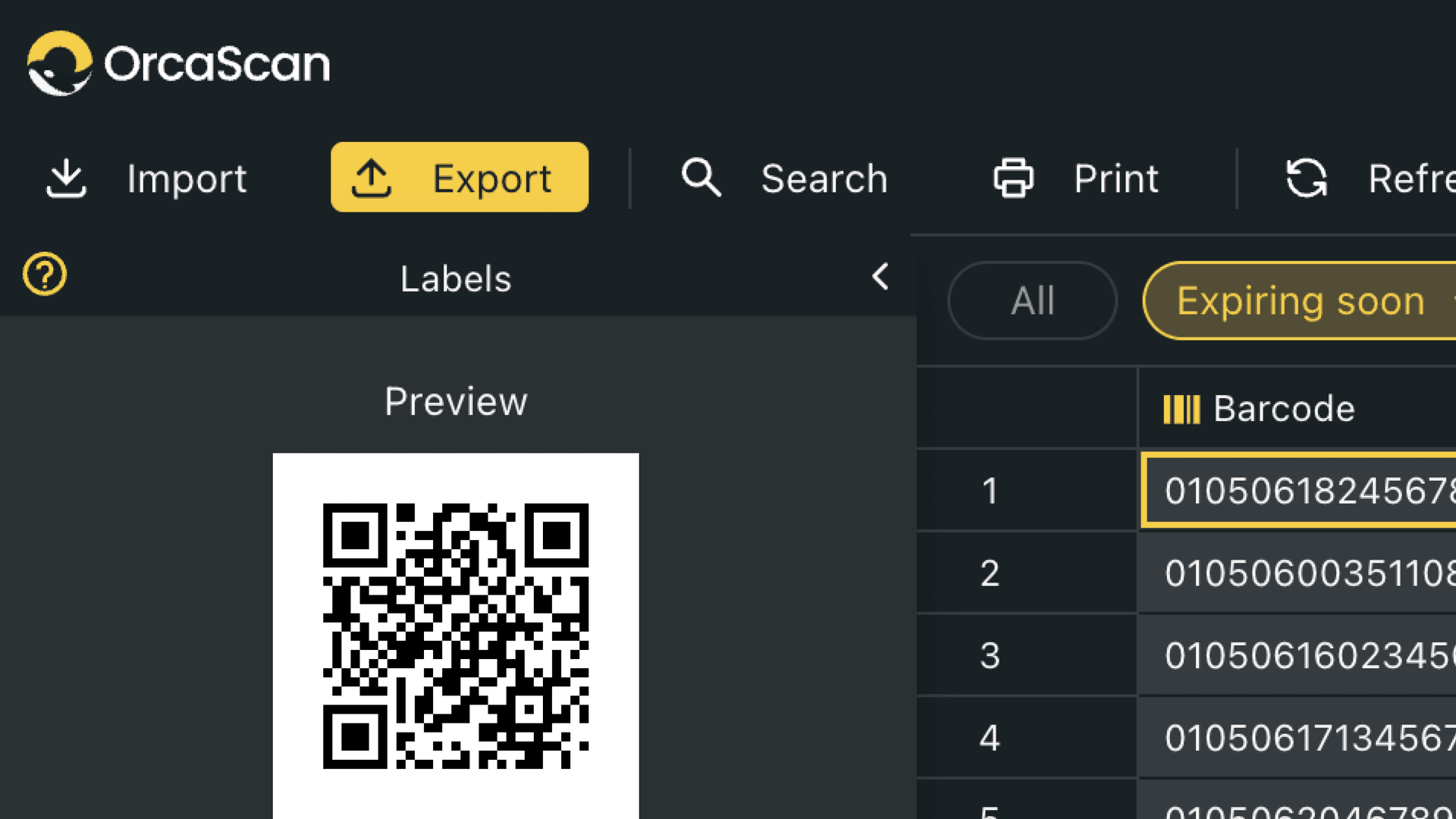
2. Click Export
Click Export in the menu bar
3. Enter the file name
Choose the file name you want to use
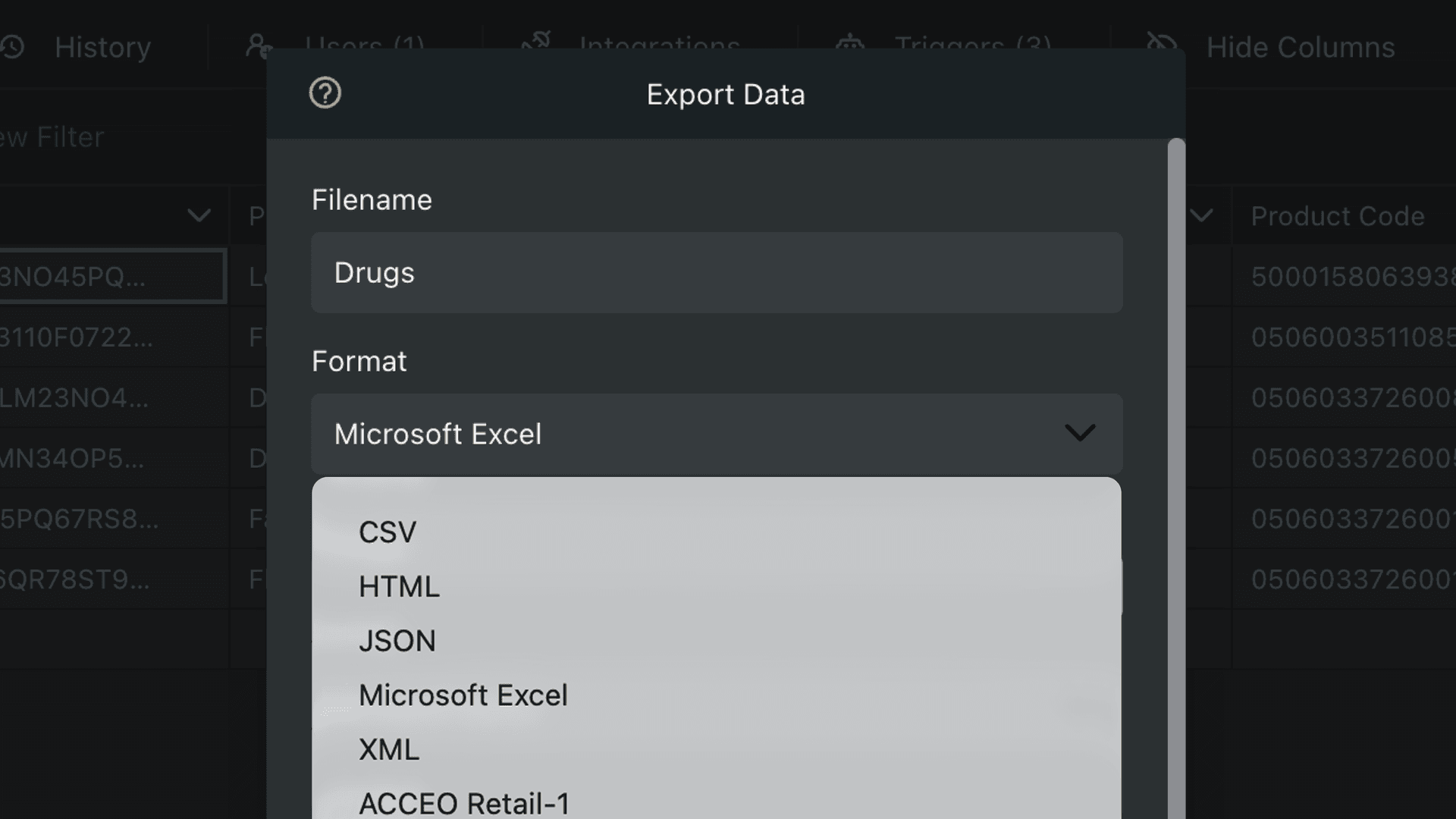
4. Choose your format
Select the file format you want to export your data in, such as Excel, CSV, HTML, JSON, XML or ACCEO Retail-1
5. Select the columns to export
Choose which columns from your sheet you want to be included in the export. This helps you to remove any unnecessary fields before downloading the file
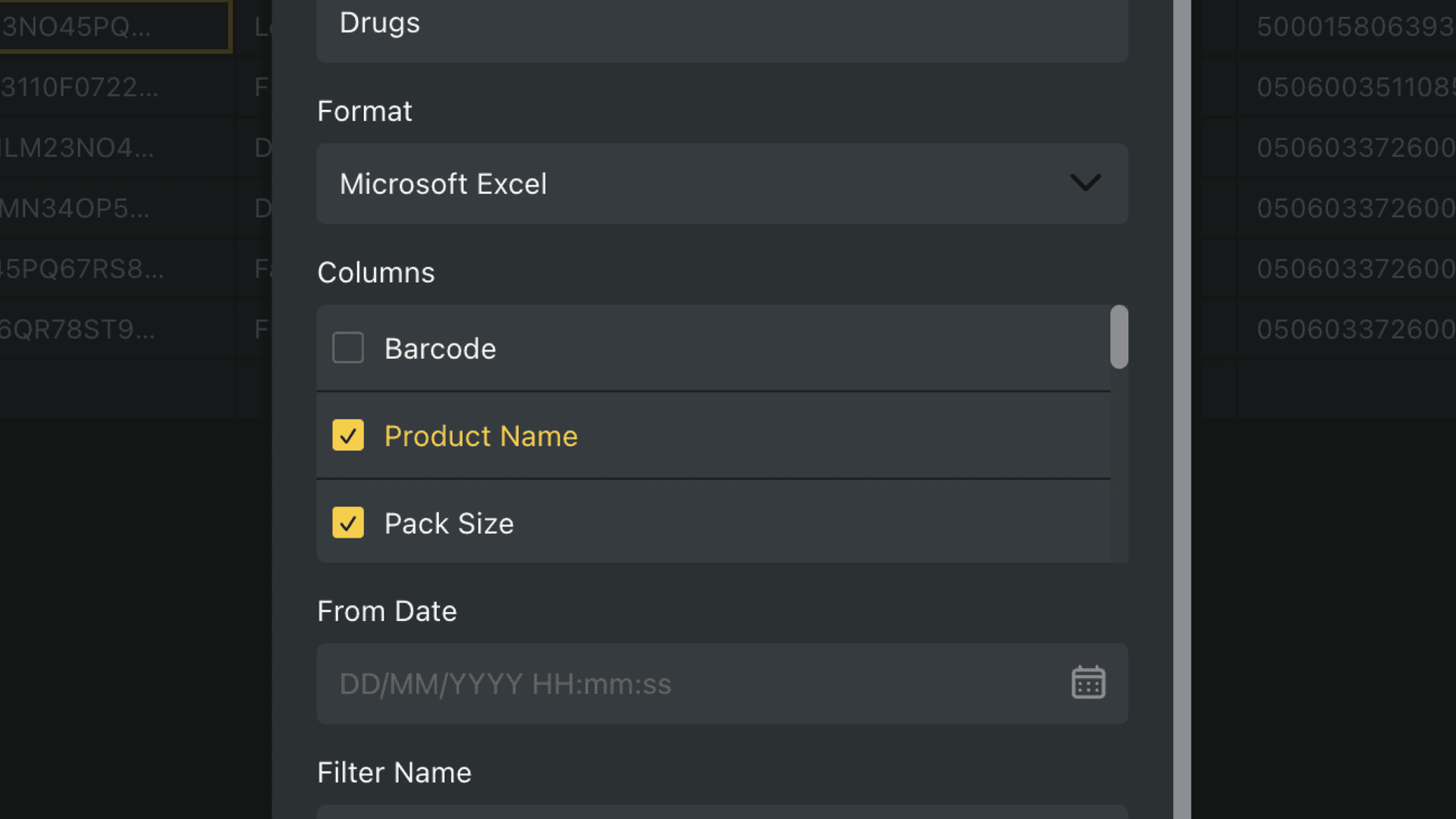
6. Set the date range (optional)
If you only want to download a part of your sheet history, choose a date range for the export
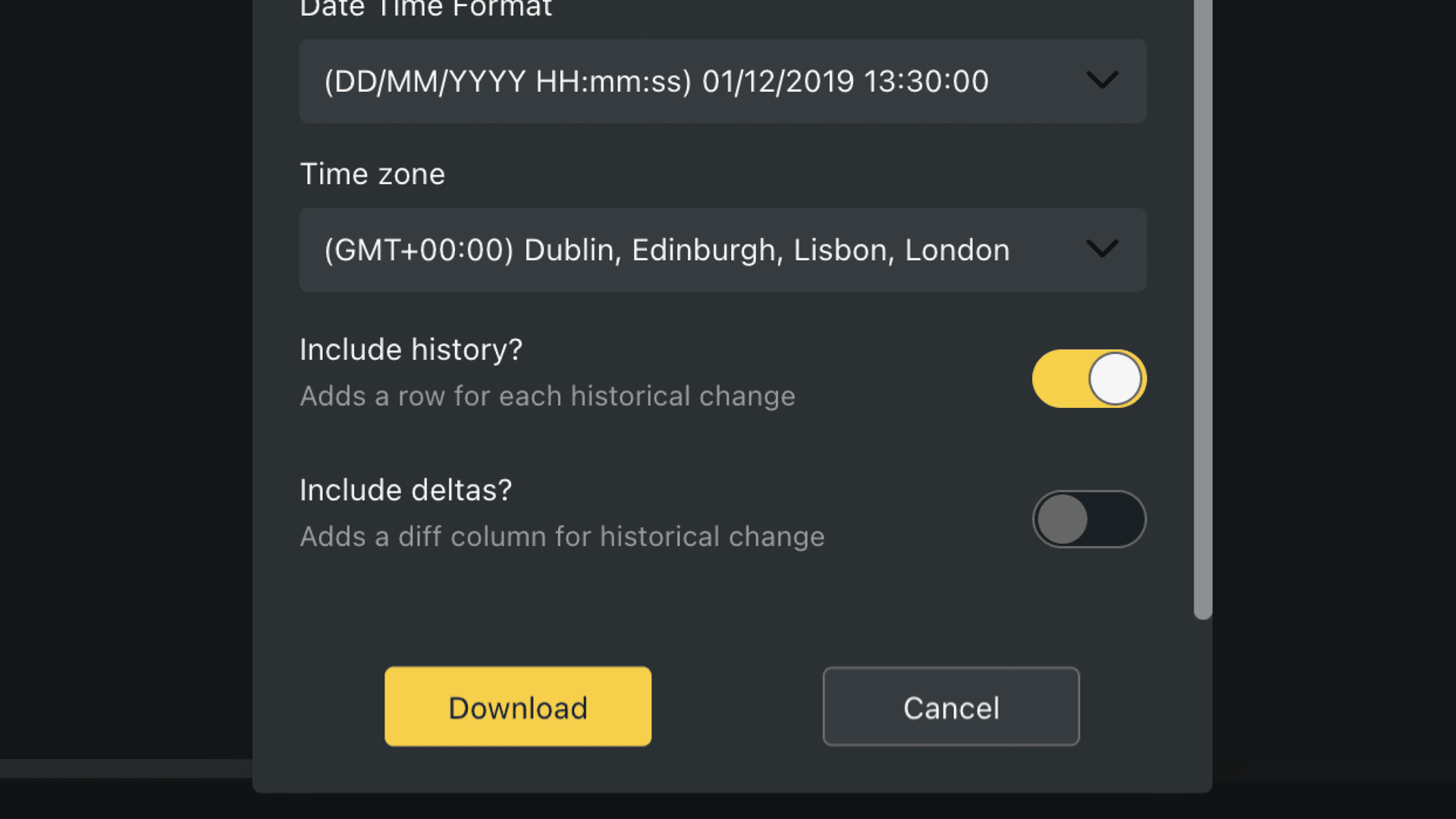
7. Configure the date and time settings
Choose
- The date format
- The time format
- The timezone
This is useful when sharing data across teams or systems in different regions.
8. Include history and deltas (optional)
Want to include changes over time? In your export, you can also include:
Sheet History: To include all historical changes made to your sheet
Deltas: Adds an extra column showing what changed in each update
9. Download the file
When all settings are configured, click Download
Available export formats
You can export your data from Orca Scan in the following supported formats
| Format | Best for |
|---|---|
| Microsoft Excel | Spreadsheet reporting and workbook sharing |
| CSV | Simple spreadsheet imports and data exchange |
| HTML | Browser-based viewing and sharing |
| JSON | APIs, apps, and technical workflows |
| XML | Systems requiring structured markup |
| ACCEO Retail-1 | Retail workflows using ACCEO Retail-1 |
When to use live data or integrations
If a file export isn’t the best option for your data, you can also use the following ways to use your data.
Live Data URL
Use Live Data URL when another system needs the latest records automatically without manually exporting files. Perfect for dashboards, reports, and live external systems.
Webhook Out
Use Webhook Out when Orca Scan should automatically send updates to another platform whenever data changes.
REST API
Use the REST API when custom apps and developer workflows need access to Orca Scan data.
Integrations
Use integrations when you want to send data directly to platforms like:
Questions about exporting?
We’re always happy to help; chat with us live or drop us an email.