You can connect a barcode scanner directly to Microsoft SQL Server using the Orca Scan mobile app. On each scan, Orca Scan looks up records, populates mapped fields, and can optionally write back updates. SQL Server remains the system of record.
How barcode scanning with SQL Server works
It helps to understand the difference between scanning and saving a barcode.
On scan
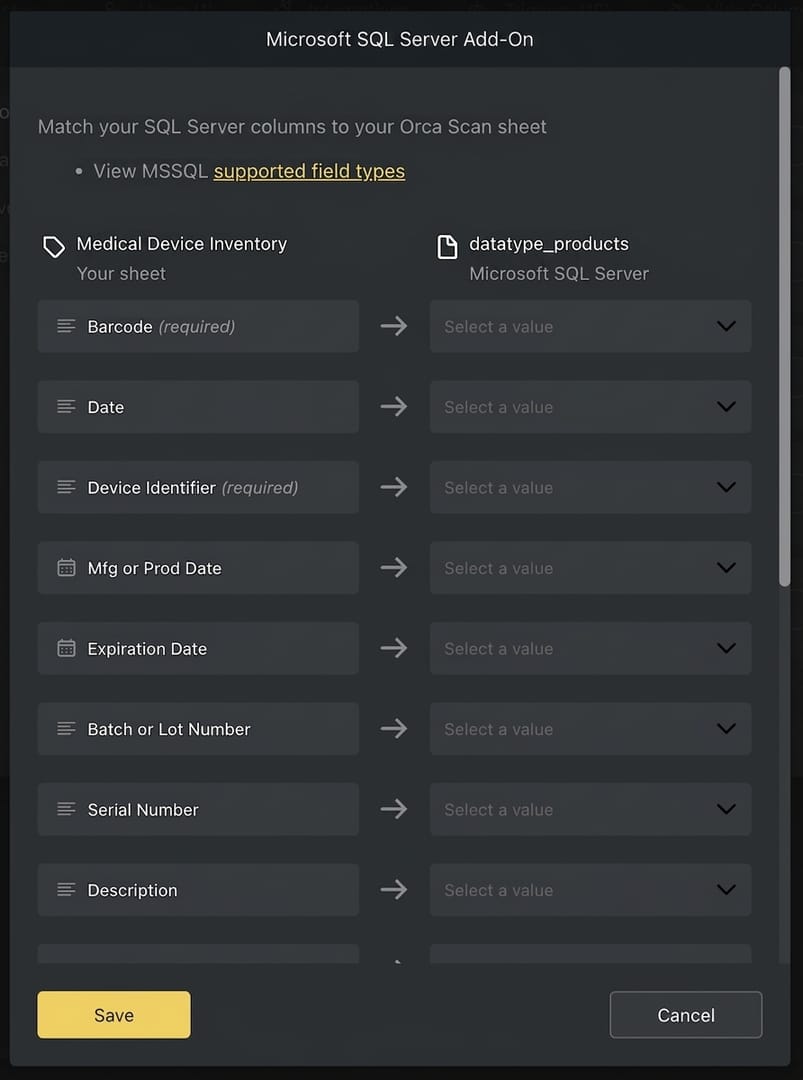
- Orca searches the SQL column mapped to the Barcode field
- If a match is found, mapped fields are populated on the device
On save
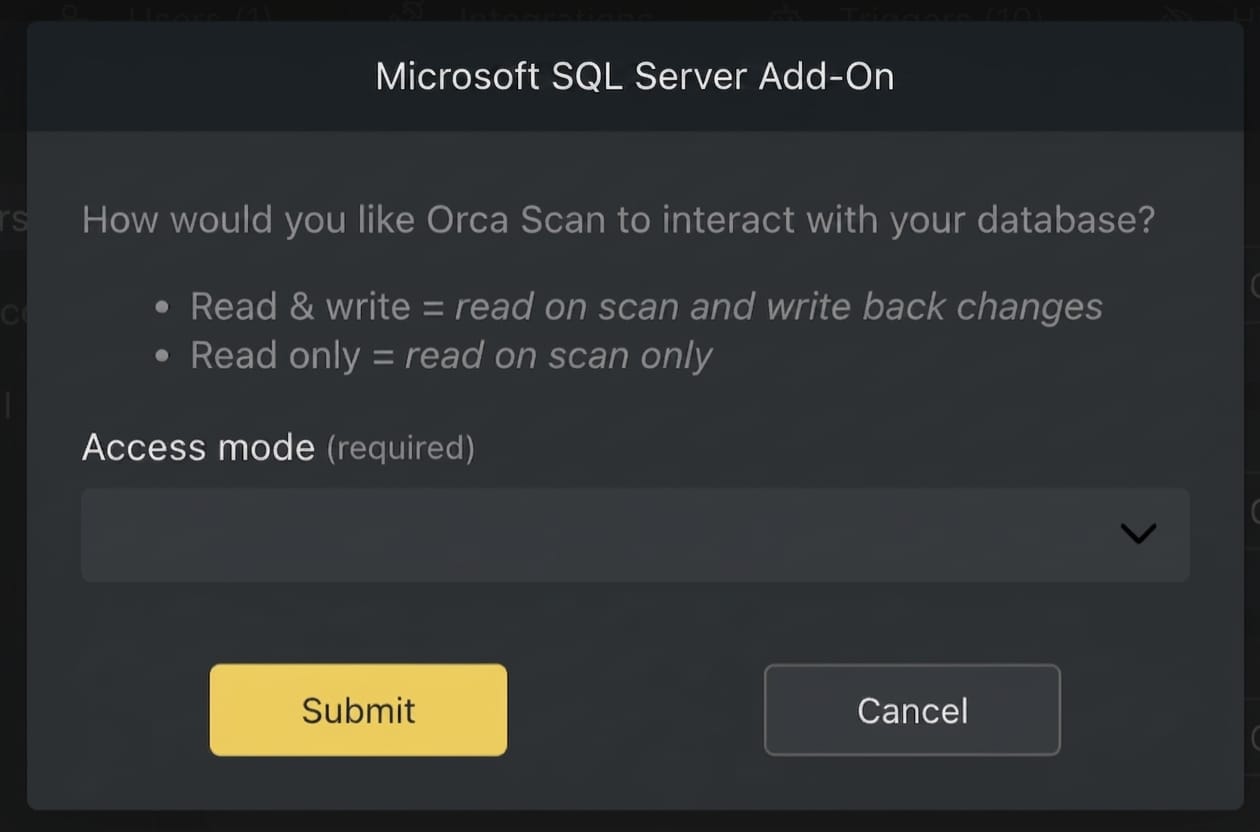
- If enabled, updates to mapped fields are saved to SQL Server
- If enabled, new scans create a new row in SQL Server
- When write is not enabled, no data is written to SQL Server
Records are never deleted from your SQL Server database.
Before you start
Before connecting Orca Scan to SQL Server, make sure you have:
- An Orca Scan account and a sheet created
- Orca Scan installed on your barcode scanner, phone or tablet
- Your SQL Server connection details
- A SQL Server table with the required columns
- Database firewall access allowed from
138.68.235.55
Connect your Barcode Scanner to SQL Server
- Login to the Orca Scan web app
- Select the sheet you want to connect to SQL Server
- Click the Integrations button on the toolbar

- Click the Add to the right of the SQL Server add-on
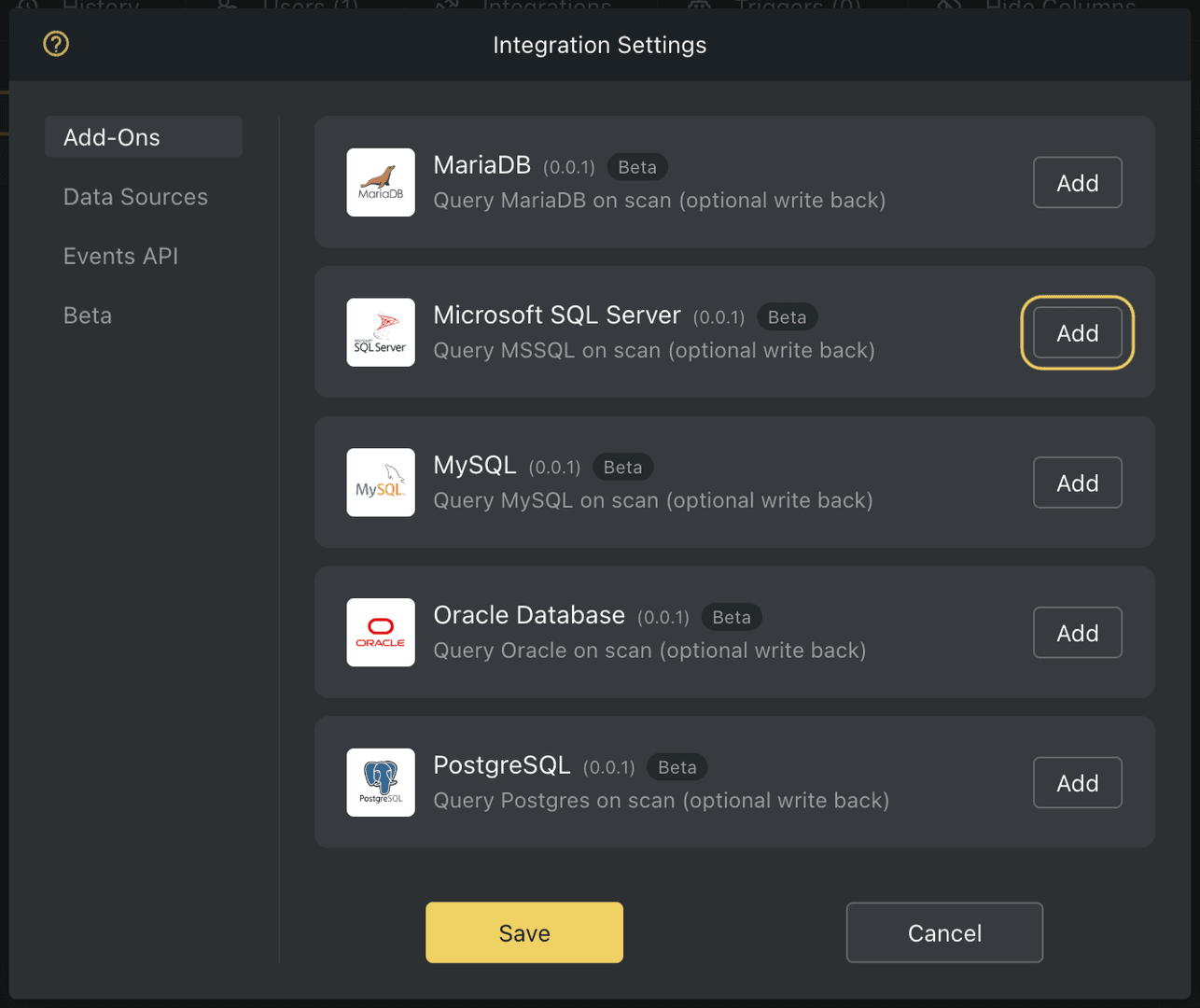
- Grant the SQL Server add-on access to your sheet
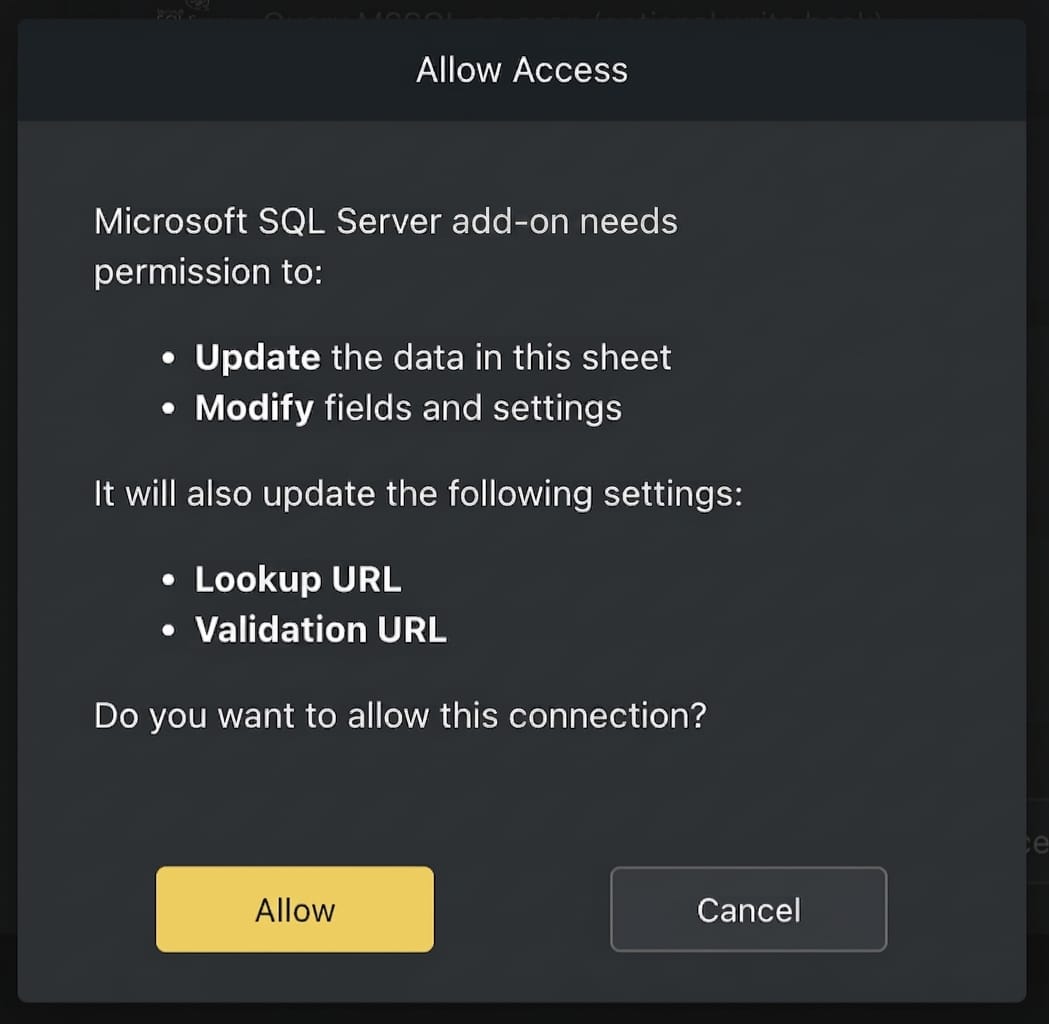
- Enter your SQL Server connection details
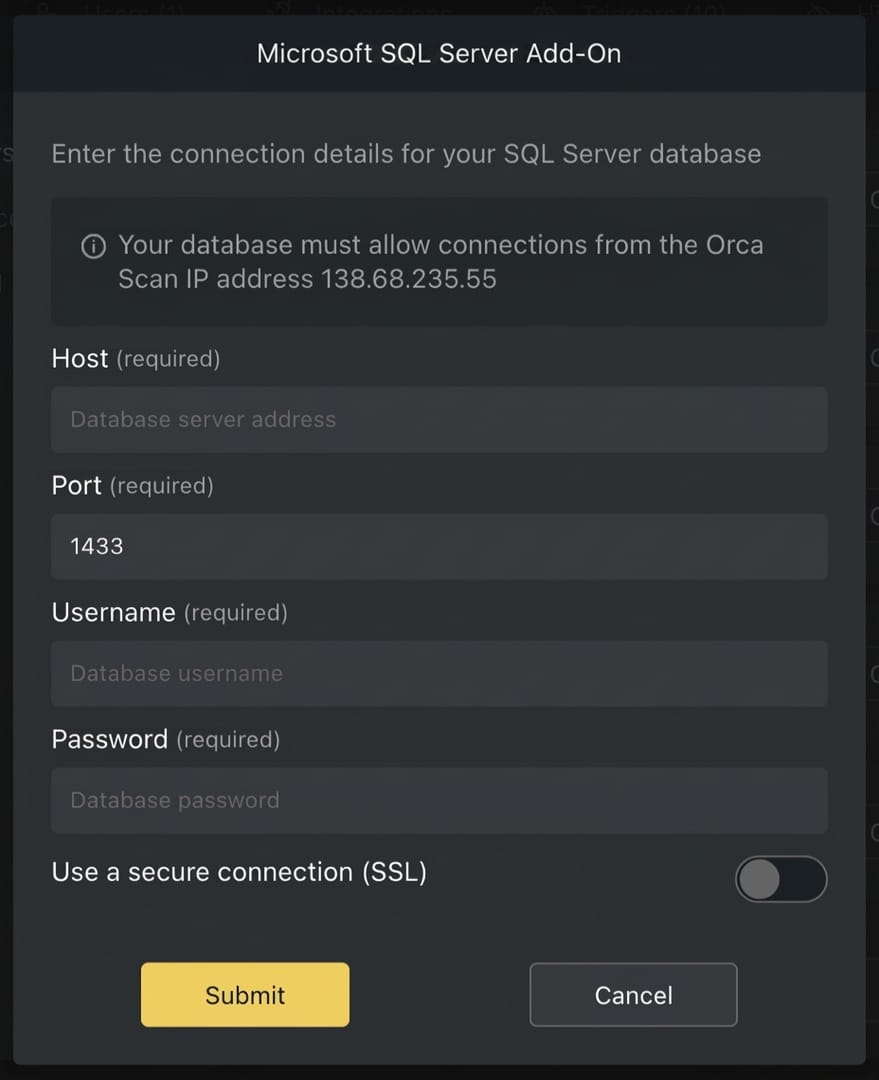
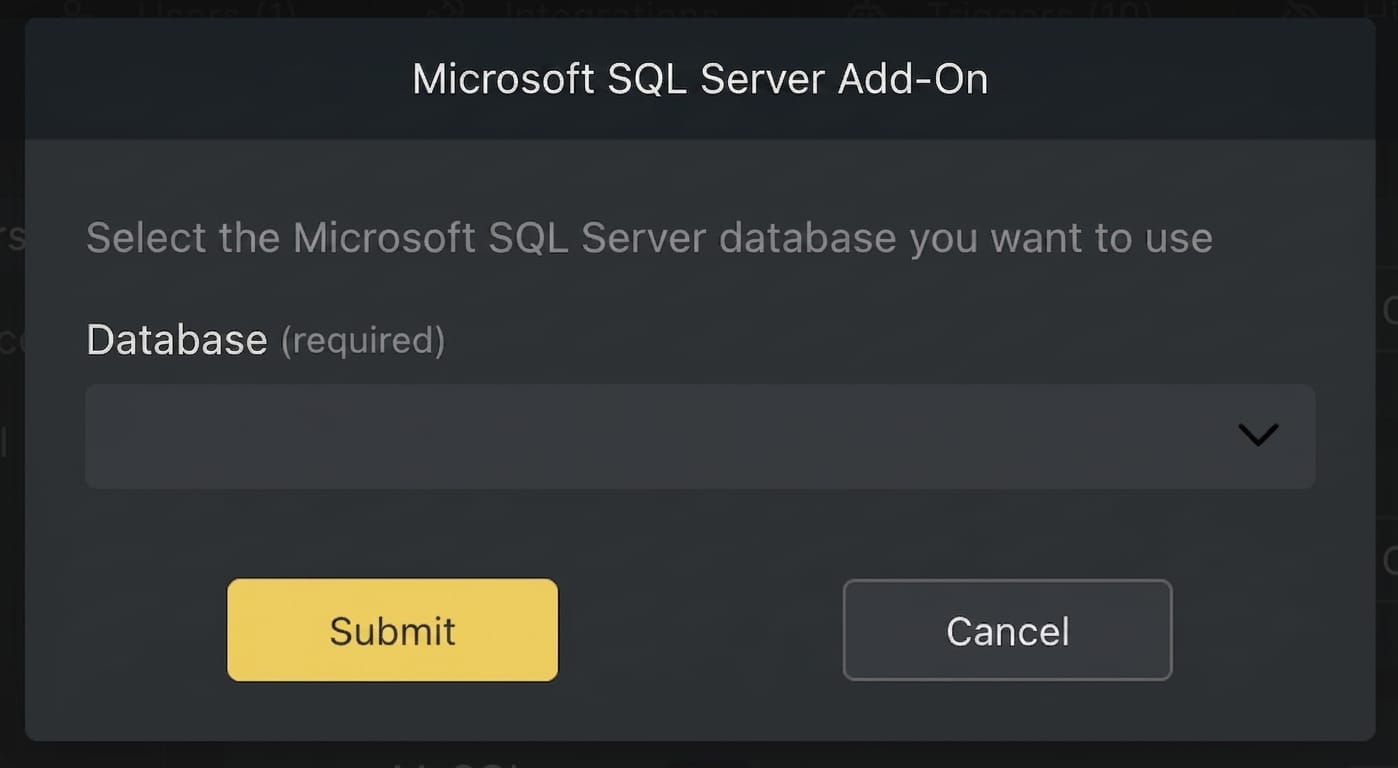
- Select the database you want to connect to your sheet
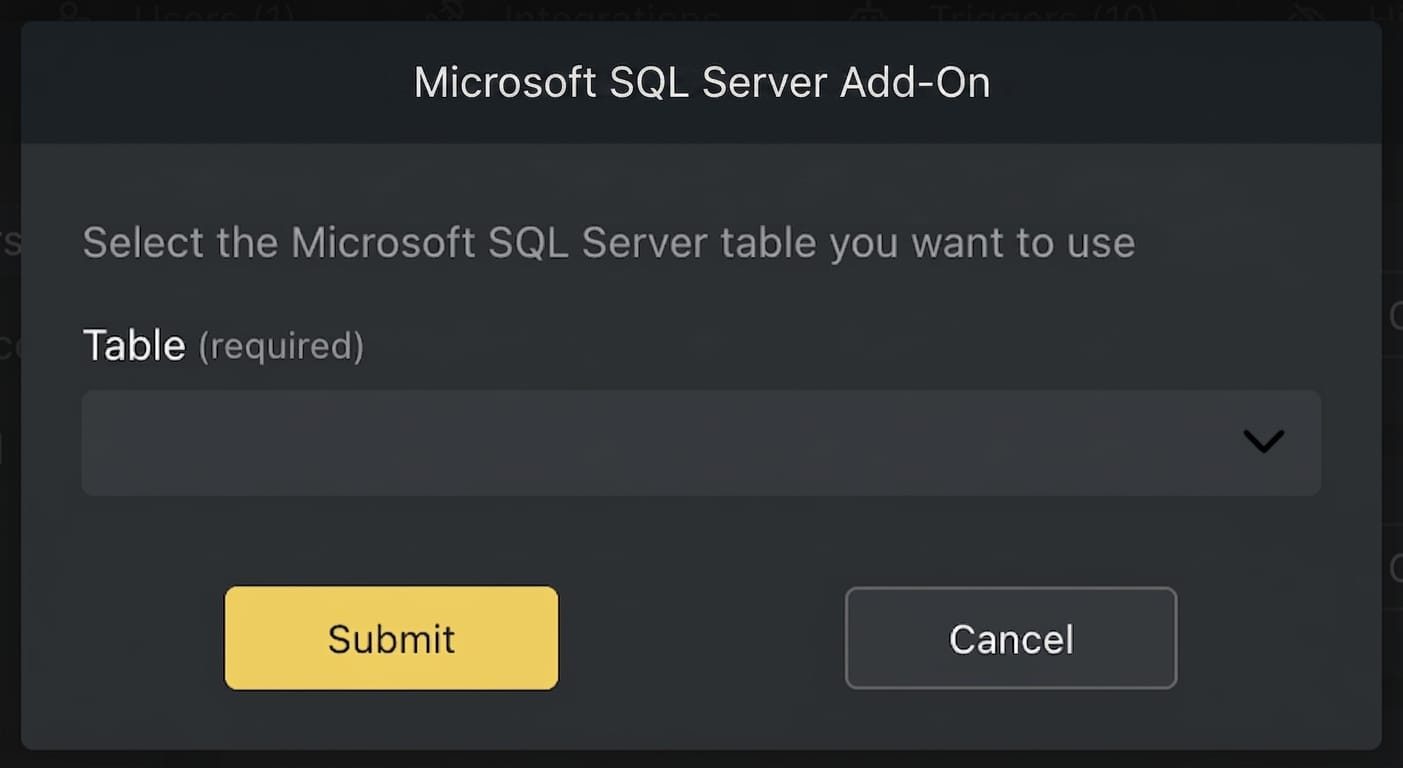
- Select the SQL Server table you want to use
- Choose how Orca Scan should interact with SQL Server
- Map SQL Server columns to Orca Scan fields using the field mapper
That’s it. Invite your team by adding users and start scanning into SQL Server.
How do Orca Scan fields map to SQL Server?
This table shows how Orca Scan field types map to SQL Server column types. Only the listed SQL Server column types can be mapped.
| Orca Scan Type | Compatible MS SQL Type |
|---|---|
| Text | VARCHAR, NVARCHAR , TEXT, NTEXT |
VARCHAR, NVARCHAR , TEXT, NTEXT |
|
| URL | VARCHAR, NVARCHAR , TEXT, NTEXT |
| Drop-down | VARCHAR, NVARCHAR , TEXT, NTEXT |
| Unique ID | VARCHAR, NVARCHAR , TEXT, NTEXT |
| GPS Location | VARCHAR, NVARCHAR , TEXT, NTEXT |
| GPS Location (automatic) | VARCHAR, NVARCHAR , TEXT, NTEXT |
| Time | TIME, VARCHAR, NVARCHAR , TEXT, NTEXT |
| Number | TINYINT, SMALLINT, INT, BIGINT, DECIMAL , NUMERIC, FLOAT , REAL, MONEY, SMALLMONEY |
| Number (auto-inc) | TINYINT, SMALLINT, INT, BIGINT, DECIMAL , NUMERIC, FLOAT , REAL, MONEY, SMALLMONEY |
| Number (auto-dec) | TINYINT, SMALLINT, INT, BIGINT, DECIMAL , NUMERIC, FLOAT , REAL, MONEY, SMALLMONEY |
| True/False | bit |
| Date | DATE |
| Date (auto) | DATE |
| DateTime | DATETIME, DATETIME2, SMALLDATETIME |
| DateTime (auto) | DATETIME, DATETIME2, SMALLDATETIME |
| Multi-select | VARCHAR, NVARCHAR , TEXT, NTEXT |
| Currency | DECIMAL , NUMERIC |
| - not supported - | |
| - not supported - | |
| - not supported - | |
| Formula | VARCHAR, NVARCHAR , TEXT, NTEXT |
| Created by | VARCHAR, NVARCHAR , TEXT, NTEXT |
| Created Date | DATETIME, DATETIME2, SMALLDATETIME |
| Last Modified by | VARCHAR, NVARCHAR , TEXT, NTEXT |
| Last Modified Date | DATETIME, DATETIME2, SMALLDATETIME |
SQL Server Add-On FAQs
Does Orca Scan modify my SQL Server schema?
No. Orca Scan only reads from and writes to existing tables. It never creates, alters, or drops tables or columns.
Does Orca Scan delete records from SQL Server?
No. Records are never deleted from your database. If this would be useful to you, please raise a feature request.
What SQL operations are performed?
On scan, Orca Scan performs a SELECT using the column mapped to the Barcode field.
On save, Orca Scan performs an UPDATE on the matched row, or an INSERT if no match exists and write access is enabled.
Which column is used for barcode lookups?
The SQL Server column mapped to the Orca Scan Barcode field.
What permissions does the SQL Server user need?
SELECT is required for read access. INSERT and UPDATE are required if write access is enabled.
Does Orca Scan create triggers, jobs, or background processes?
No. All database access is request-based and occurs only during scans and saves.
What happens if the scanner is offline?
The device must be online for SQL Server lookups and writes to occur.
How secure are my database credentials?
Credentials are encrypted, never logged, and never accessible to the Orca Scan team. For best practice, restrict access to 138.68.235.55 and your trusted systems.
What if my database config changes, how do I resolve issues?
If there is an issue with your SQL Server connection:
- Go to Integrations > Add-Ons
- The add-on will show a red warning, click Resolve
- Follow the prompts to fix the issues
How do I update my SQL Server connection details?
If your database connection details change, disconnect the add-on and reconnect.
How do I change my field mappings after setup?
To change your field mappings:
- Go to Integrations > Add-Ons > … > Configure
- Change your field mappings and save
How do I update existing rows after changing field mappings?
After changing field mappings, existing rows do not update automatically:
- In the web app, right click a row to Update from Lookup URL
- On mobile, data is refreshed on the next scan
Are there any field mapping limitations?
Yes, a couple:
- Dropdown fields only accept values that exist in your sheet
- The following Orca Scan field types cannot be mapped:
- Signature
- Photo
- Attachment
Can I extract data from barcodes before saving to SQL Server?
Yes. You can use Orca Variables to extract data from barcodes such as GS1 before they are saved to your SQL Server database.
Related barcode scanner to database guides
- Scan barcodes into Oracle DB
- Scan barcodes into MySQL
- Scan barcodes into MariaDB
- Scan barcodes into PostgreSQL
Need help scanning barcodes into SQL Server?
We’re happy to help, chat with us live or book a free implementation call.
Request an integration
Need help getting Orca Scan working with your software? Request a Software Integration