You can share an Orca Scan sheet with others by logging into the Orca Scan web app. This allows teammates to help carry out asset or inventory tracking. You can use permissions to limit access and the history log to track user activity.
Please note: Only sheet owners can add users to a sheet.
Add a user to a sheet
A user is defined as one personalised email address (you@yourcompany.com).
Users will be asked to verify their email address, so this account must exist.
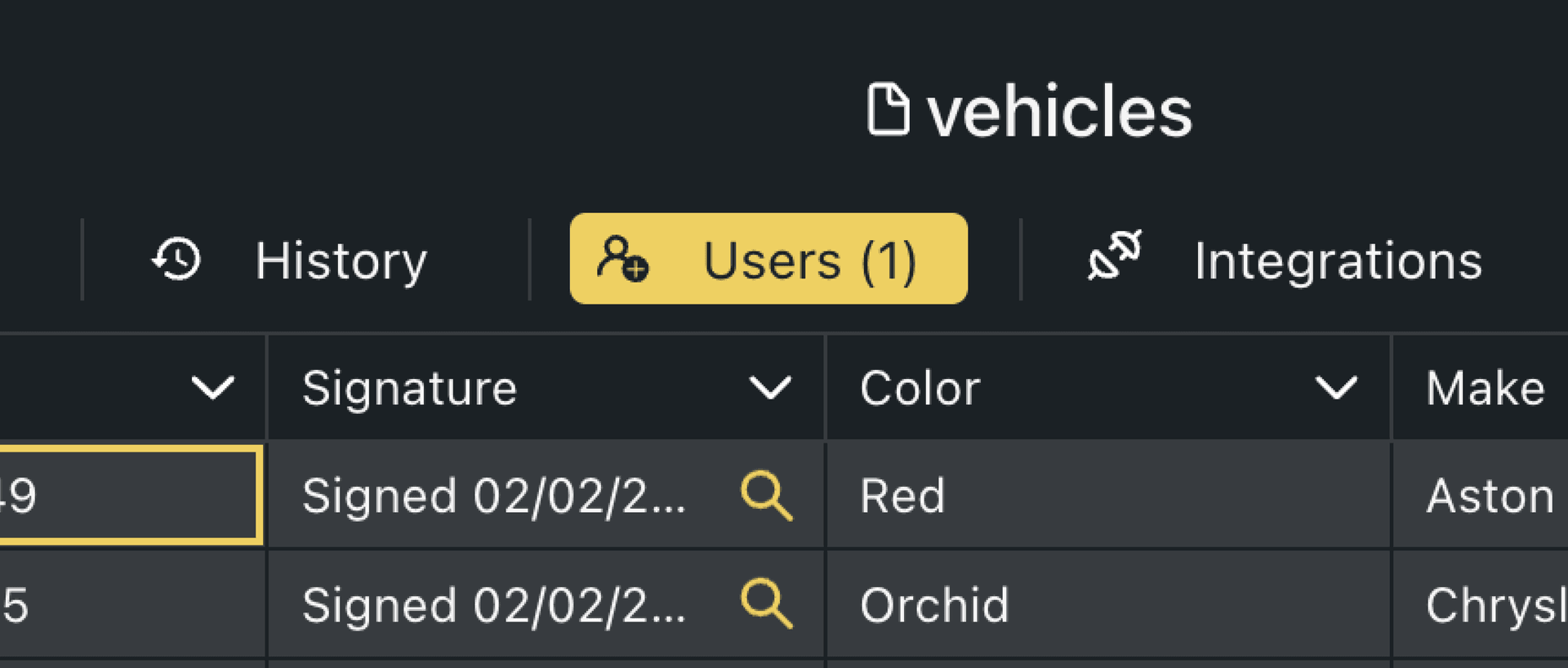
To add a user, simply:
- Log into the Orca Scan Web App
- Select the relevant sheet
- Click the Users tab on the toolbar at the top of the screen
- Input the email address of the user you’d like to add to the sheet and click Add
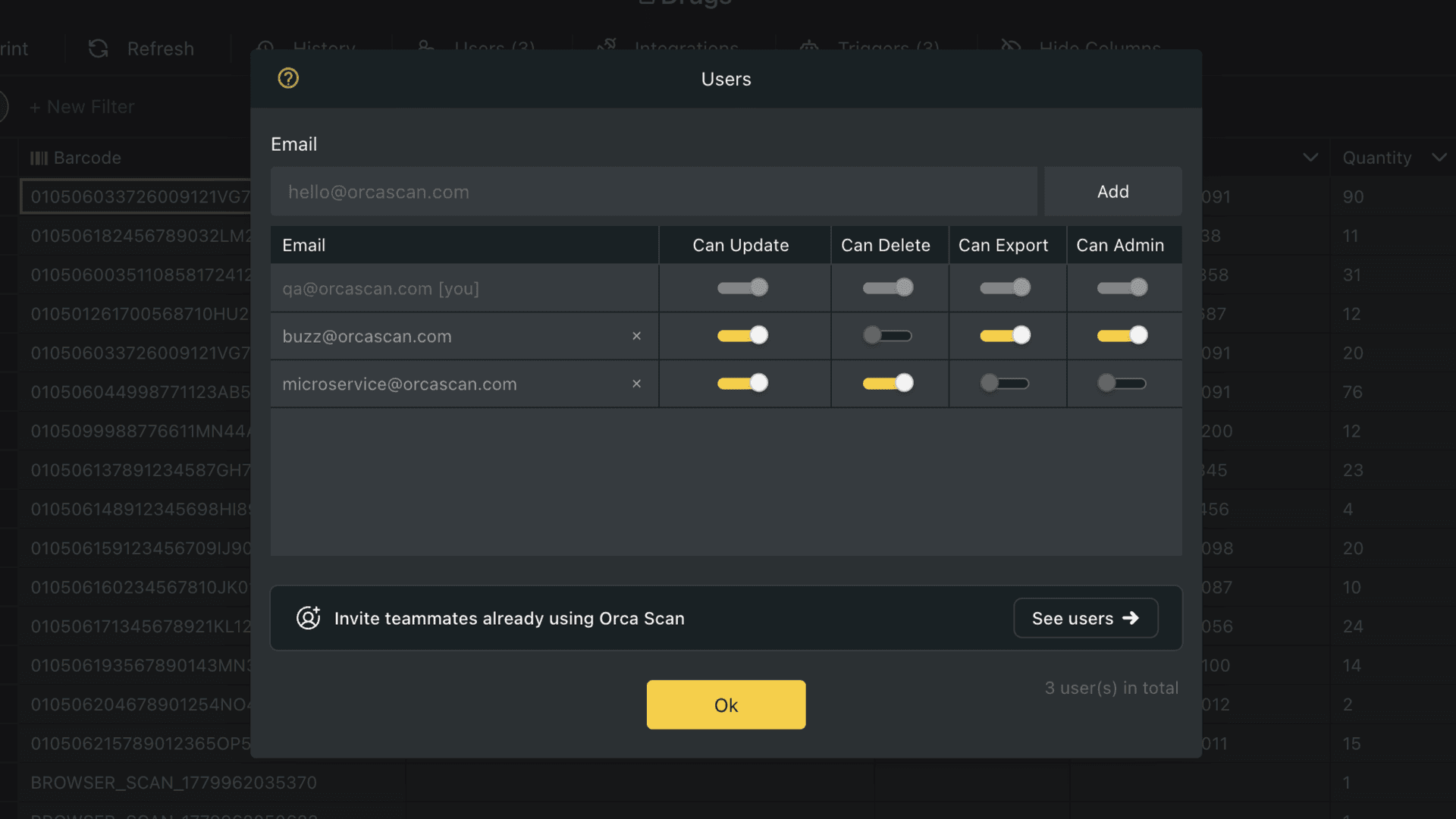
- Update the permissions you’d like each user to have using the toggles
- Click Ok 👌
When you add users, if other Orca Scan users share your email domain, we’ll suggest them to you automatically.
How will users access the sheet?
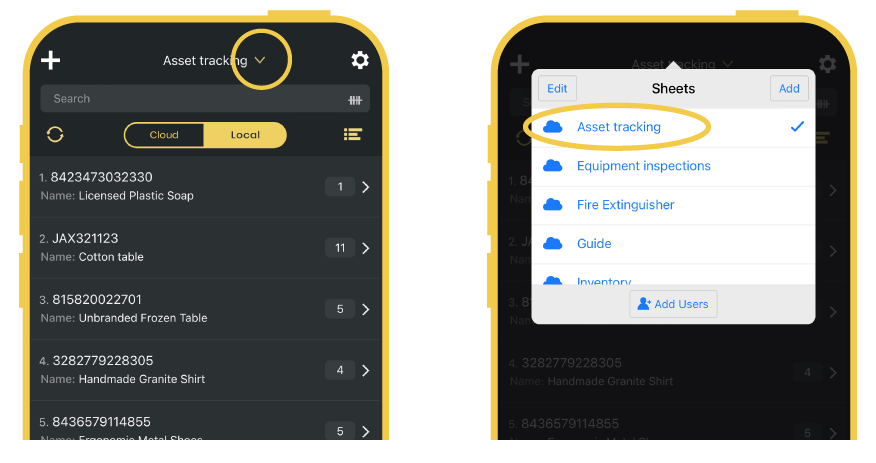
Once added to a sheet, users you’ve added will be able to find it in the sheet overview on their Mobile App.
Set user permissions
When you add a user to your sheet, they have read-only access (they can scan barcodes and view data, but are unable to make changes). On the Web App, you can set permissions on an individual user basis, to grant different access levels to certain members of your team.
| Permission | Description |
|---|---|
| Can Update | User can make changes to existing data and add new items |
| Can Admin | User can add, update, delete, export and alter sheet structure |
| Can Delete | User can delete an item from the sheet |
| Can Export | User can export sheet data from both the web and mobile |
If you only want users to modify select fields or hide fields altogether, read more about the field settings in the customisation guide.
Remove a user from a sheet
To remove a user from an Orca Scan sheet, simply:
- Log in to the Orca Scan Web App
- Select the relevant sheet
- Click the Users tab on the toolbar
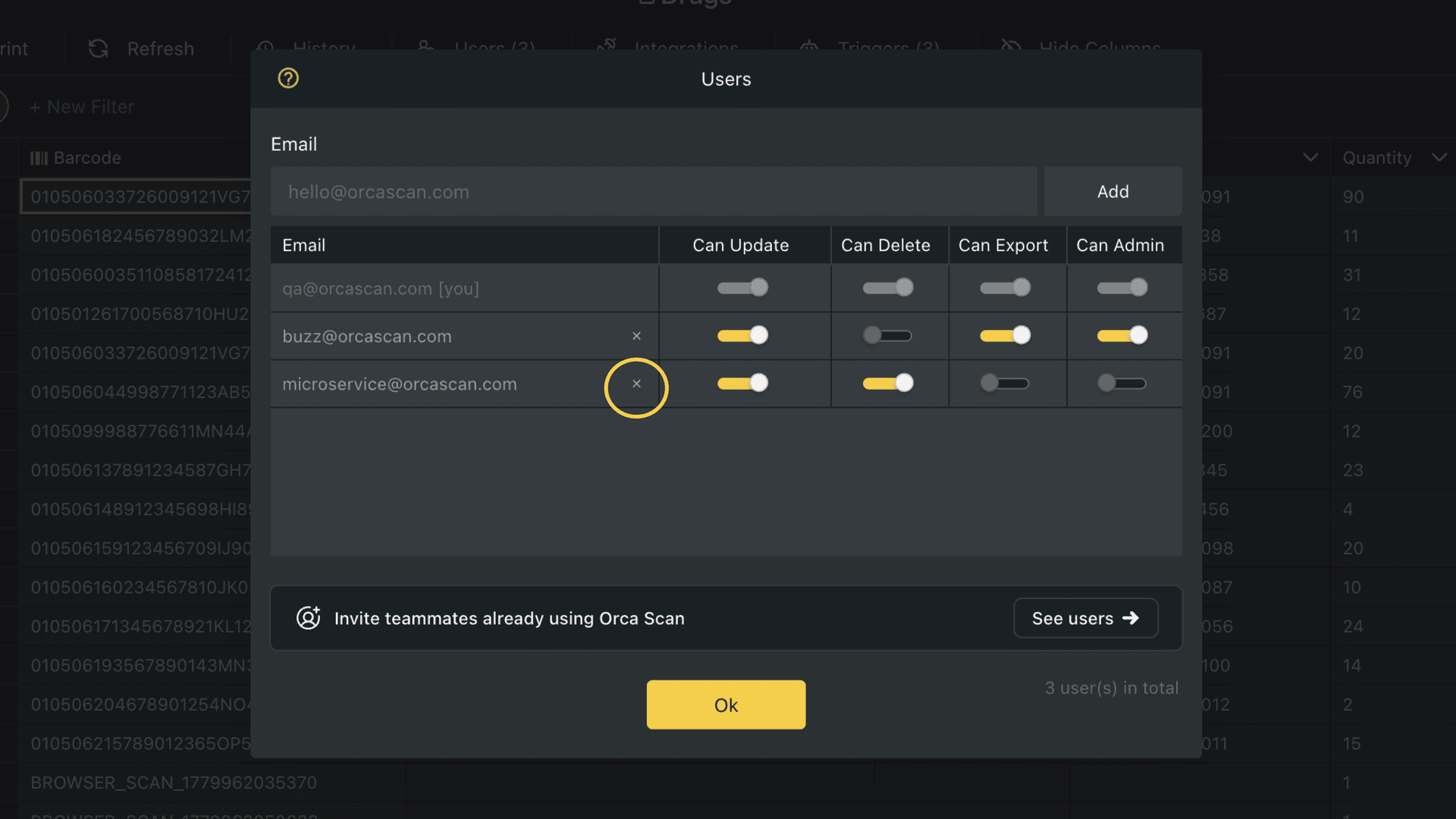
- Click the X to the right of the user you want to remove
That’s it. The sheet will be removed from all devices linked to that user’s account.
Track user activity
When a barcode is scanned and changes are made, Orca Scan automatically records who made the change and which device was used in the history log. Every record includes:
- What action was carried out (item created, item updated or item deleted)
- A timestamp for when the barcode was scanned and the update was made
- The user ID and the device that was used to make the change
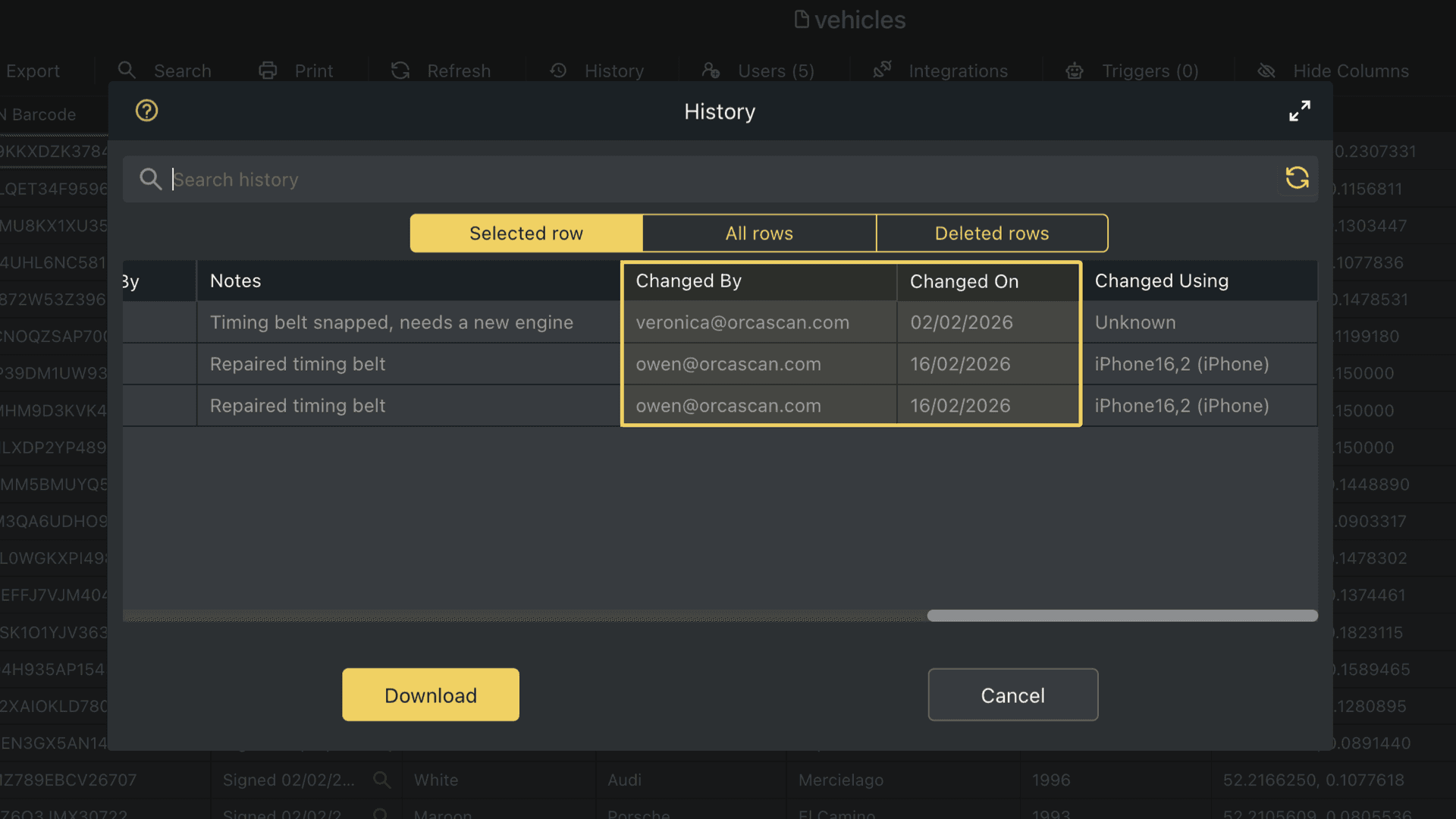
Read more about the history log, audit trails and the benefits of traceability.
Remove yourself from a sheet
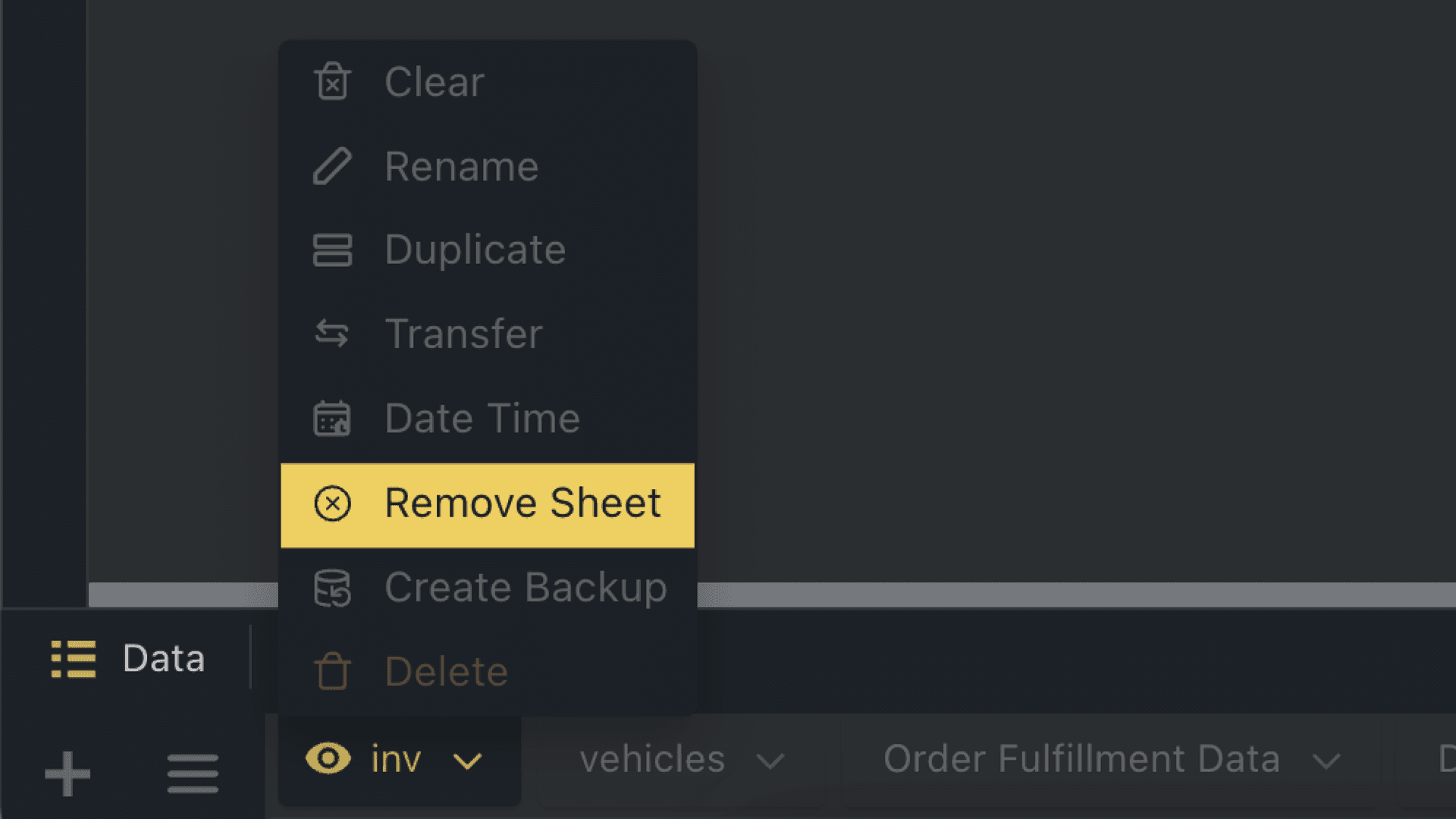
To remove yourself from a sheet someone has shared with you, log in to the Orca Scan Web App, right-click the sheet tab and click Remove sheet.
Next steps
I’ve been added to a sheet. What happens next?
We’ve written a handy guide to help both new and existing users get started with Orca Scan once they’ve been added to a sheet. Read what happens after you’re added to a sheet.
Questions about users and permissions?
We’re always happy to help, chat with us live or drop us an email.