Columns added to your sheet via the Web App directly mirror the fields in the Mobile App, allowing you to modify hundreds of devices remotely from any web browser. No coding needed.
Field types
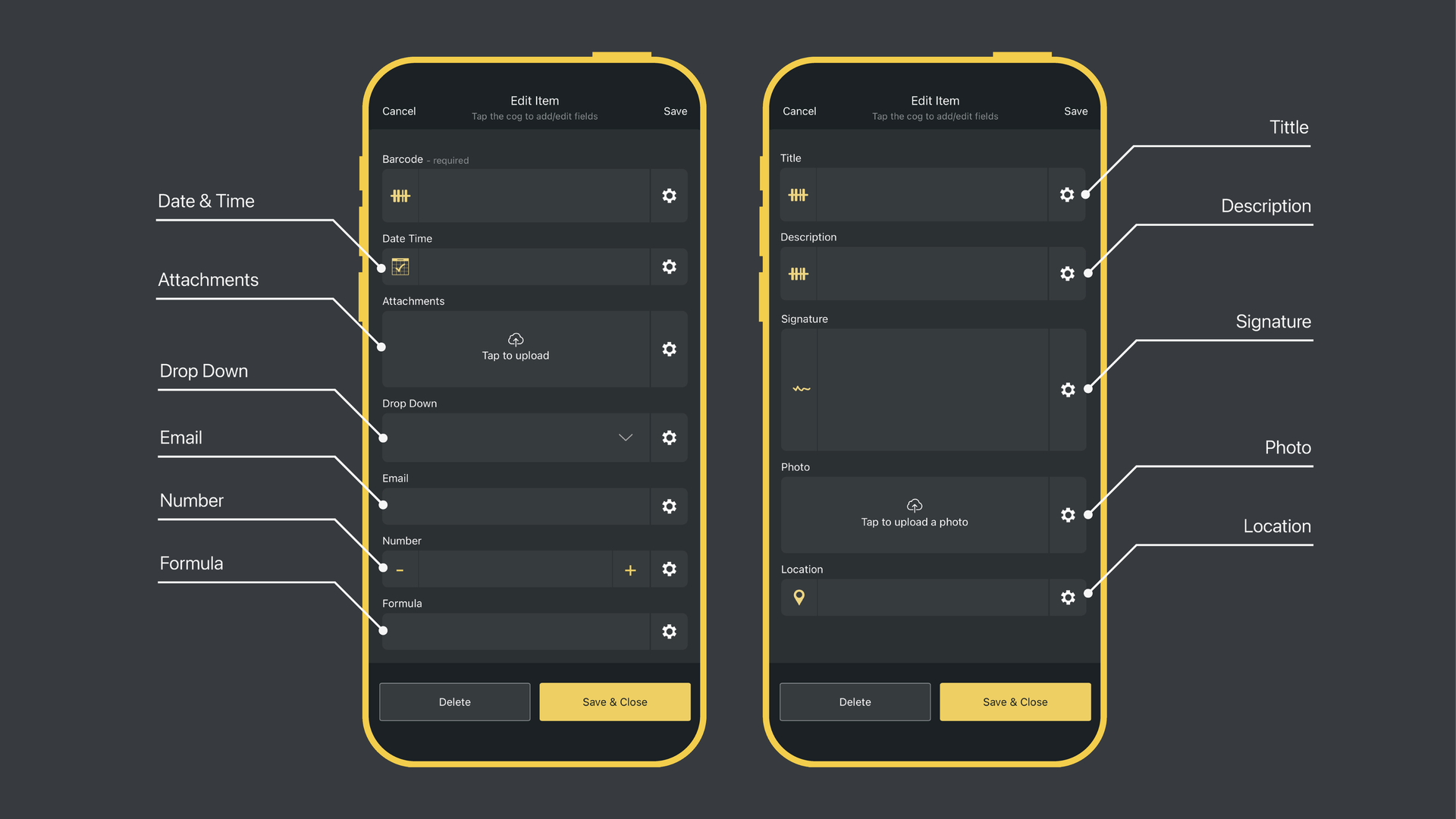
You often want to capture additional data when a barcode is scanned (this could be a photo, GPS location or logging the quantity scanned). To do this, simply add fields using the Orca Scan Web App or Mobile App.
You can choose from the following field types:
| Field Type | Description |
|---|---|
| Attachment | Allows you to attach files, such as documents, PDF files, or other media |
| Currency | Allows you to store and display monetary values in your chosen currency (e.g. USD, EUR, GBP) |
| Date | Inserts a date value when tapping the calendar icon. You can configure the timezone format for each sheet |
| Date (automatic) | Inserts or updates the date value automatically on scan |
| Date Time | Inserts a date & time value when tapping the calendar icon |
| Date Time (automatic) | Inserts or updates the date and time value automatically on scan |
| Drop-Down List | Lets you define a preset list of options for users to choose from. Turn on Multi select to allow more than one choice |
| Has a normal text entry but will only accept the entry of an email format | |
| GPS Location | Inserts the device latitude and longitude values when tapping the GPS icon |
| GPS Location (automatic) | Automatically inserts the device latitude and longitude values on scan |
| Number | Has plus and minus buttons to increase/decrease the quantity. It will highlight what has changed in yellow to make calculations easier |
| Number (auto decrease on scan) | Has the same attributes as the Number field but automatically decreases the quantity by 1 for every scan |
| Number (auto increase on scan) | Has the same attributes as the Number field but automatically increases the quantity by 1 for every scan |
| Photo | Allows you to take or upload a photo |
| Formula | Automatically calculates and inserts the predefined formula |
| Signature | Enables you to add a signature by drawing |
| Text | Can contain text and numbers of any form. It also includes a barcode icon to open the camera and scan a barcode into the field |
| Time | Allows you to insert a time value |
| True/False | Displays as a YES / NO button and inserts a value of TRUE or FALSE in the final dataset |
| URL | Allows you to insert or link to a web address |
| Unique ID | Tapping on the # icon generates and inserts a unique identifier automatically |
| Created By | Displays the email address of the user that created the row |
| Created Date | Displays the date on which the data was initially captured |
| Last Modified By | Displays the email address of the user to last update the row |
| Last Modified Date | Displays the date on which the data was last modified |
Field settings
Each field also has additional settings that alter how it behaves. The options are:
| Setting | Description |
|---|---|
| Allow duplicates | This setting is only configurable on the Barcode field, and allows the same barcode to be used across multiple rows |
| Empty on scan | Clears the field upon scanning, making it easy to enter new values. This is useful when tracking entries with audit trails |
| Empty on edit | Resets the field when the row is edited, allowing for new values to be entered without retaining previous data |
| Hidden in mobile | Hides the entire field from mobile users |
| Hidden in web | Hides the entire column from web users |
| Read-only in mobile | The field is greyed out and mobile users are unable to edit the value |
| Read-only in web | The column is greyed out and web users are unable to edit the value |
| Required | Users must provide a value to save and continue |
| Auto focus | Upon scan, the app will go to this field and open the keyboard to prepare for entry. It allows you to control the flow of entries |
| Auto select value | Will mark an existing value with the cursor to quickly delete or overwrite |
| Show in mobile list | Will display these values in the main list of items. Often, people will use descriptions rather than the actual barcode numbers |
| Searchable in mobile list | Allows users to search by this value in the mobile list |
| Lock column | Secures the column’s configuration, preventing any changes to its settings or structure |
Allow duplicates
This setting only applies to the Barcode field, and allows you to use duplicate barcodes across multiple rows. This can help you to track the same product across multiple records without needing a unique barcode for each one.
Minimum and maximum length
Set the character limits for text input by defining minimum and maximum lengths. This controls the input by requiring a specific number of characters and preventing excessively long entries, keeping values within the specified guidelines. This can only be configured in the Web App.
Default value
The default value automatically fills the field with a pre-set value when the form loads. This is useful for common or expected inputs, allowing users to override if needed and helps to speed up data entry and ensure consistency.
You can also use this setting to add Orca Scan Variables. These variables make it easy to extract data from a barcode and move it to another field automatically on scan.
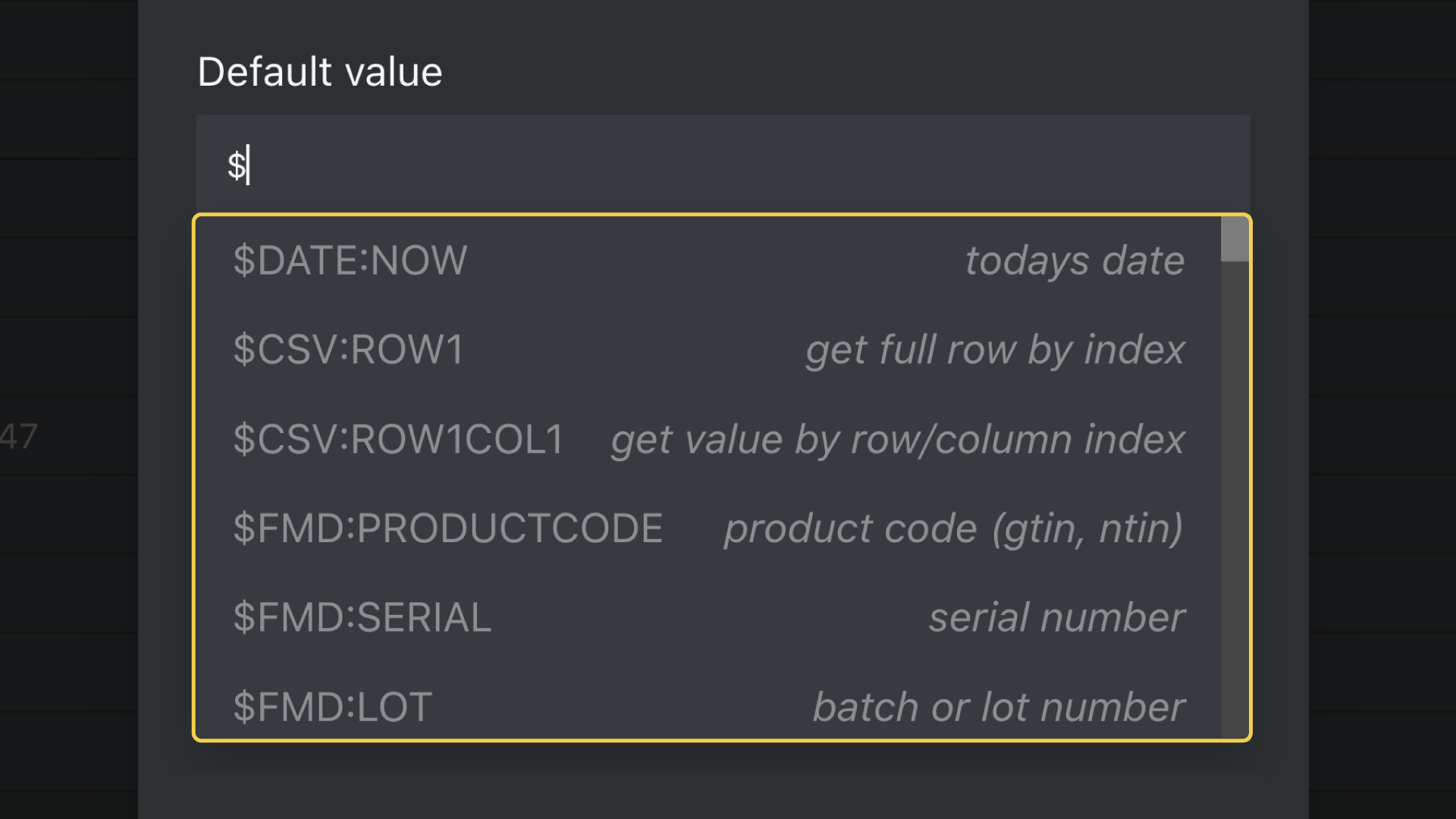
To learn more about Orca Scan Variables and how to optimise the scanning process, check out the variables guide.
Placeholder
Displays example text or a hint inside a field before any data is entered. This helps to guide users on what to input. The placeholder text disappears once the user begins to enter a value.
Hidden fields
The Hidden in mobile and Hidden in web settings hide fields in the Mobile App and in the Web App respectively. They are useful when dealing with sensitive data or removing fields users don’t need to see.
For instance, many users hide the Barcode field as it is rarely important for the end-user to see it. Fields can be hidden and unhidden in the Web App.
Read-only fields
The Read-only in mobile and Read-only in web settings grey out a field’s value and stop users changing it in the Mobile App and Web App respectively. This is useful when populating data only for informational purposes, like prices or descriptions.
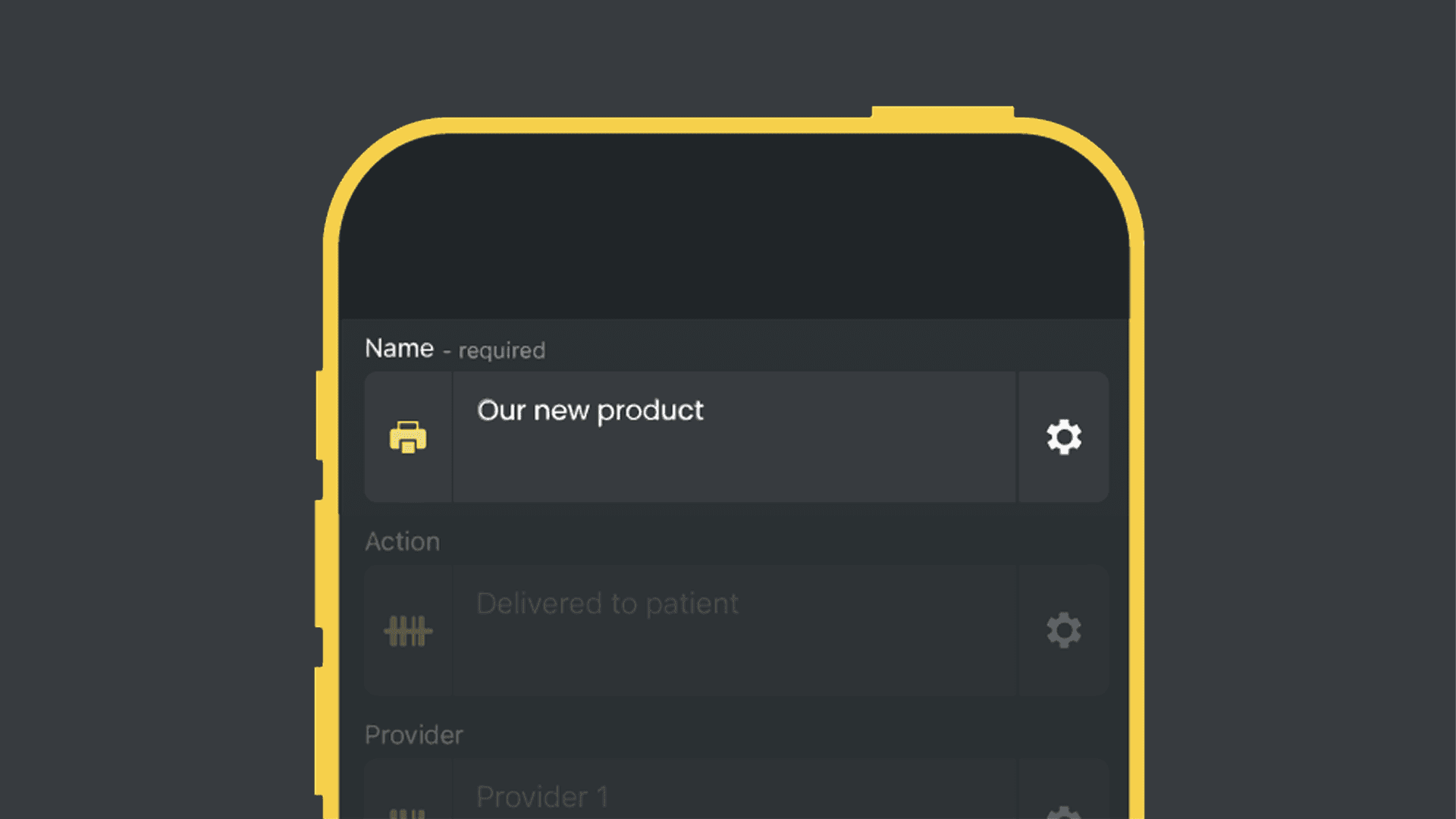
Show in mobile list
This setting allows you to set which fields you would like to be displayed in the Mobile App list.
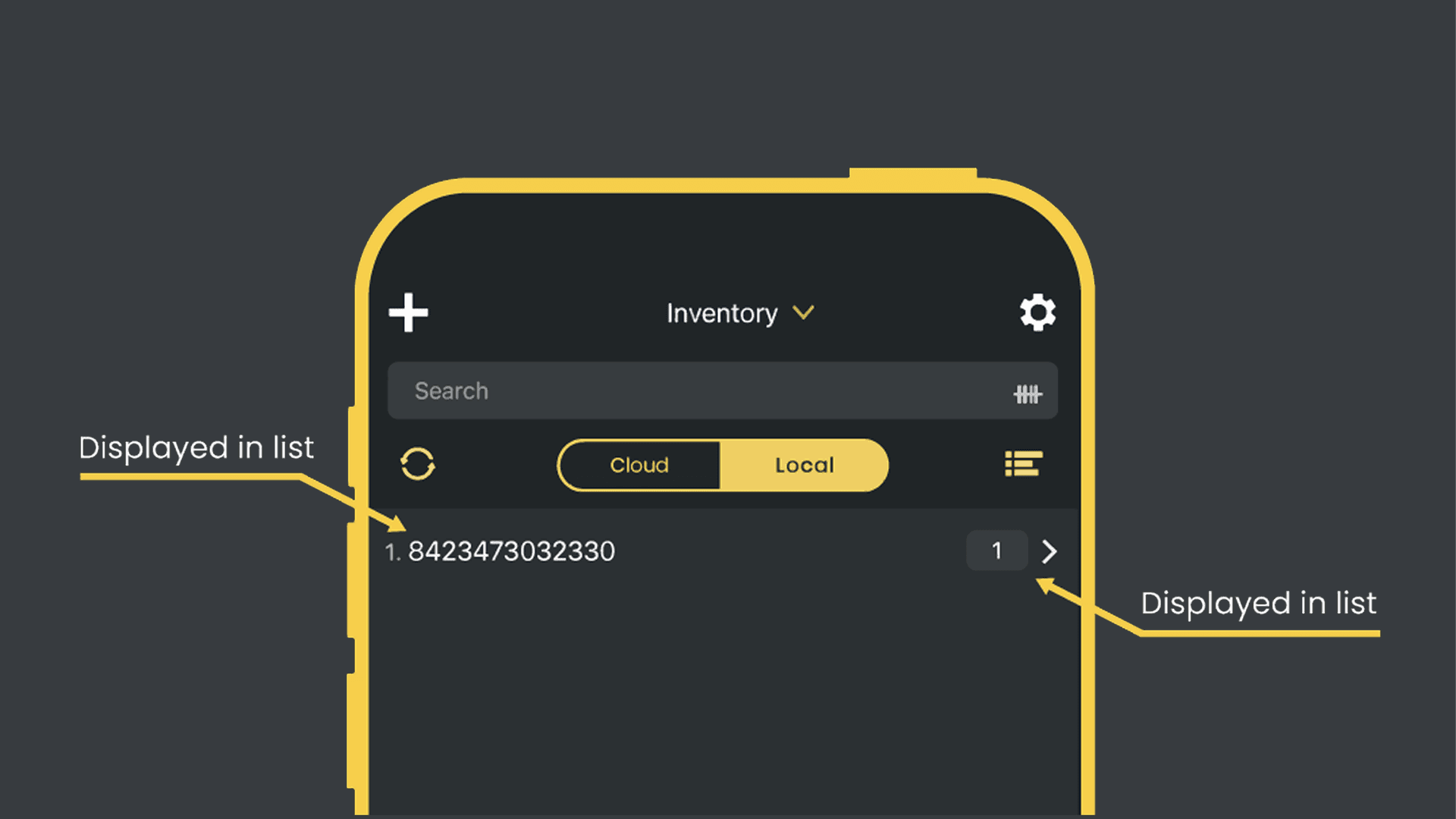
Required fields
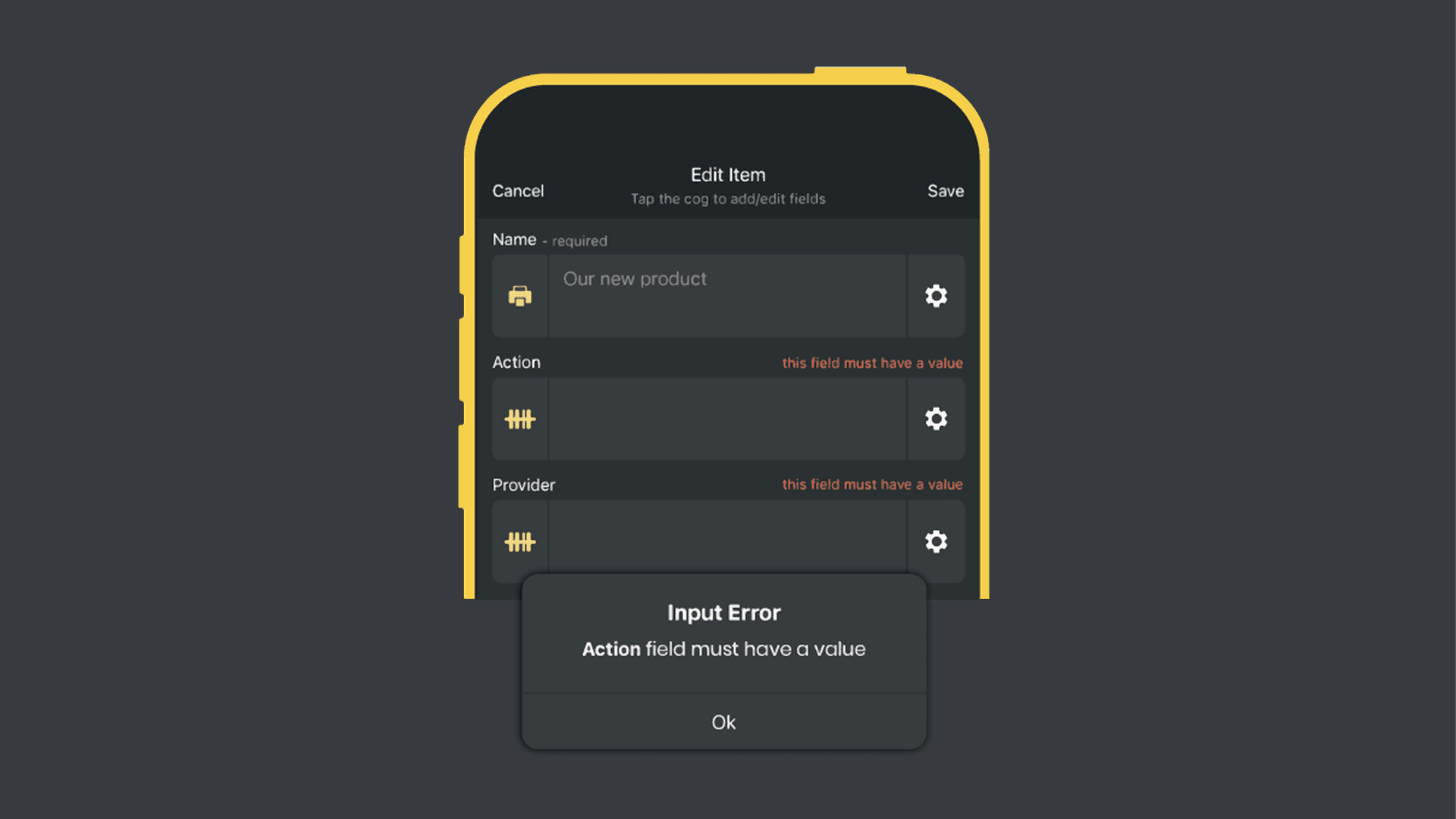
Setting a field to required forces the user to enter a value before they can save and continue, a rule that applies to both individual entries and when using Orca Scan’s bulk update feature.
Important: This setting only applies when fields are empty. If users are scanning the same items repeatedly, consider enabling the Empty on scan setting to force the user to enter a new value on each scan.
Empty fields
The Empty on scan setting clears the value from the field when the barcode is scanned, so that a new value can be entered.
Empty on scan is useful when a new entry is required by users who scan the same barcode. It’s often used with the history log, which logs a per-row timeline of changes.
The Empty on edit setting clears the value from the field when the row is edited, so that a new value can be entered.
Conditional field settings using Triggers
Orca Scan allows you to change field settings dynamically using Triggers. With Triggers, you can show, hide, or require fields based on specific conditions, making your forms more responsive and tailored to your workflow. Here is an example:
Adding a conditional Trigger using the Web App
- Open the Triggers menu in the toolbar
- Select Add
- Input the conditions, for example:
- If field = Item Type
- Condition = Contains
- Condition Value = Electronics
- Then = Show
- Action Field = Serial Number
Trigger activation in the Mobile App
Once you’ve set the conditions in the Web App, the Trigger will activate automatically in the Mobile App. For example, using the conditions above, selecting Electronics as the item type will automatically reveal the Serial Number field during data entry.
Learn more about using Triggers to optimise your workflow, and see more examples.
Next steps
- Manage users and permissions
- Scan barcodes to your Excel spreadsheets
- Import item barcodes to recognise
Questions about configuring fields?
We’re always happy to help, chat with us live or drop us an email.