Listen to this guide
0:00 / 0:00
Orca Scan’s Bulk Update feature makes managing large datasets from the Mobile App simple, and lets you update multiple rows at once in the Web App. Whether adjusting inventory levels, updating statuses, or modifying other details, this guide covers the steps to bulk update your records simultaneously.
Bulk Updating Records in the Mobile App
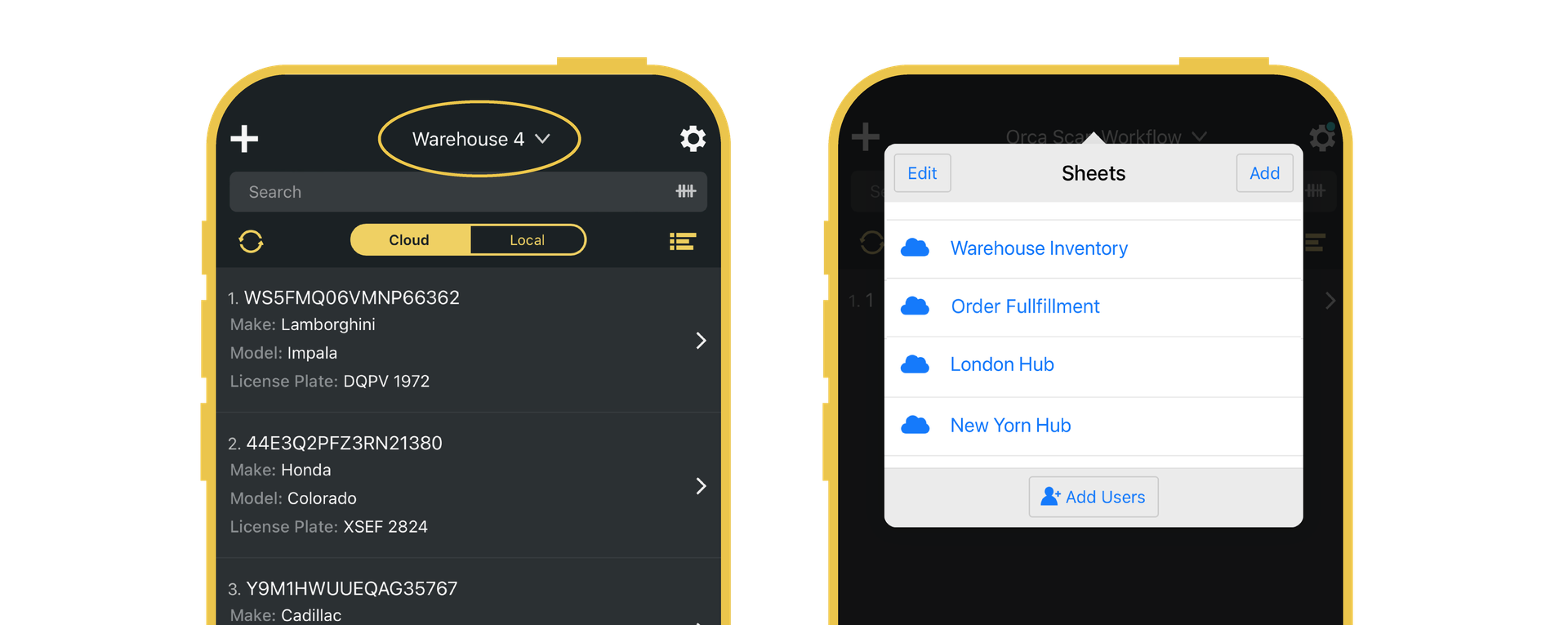
- Open the Orca Scan Mobile App and choose the sheet containing the records you want to update
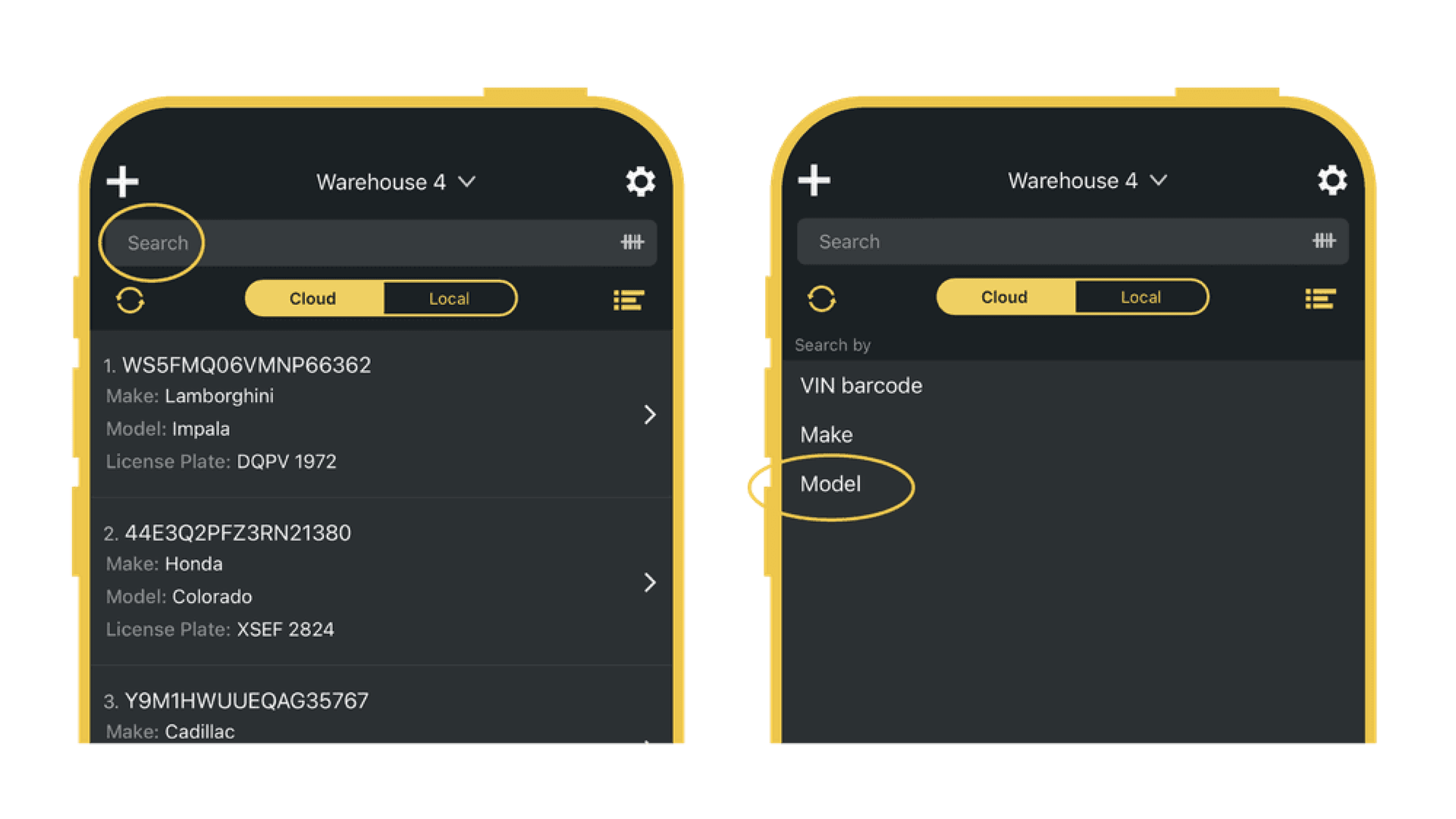
- Tap the Search bar at the top
- Select the field you want to search by (e.g., Product Name, SKU, Location), or scan a barcode to filter records by that value
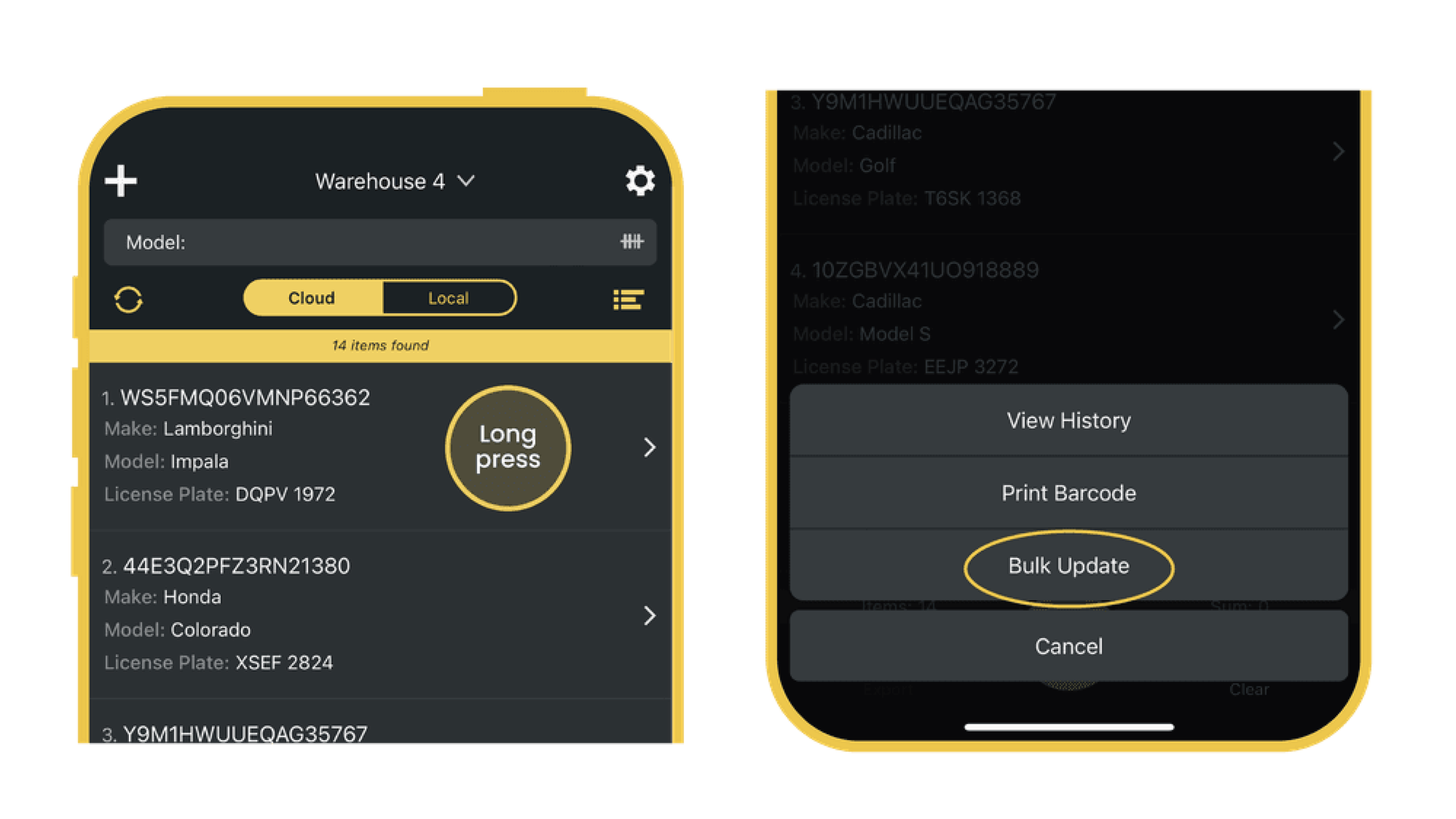
- Long-press any record available in the search results to enable selection mode
- Tap Bulk Update
- Select the field you want to update across the selected records
- Type the change you would like to make
- Tap Update to bring up an overview, then tap Update to apply changes
Bulk Updating Records in the Web App
- Open the Orca Scan Web App and choose the sheet containing the records you want to update
- Click and drag, or use
Shift + Click, to select adjacent rows. UseCtrl + Click(Windows) orCmd + Click(Mac) to select non-adjacent rows - Once selected, right-click anywhere in the highlighted area
- Click the Bulk update option, choose which fields you would like to update across the selected rows
- Type in the new value(s) you want to apply
- Click Update for an overview, then Confirm to apply your changes
Questions about Bulk Updating?
We’re always happy to help, chat with us live or drop us an email.