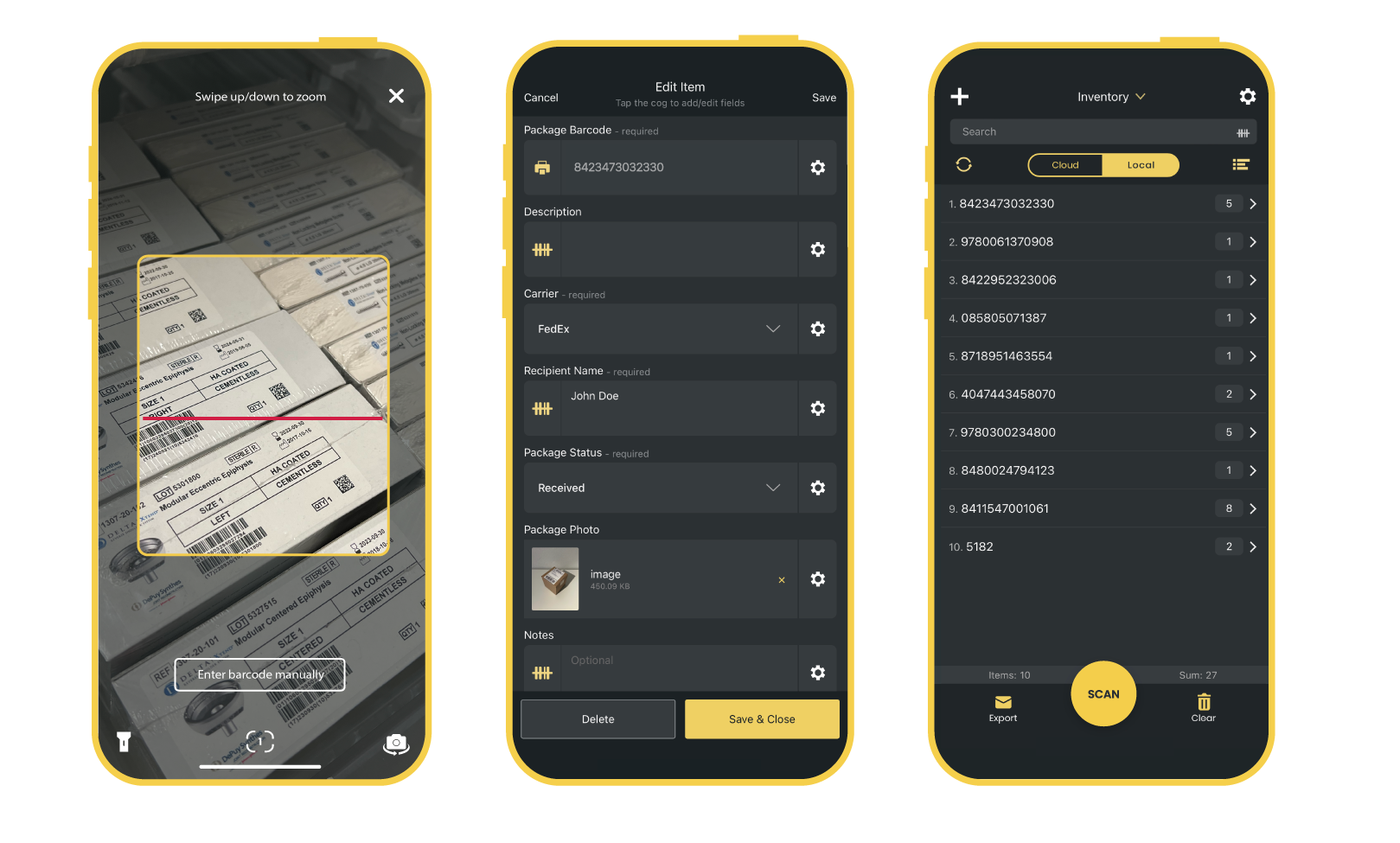
The Orca Scan mobile app turns any smartphone or Android-based hardware scanner into a fully customisable barcode scanning system. It lets teams capture far more than just barcodes, including photos, GPS locations, date and time stamps, and more!
Getting started with Orca Scan
To access all features of Orca Scan, you’ll need to set up a subscription. This can only be done at cloud.orcascan.com.
Using the Orca Scan Web App
To unlock the full potential of Orca Scan, some tasks are best performed on the Web App. Head over to the Web App to:
- Import data and manage users
- Create views, triggers and data sources
- Design barcode labels and view assets on a map
- Set up integrations with tools like Google Sheets and Excel
- Automate workflows with Zapier, Make and other apps
- Connect to analytics platforms like Power BI, Tableau, Data Studio, or our API
For step-by-step instructions, explore our guides and learn how to get started with the Web App.
The basics
To get started with the Orca Scan mobile app, simply… 👇
- Download the Orca Scan application on iOS, Android or supported hardware from the relevant app store
- Log in or create an account
- Scan a barcode and enter any relevant information
Great! Now, let’s explore the mobile interface to uncover its many features and learn how to use them.
Scanning barcodes
As soon as you log in to the mobile app, you’ll be presented with a large scan button. Once pressed, you’ll activate the scanner using your mobile’s rear camera as the default.
Tips for navigating the scanning screen:
- Use the button on the bottom right to switch between the front and rear cameras
- If the environment is a little too dark, tap the bottom left button to turn on the camera flash (only for the rear camera)
- You may notice a feature to enter the barcode manually - this is useful when a barcode is broken
- The bottom middle button, with a number inside, allows you to toggle between different barcode-scanning frames
- To exit, hit the X button in the top right corner
When you’re ready, scan a barcode, fill in the required fields, save and close.
Adding items
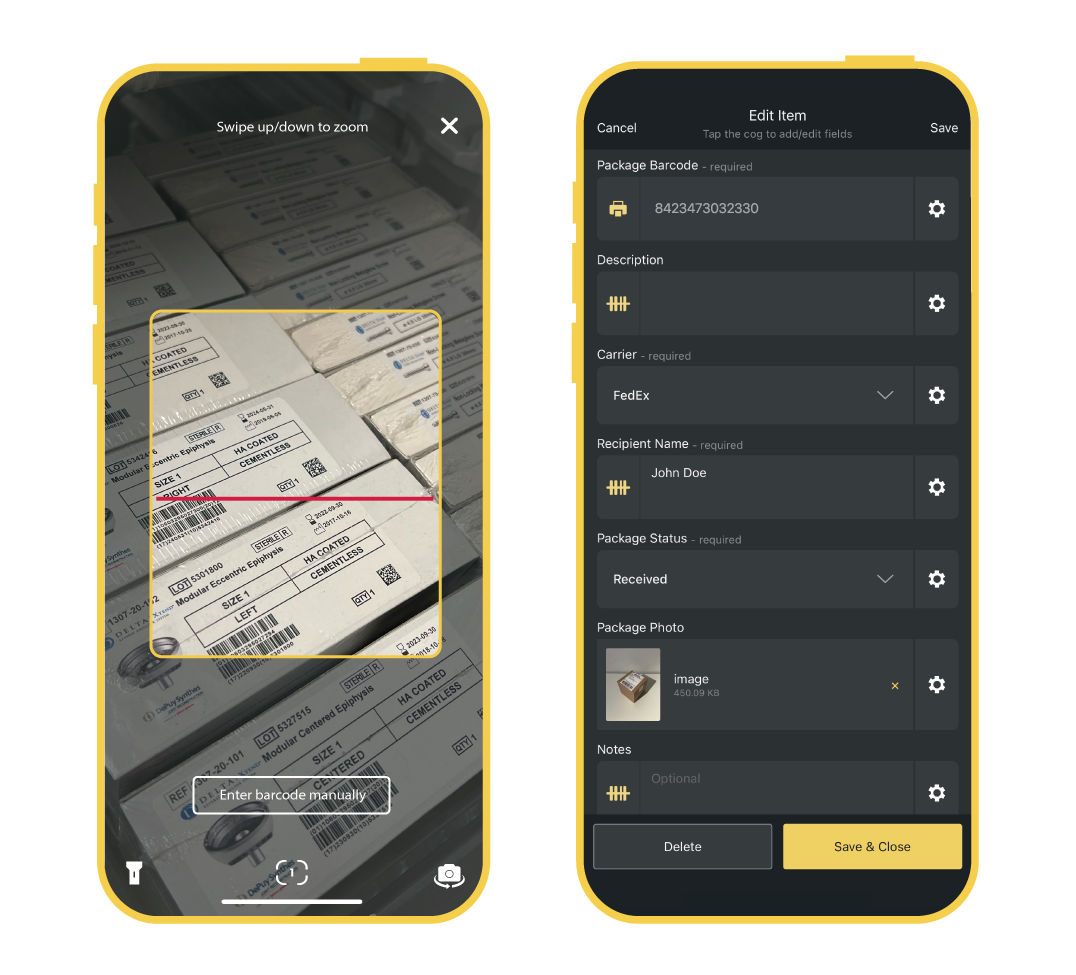
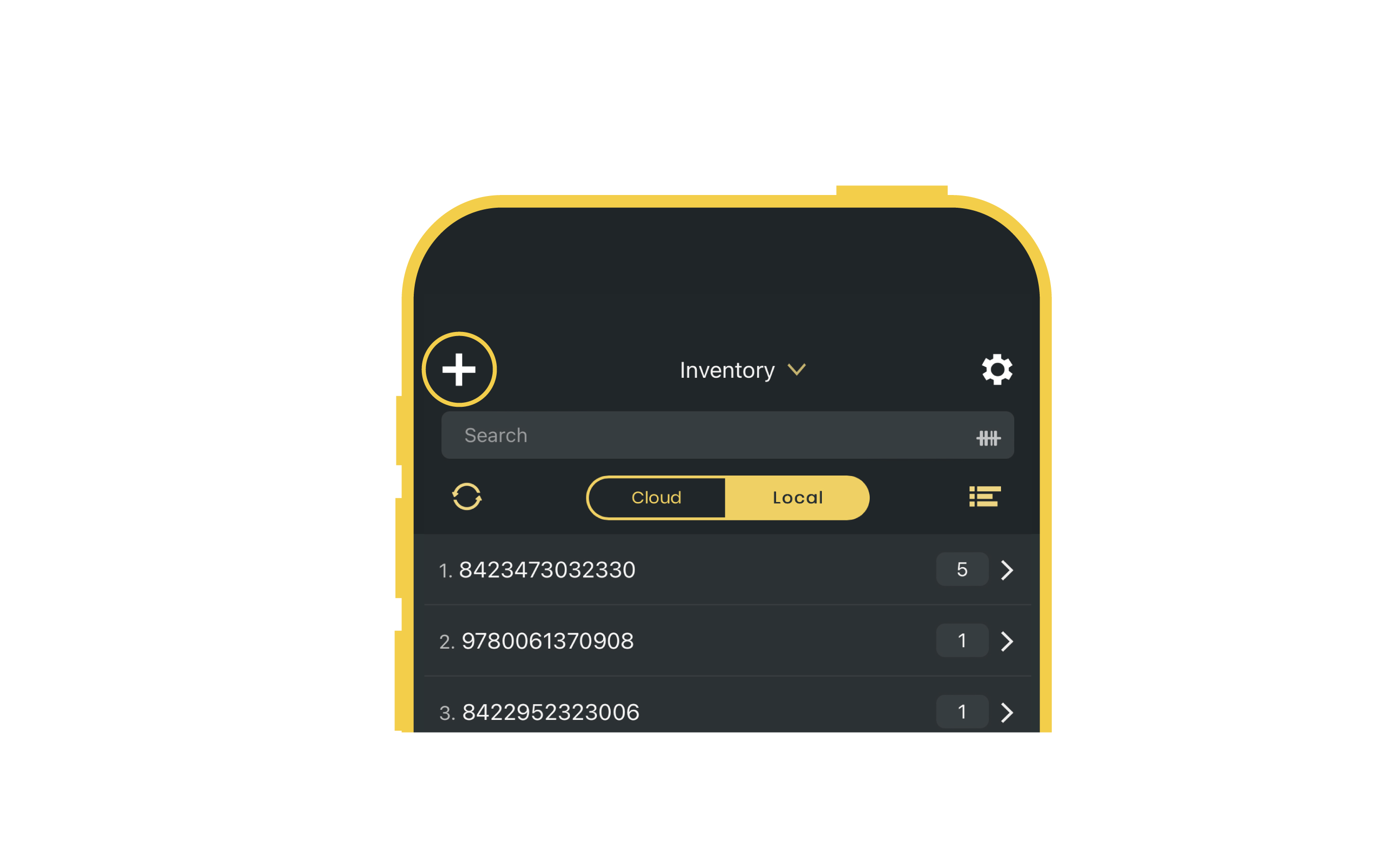
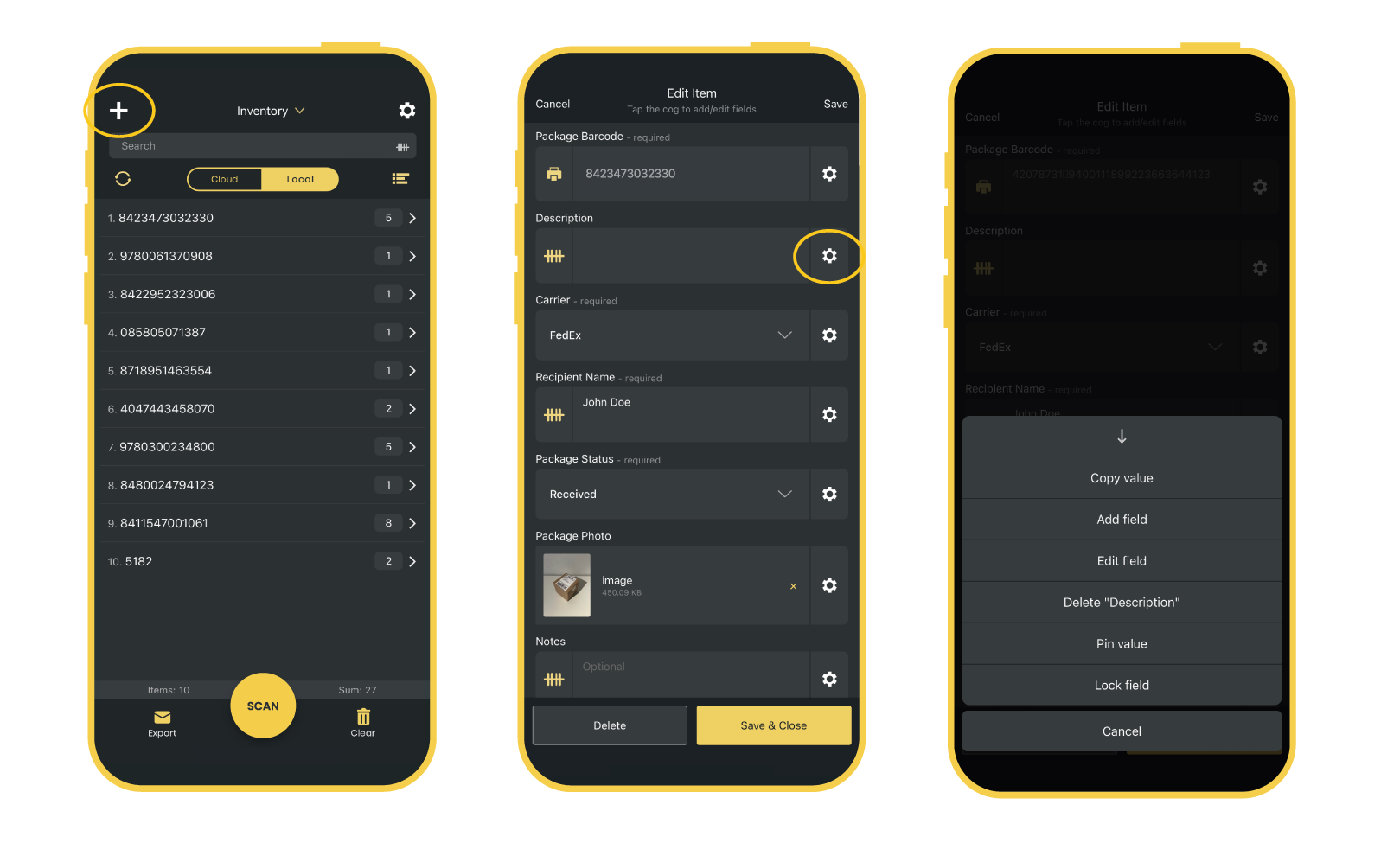
To manually add an item without scanning, simply hit the + button to show the Add item menu along with all of the available data fields - tap the field and fill in the required data, then save and close.
Creating and switching sheets
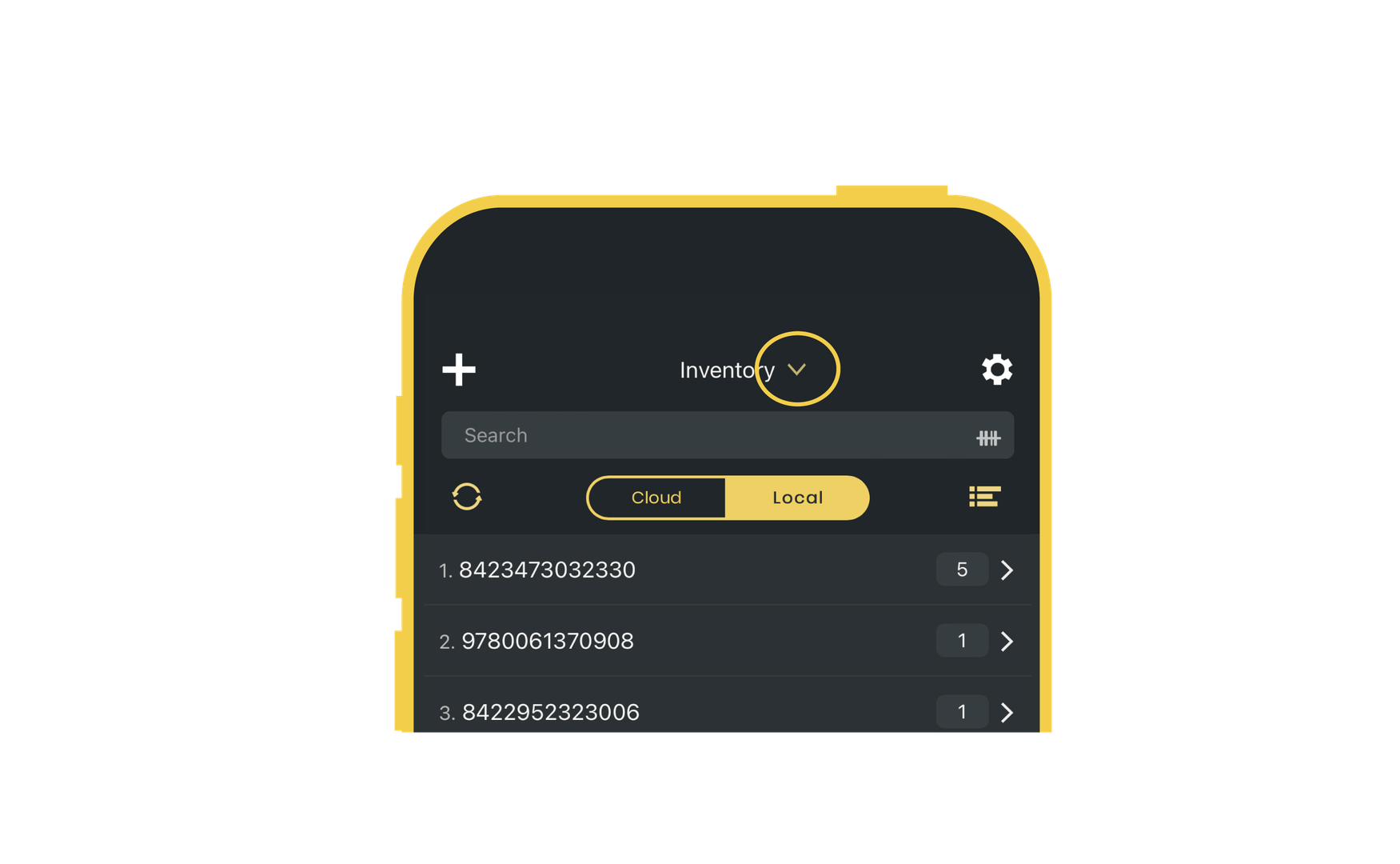
Creating a sheet is easy. Towards the top of the mobile app, you’ll see the name of your current sheet with a dropdown icon. Tap it to see a list of all your sheets, then tap the one you want to work on. To create a new sheet, tap the Add button at the top right and choose a template. You can browse all our templates to find the right one.
To delete or rename a sheet, tap the Edit button on the top left. This will show a ‘-’ button next to the sheet names. To delete a sheet, tap this, and to rename a sheet, simply tap the sheet name… and voilà!
How do sheets work?
Orca Scan was designed around the concept of a spreadsheet; each sheet acts as a separate database with custom data entry fields you define. The data entry fields become columns in the exported spreadsheet.
How is my data stored?
Your data is securely stored in the cloud, enabling synchronisation across multiple devices for hundreds of users. This also allows you to easily integrate your data with other systems you love.
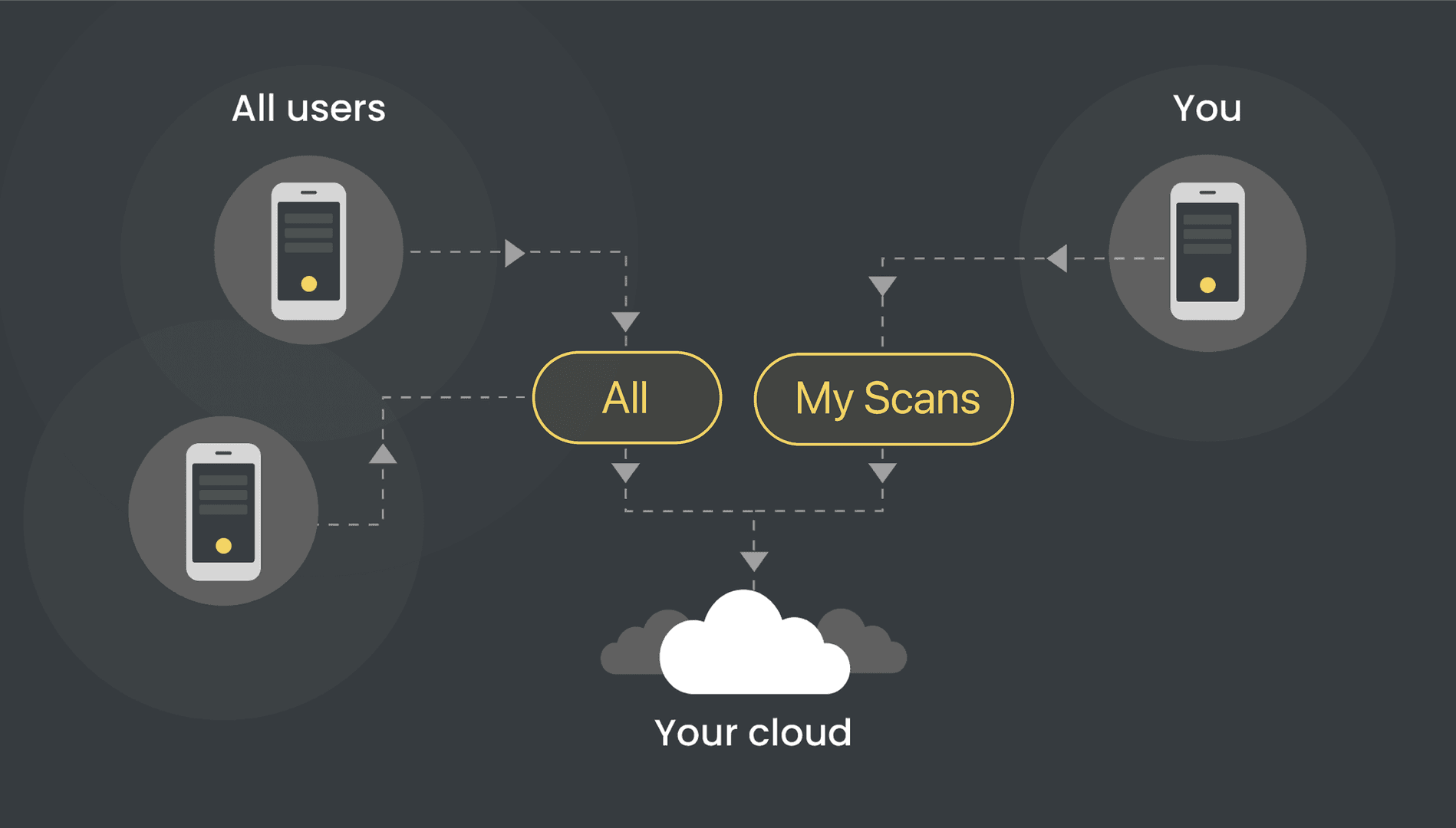
The mobile app provides two tabs, My Scans and All, to help you manage your data:
- All: Displays scans from all users and devices
- My Scans: Displays scans from your device and provides access to data even when offline
These tabs offer a clear view of who is scanning data into your sheet and let you continue working, even without an internet connection.
When scanning, it doesn’t matter if you’re on the My Scans or All tab. All data will sync to the cloud automatically once your device reconnects to the internet.
Sheet permissions
The person who creates the sheet is considered its owner and has full access to modify the sheet. When adding users to a sheet to collaborate, you can control what their permissions are. There are four permissions: Can Update, Can Delete, Can Export and Can Admin.
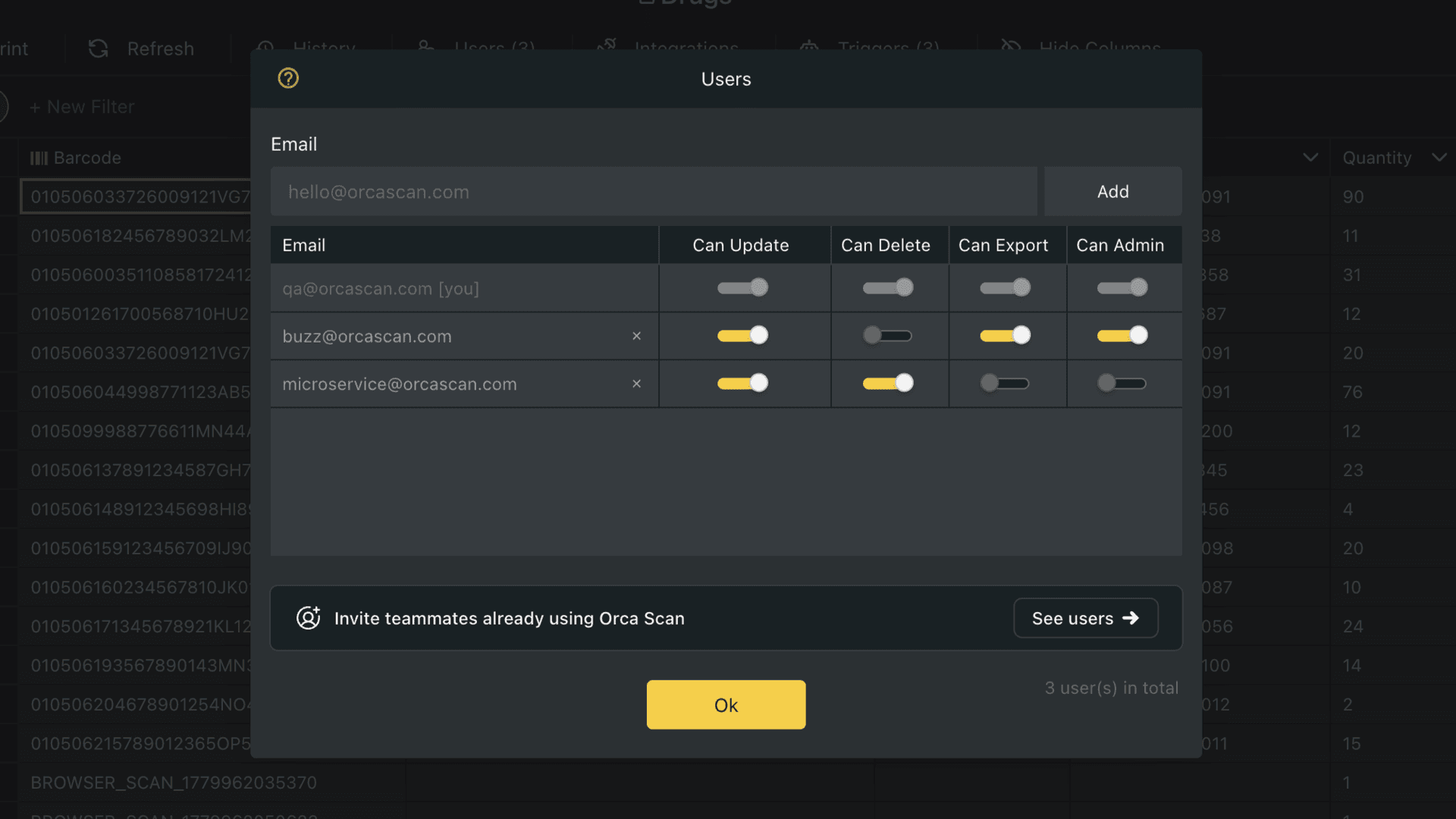
| Permission | Description |
|---|---|
| Can Update | User can make changes to existing data and add new items |
| Can Delete | User can delete an item from the sheet |
| Can Export | User can export sheet data from both the web and mobile |
| Can Admin | User can add, update, delete, export and alter sheet structure |
Learn more about adding users and setting user permissions.
Creating and editing data fields
There are two ways to add new fields or edit existing ones:
- As soon as you scan a barcode, you’ll be presented with an Edit item menu; tap the cog icon on any field to show the menu and select either Add field or Edit field
- This only works if you have scanned a barcode already - see the list of barcodes that have been scanned and tap an item. Once you’ve tapped an item (it doesn’t matter which one), you’ll see the Edit item menu. Select either the Add field or Edit field option
Searching data
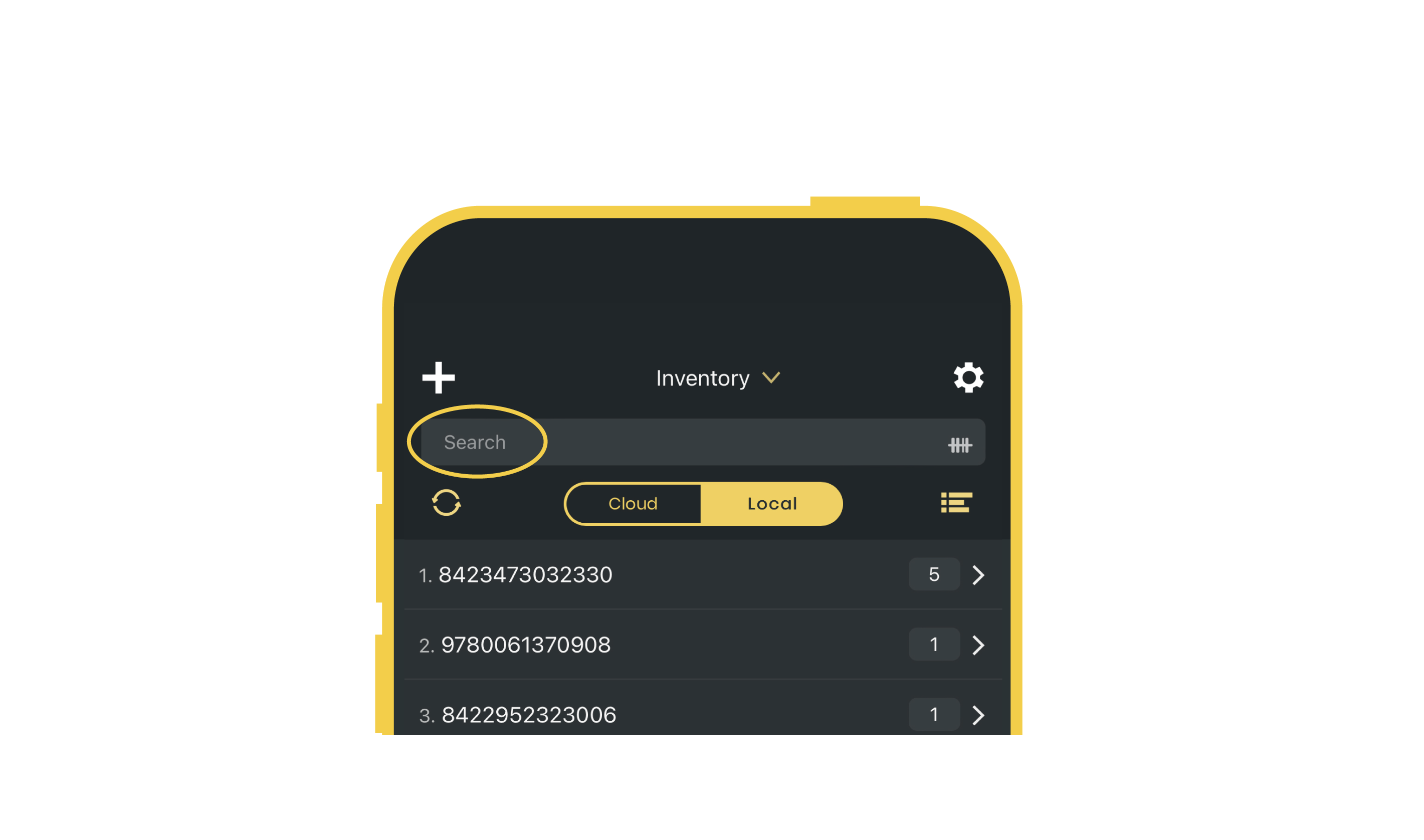
As your barcode data grows in Orca Scan, you’ll need to search through it from time to time. To do this, tap the search bar at the top of the app to search for what you need.
Arranging data
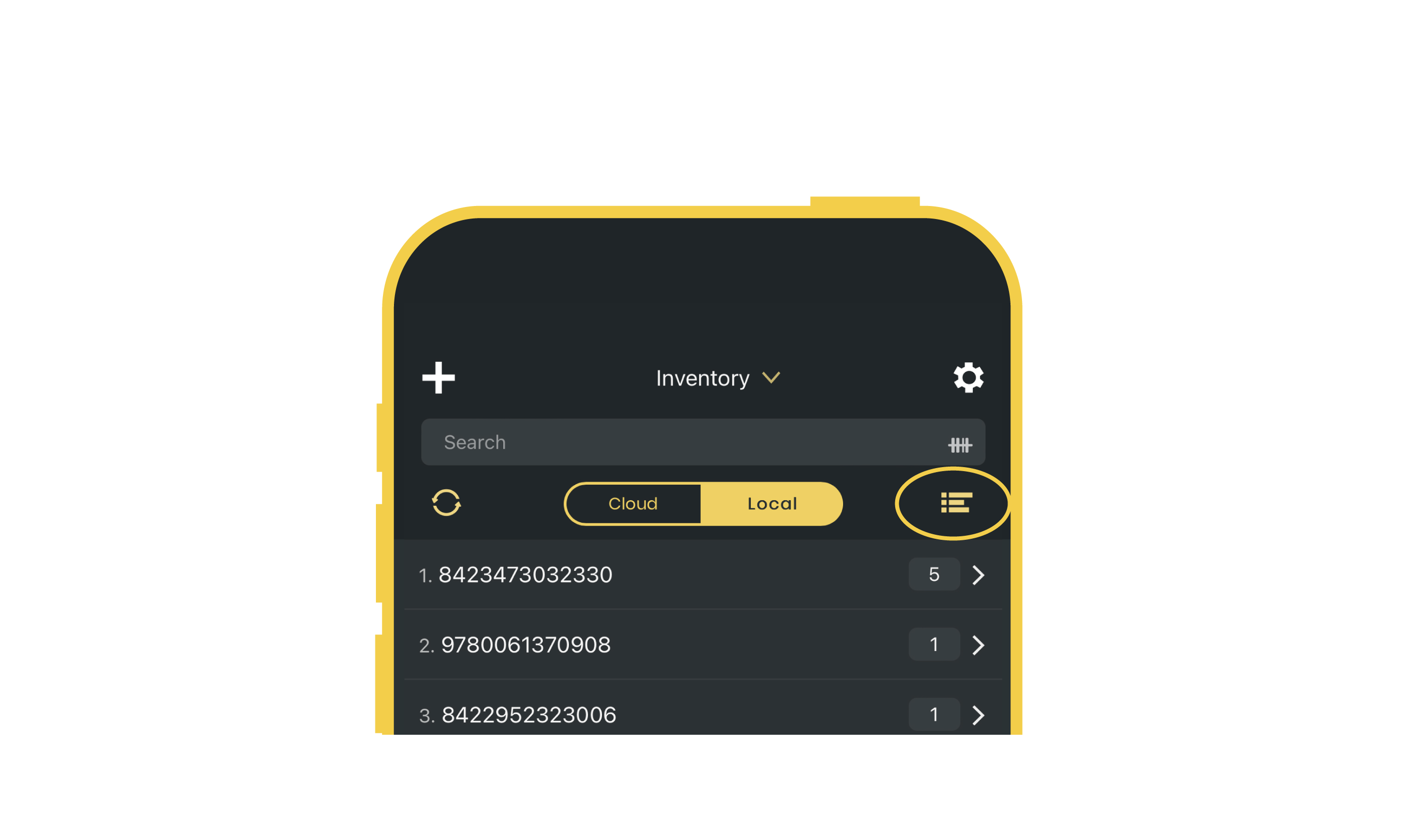
Underneath the search bar is a sorting icon; tap this to load up the Sort by and Group by options. You can sort or group your data by any available data field in the sheet.
Clearing data
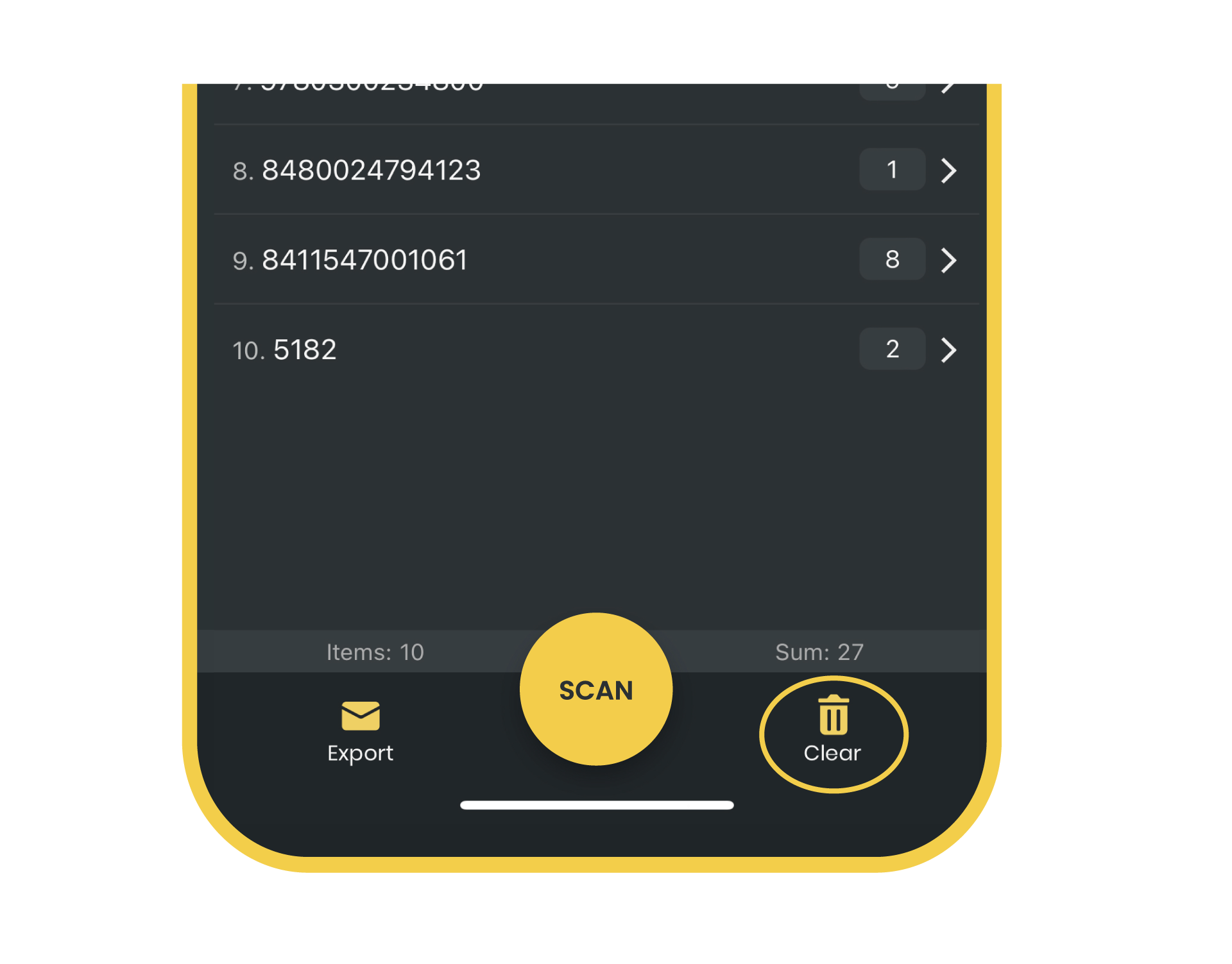
If you need to clear the sheet without deleting it and its data fields, simply hit the Clear button in the bottom right of the app, and press Clear Data.
Exporting your data
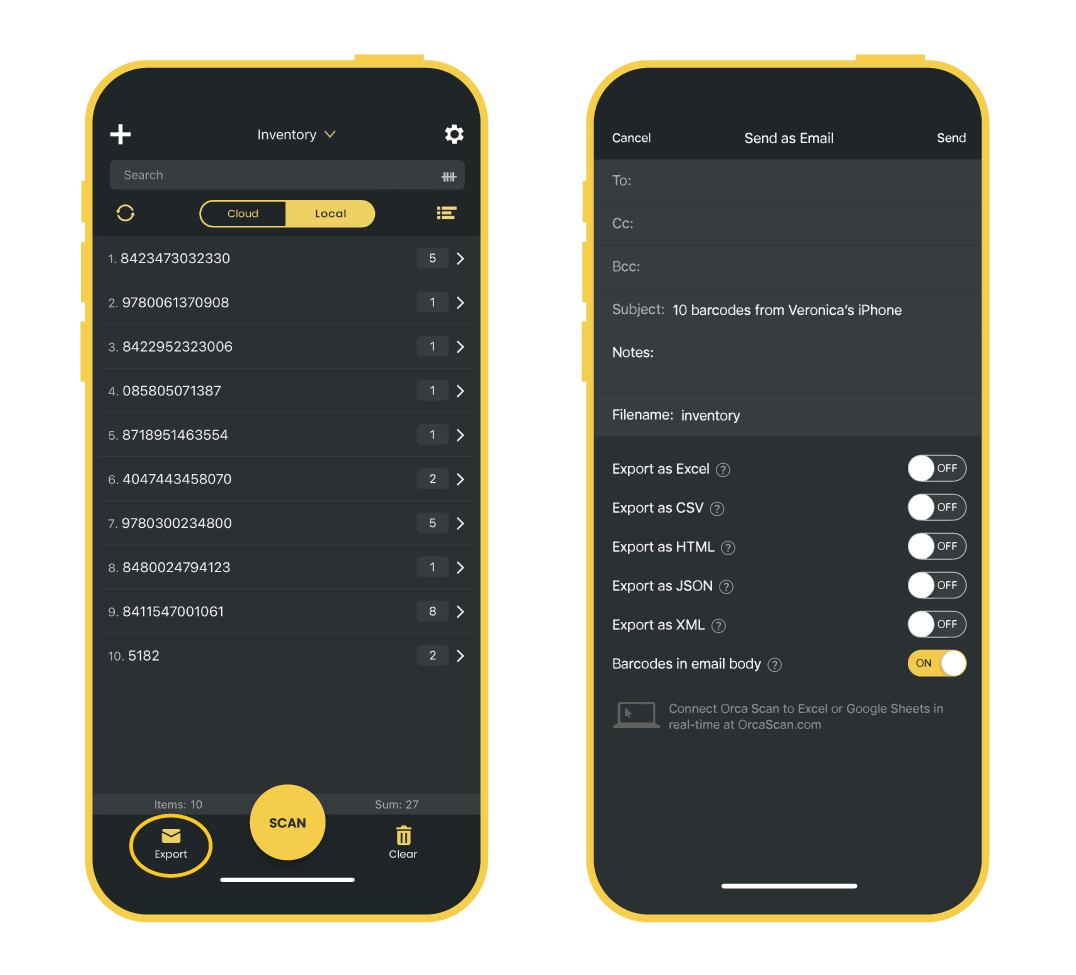
By hitting the export button on the bottom left of the screen, you’ll be presented with options to send as an email, share via an app of your choice, open as a file or print. Sending as an email or opening as a file gives you the flexibility to choose the file format (Excel, CSV, HTML, JSON or XML). Sharing via an app of your choice will export the data as an Excel sheet, and printing sends the data to a connected printer.
Managing your settings
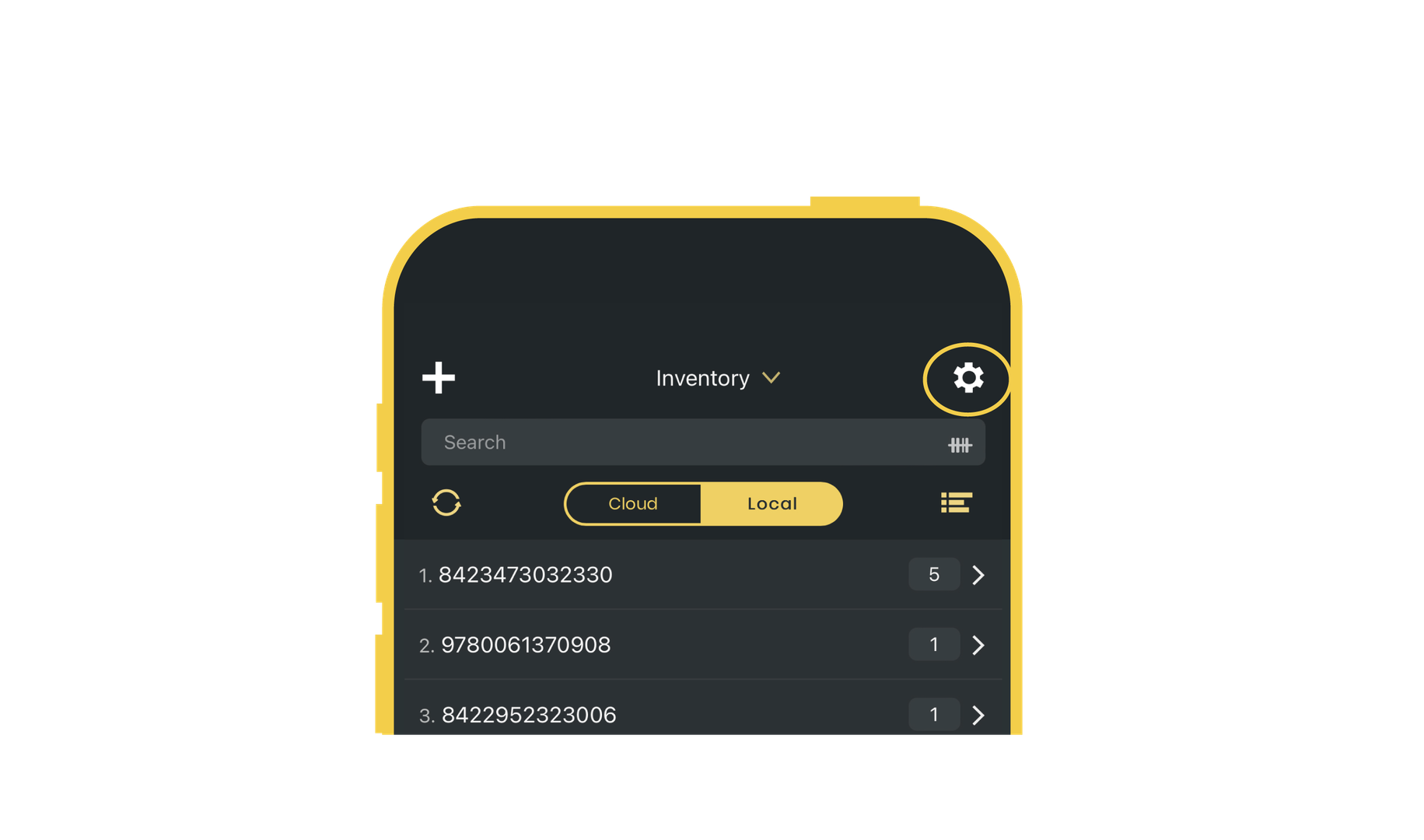
In the top right of the app, there’s a person icon. By tapping this, you’ll be able to access the following:
- Switch between light and dark themes
- Lock screen rotation to portrait or landscape
- Change the in-app language
- Enable the Add detail menu after each scan
- Enable continuous scan mode
- Enable vibrate on scan
- Enable beep on scan
- Enable the front camera as the default
- Enable a PIN to modify settings
Supported barcodes
Here’s a list of all of the supported barcodes (also known as symbologies). They are all supported on Android and iOS, but for Bluetooth scanners/hardware, please check the manual.
- QR Code
- Data Matrix
- UPC-A
- UPC-E
- EAN-8
- EAN-13
- Code 39
- Code 93
- Code 128
- ITF
- PDF417
- Aztec
Supported hardware scanners
Orca Scan has been designed to be device-agnostic and grow with you. Start with mobile devices and progress to industrial scanners as needed. See a full list of compatible scanners here, and if you have questions about compatibility then get in touch.
- Symbol CS4070
- Zebra MC3300
- Zebra MC3300x
- Zebra MC3330R
- Zebra TC51
- Zebra TC52-HC
- Zebra RS5100
- Linea Pro 7i
- Datalogic Memor 20
- Honeywell CT40
- Wasp WWS650
- CipherLab RS35
- Munbyn IPDA056
- Saveo Pocket Scan
- Saveo Scan BOLT
- Saveo Scan Ring
Top tips
1. Using continuous scan mode for bulk scanning
Speed up your workflow by turning on Continuous scan and turning off Add detail after scan when you only need to capture barcodes. This feature automatically saves each item, eliminating the need for manual saving after every scan. You can find these in the settings in the mobile app.
2. Pinning values to repeat entries on scan
When scanning multiple items with shared attributes, such as locations or consignments, you can save time by pinning a common value to repeat automatically across all scans.
Learn more about how to pin values to fields.
Have a question about the Orca Scan mobile app?
If you want more tips or step-by-step instructions on how to use Orca Scan, check out our guides, chat with us live or drop us an email. We’re always happy to help!