You can fetch data from your system when a barcode is scanned using a Lookup URL. Each scan sends the barcode value to your endpoint over HTTP, and the JSON response is used to populate matching fields. Lookup URLs are request-response only and do not modify your external system.
How does the Lookup URL work?
- A user scans a barcode using the Orca Scan mobile app
- A request is sent to your Lookup URL with
?barcode=value - Your server code searches internally for a matching record
- If a match is found, you return the data in JSON format
- Your data is presented to the user within the mobile app
- If the user taps save, the data is saved to your sheet
Note: Your endpoint must return HTTP 200 within 750ms, and JSON keys must match the column names in your sheet or the result will be ignored.
How do I add a Lookup URL to my sheet?
- Login to the Orca Scan web app
- Select the sheet you want to use to query your system
- Click the Integrations button on the toolbar

- Click Data Sources and enter your Lookup URL
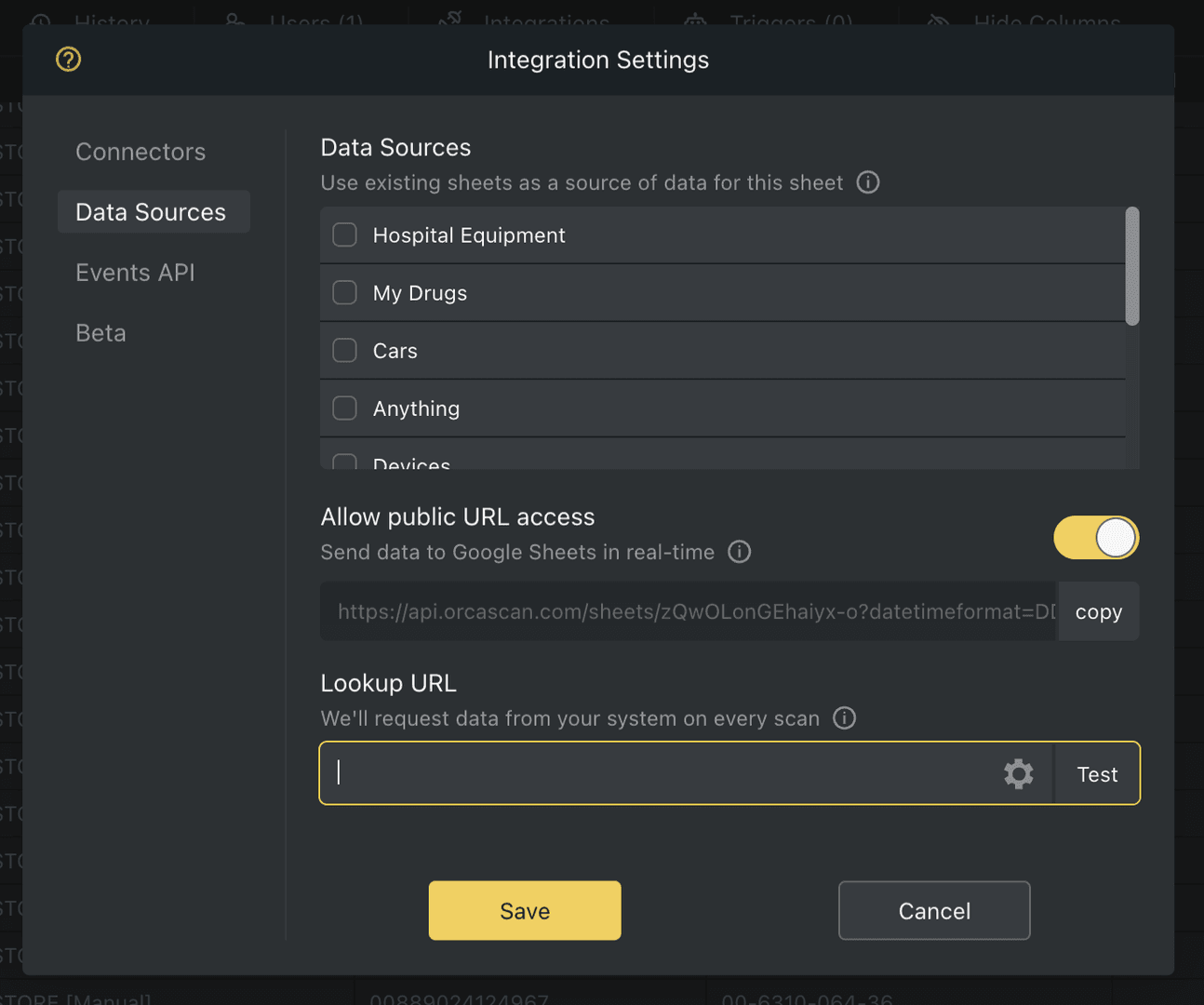
- Click Test to confirm your Lookup URL is accessible
- Save the changes
That’s it. Now scan a barcode to send a lookup request to your service.
How do I create a Lookup URL?
You can create a Lookup URL in a few lines of code:
var express = require('express');
var app = express();

// GET / handler
app.get('/', function (req, res) {

    // get the incoming barcode scanned by a user
    var barcode = req.query.barcode;

    // TODO: query your database or API to retrieve some data

    // create an object to return (property names must match column names)
    var dataToReturn = {
        Vin: barcode,
        Make: 'SUBARU',
        Model: 'Legacy',
        'Manufacturer Name': 'FUJI HEAVY INDUSTRIES U.S.A',
        'Vehicle Type': 'PASSENGER CAR',
        Year: 1992
    };

    // return data to Orca as a JSON object
    res.json(dataToReturn);
});
[HttpGet]
public JsonResult Get()
{
    // get the incoming barcode scanned by a user
    string barcode = HttpContext.Request.Query["barcode"].ToString();

    // TODO: query your database or API to retrieve some data

    // hydrate model (property names must match column names when serialised)
    var result = new OrcaLookupModel(){
        Vin = barcode,
        Make = "SUBARU",
        Model = "Legacy",
        ManufacturerName = "FUJI HEAVY INDUSTRIES U.S.A",
        VehicleType = "PASSENGER CAR",
        Year = 1992
    };

    // return data to Orca as a JSON object
    return new JsonResult(result);
}
// create a GIN router to handle requests
router := gin.Default()

// GET / handler
router.GET("/", func(c *gin.Context) {

    // get the incoming barcode scanned by a user
    barcode := c.Query("barcode")

    // TODO: query your database or API to retrieve some data

    // return JSON object (property names must match column names)
    c.JSON(200, gin.H{
        "VIN": barcode,
        "Make": "SUBARU",
        "Model": "Legacy",
        "Manufacturer Name": "FUJI HEAVY INDUSTRIES U.S.A",
        "Vehicle Type": "PASSENGER CAR",
        "Year": 1992,
    })
})
# GET / handler
@app.route("/")
def index():

    # get the incoming barcode scanned by a user
    barcode = request.args.get("barcode")

    # TODO: query your database or API to retrieve some data

    # create data object to return (property names must match column names)
    data = {
        "VIN": barcode,
        "Make": "SUBARU",
        "Model": "Legacy",
        "Manufacturer Name": "FUJI HEAVY INDUSTRIES U.S.A",
        "Vehicle Type": "PASSENGER CAR",
        "Year": 1992
    }

    # return data in JSON format
    return jsonify(data)
<?php
  // set HTTP content type
  header("Content-Type: application/json");

  // get the incoming barcode scanned by a user
  $barcode = $_GET['barcode'];

  // TODO: query your database or API to retrieve some data

  // create data object to return (property names must match column names)
  $data = [
      'VIN' => $barcode,
      'Make' => "SUBARU",
      'Model' => "Legacy",
      'Manufacturer Name' => "FUJI HEAVY INDUSTRIES U.S.A",
      'Vehicle Type' => "PASSENGER CAR",
      'Year' => 1992
  ];

  // return data as JSON object
  echo json_encode($data);
?>
@RequestMapping(
    value = "/",
    method = RequestMethod.GET,
    produces = "application/json")
@ResponseBody
public HashMap<String, Object> Lookup(String barcode) {

    // TODO: query your database or API to retrieve some data

    // return data as JSON object (property names must match column names)
    HashMap<String, Object> data = new HashMap<>();
    data.put("VIN", barcode);
    data.put("Make", "SUBARU");
    data.put("Model", "Legacy");
    data.put("Manufacturer Name", "FUJI HEAVY INDUSTRIES U.S.A");
    data.put("Vehicle Type", "PASSENGER CAR");
    data.put("Year", 1992);

    return data;
}
Fully working versions of the examples above can be found on GitHub.
HTTP Headers
Each Lookup request includes HTTP headers that identify the source sheet, the user who triggered the barcode scan, and the request type. Use these headers to verify the request, apply sheet specific logic, and log or audit barcode scan activity.
| Parameter | Description |
|---|---|
orca-sheet-id |
Unique ID of the Orca Scan sheet |
orca-sheet-name |
The name of the sheet making the request |
orca-user-email |
Email of user who triggered the request (requires HTTPS) |
orca-timestamp |
UNIX epoch time of the request |
orca-secret |
Sheet assigned secret (check this to verify request) |
orca-request-type |
lookup |
Lookup URL FAQs
How do I connect my development machine?
Expose your local service to the internet so Orca Scan can send Lookup requests to it. The easiest way is using localtunnel:
# expose port 3000 to the internet (change if needed)
npx localtunnel --port 3000
Use the temporary HTTPS URL as your Lookup URL during development, then replace it with a permanent public URL when deploying.
How do I secure my Lookup URL?
Add a secret to your sheet and validate it on every request. The secret is sent as an HTTP header, or can be passed as a query parameter if required.
Can I return an error from the Lookup URL?
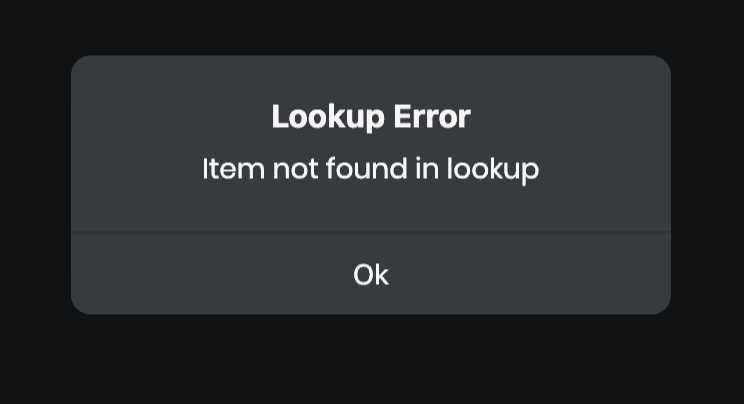
Yes. Return an ___orca_message object in your JSON response, for example:
{
	"___orca_message": {
		"display": "dialog",
		"type": "error",
		"title": "Lookup Error",
		"message": "Item not found in lookup"
	}
}
The following dialog will appear:
You can display non-blocking notification in the app using:
{
    "___orca_message": {
		    "display": "notification",
		    "type": "success",
		    "message": "Please scan next item"
    }
}
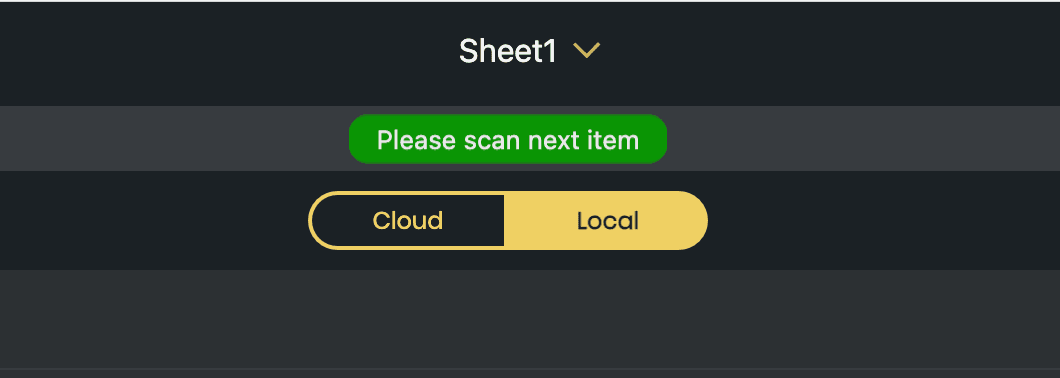
There are three types of notifications to choose from:
| Type | Appearance |
|---|---|
error |
A red notification appears at the top of the app. |
warning |
A yellow notification appears at the top of the app. |
success |
A green notification appears at the top of the app. |
Need help setting up a Lookup URL?
We’re happy to help, chat with us live or book a free implementation call.