Formulas make it easy to automate the calculation of total weights, item quantities versus total value, or cost and quantity.
How to Add a Formula Field
You can add a formula field using either the mobile or web application:
How to Add a Formula Field via the Web App
- Right-click a column and select Add Column
- Give your new column a name
- Set the data type to Formula
- Click Add to add the column
How to Add a Formula Field via the Mobile App
- Scan a barcode or tap to edit an item in the list
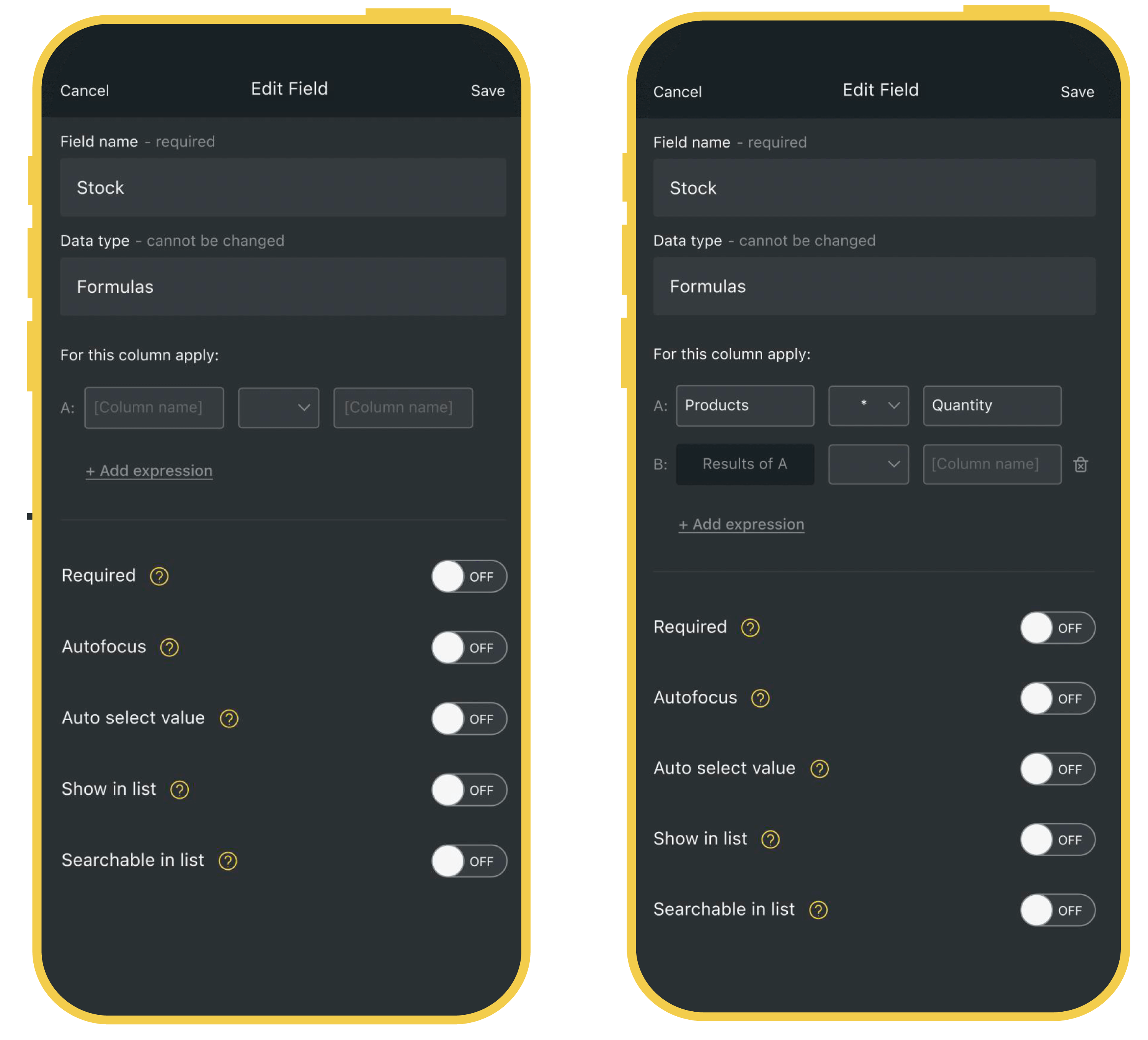
- Tap the cog next to any of the fields
- Give your new field a name
- Set the data type to Formula
- Tap Save to add the field
How to create a Formula
From either mobile or web:
- Edit or add your formula field
- Select the first column for your calculation
- Select a calculation method (divide, multiply, add and more)
- Select another column to complete the calculation
- Tap Save
Now, refresh the mobile app, scan a barcode, and see your formula in action.
Powerful Formulas for Orca Scan
Formulas in Orca Scan can automate calculations, making your work faster and more accurate. Here’s how to set up and use some key formulas:
Total Stock Value
Calculate the total value of your stock by multiplying the quantity by the price:
- Create a Quantity and Price column
- Add a new column Quantity, assign it a Data type of Number
- Add another column Price, assign it a Data type of Number
- Save your changes
- Enter the quantity and price for each item
- Create a Total Stock Value column
- Add a new column Total Stock Value, assign it a Data type of Formula
- Set the formula: Quantity x Price
- Save to apply the formula
Total Weight
Determine the total weight by multiplying the weight of each item by its quantity:
- Create a Weight & Quantity column
- Add a new column Weight, assign it a Data type of Number
- Add a new column Quantity, assign it a Data type of Number
- Save your changes
- Enter the weight and quantity for each item
- Create a Total Weight column
- Add a new column Total Weight, assign it a Data type of Formula
- Set the formula: Quantity x Weight
- Save to apply the formula
Reorder Quantity
Know how many items to reorder by subtracting current stock from the reorder level, which ensures you always manage component levels, for example:
- Create a Reorder Level and Current Stock column
- Add a new column Reorder Level, assign it a Data type of Number
- Add a new column Current Stock, assign it a Data type of Number
- Save your changes
- Enter the quantities for each item
- Create a Reorder Quantity column
- Add a column Reorder Quantity, assign it a Data type of Formula
- Set the formula: Reorder Level - Current Stock
- Save to apply the formula
Now, you’ll instantly see the quantity needed to reorder. This works seamlessly with the low stock notification trigger.
Calculate Discounted Price
Easily calculate the discounted price of an item by applying a percentage discount to the original price.
- Create a Price column
- Add a new column Price, assign it a Data type of Number
- Save your changes
- Create a Discounted Price column
- Add a column Discounted Price, assign it a Data type of Formula
- Set the relevant discount rate: Price x 0.8 (for a 20% discount)
- Save to apply
Profit Per Item
Find your profit by subtracting the cost from the sales price:
- Create a Sales Price & Quantity column
- Add a new column Sales Price, assign it a Data type of Number
- Add a new column Quantity, assign it a Data type of Number
- Save your changes
- Enter the sales price and quantity for each item
- Create a Profit column
- Add a new column Profit, assign it a Data type of Formula
- Set the formula: Quantity x Profit
- Save to apply the formula
Questions about Formulas?
We’re always happy to help, chat with us live or drop us an email.