Listen to this guide
0:00 / 0:00
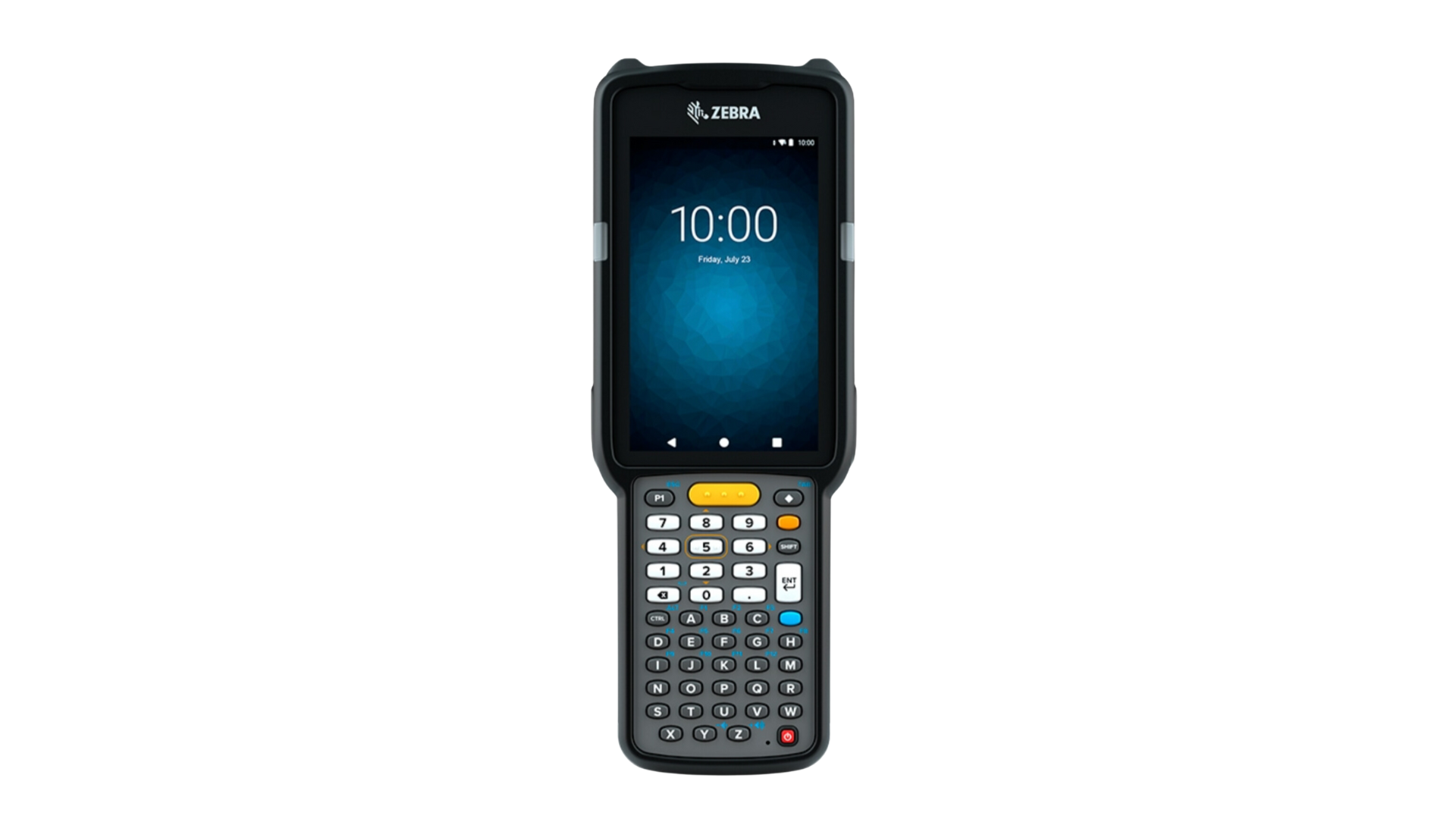
The Zebra MC3300ax is a rugged Android mobile computer with a 4” touchscreen, multiple scanning options, Wi-Fi 6, and a pistol grip variant for scan-intensive workflows.
Zebra MC3300ax specs
- Built in 1D/2D Barcodes
- Standard SE4850 & SE4770 scanning range & 3 in. to 70 ft. extended range
- Android 11 Operating System
- Memory of up to 4GB RAM / 32GB Flash & microSD up to 256GB
- Wi-Fi 6 (802.11ax), Bluetooth 5.1 & NFC connectivity options
- Qualcomm Snapdragon 660 octa-core processor
- 4” WVGA display
- 7000 mAh PowerPrecision+ Li-Ion, hot-swappable battery
- IP64-rated
- Optional 13 MP rear-facing camera
- Available in standard, pistol grip, turret, and 45-degree scan configurations
Zebra MC3300ax setup guide
The Zebra MC3300ax does not have a Google Play Store, so you’ll need to follow the steps below to install Orca Scan on the device:
- Open a web browser on the device
- Download the Orca Scan app
- Go to Settings > Security and enable Allow install from unknown sources
- Go to the download folder, open the orca-scan.apk and run install
- Open the DataWedge application
- Select Profile0
- Enable Keystroke output
- Tap Key event options
- Set Inter character delay to 10 milliseconds
- Enable Set Characters as Events
- Launch Orca Scan mobile app
That’s it! You can now use the scan buttons on the MC3300ax to capture data.
Scan barcodes into the systems you love
You can now use the MC3300ax to scan barcodes into the following systems:
- Scan barcodes to your Excel spreadsheets
- Scan barcodes to your Google spreadsheets
- Scan barcodes into MySQL
- Build dashboards in Google Data Studio
- Visualise barcode data in Microsoft Power BI
Zebra MC3300ax related questions?
We’re happy to help troubleshoot any issues using Orca Scan with the Zebra MC3300ax, feel free to chat with us live or drop us an email.
Request a device integration
Need help getting Orca Scan working with your hardware? Request a Device Integration