Listen to this guide
0:00 / 0:00
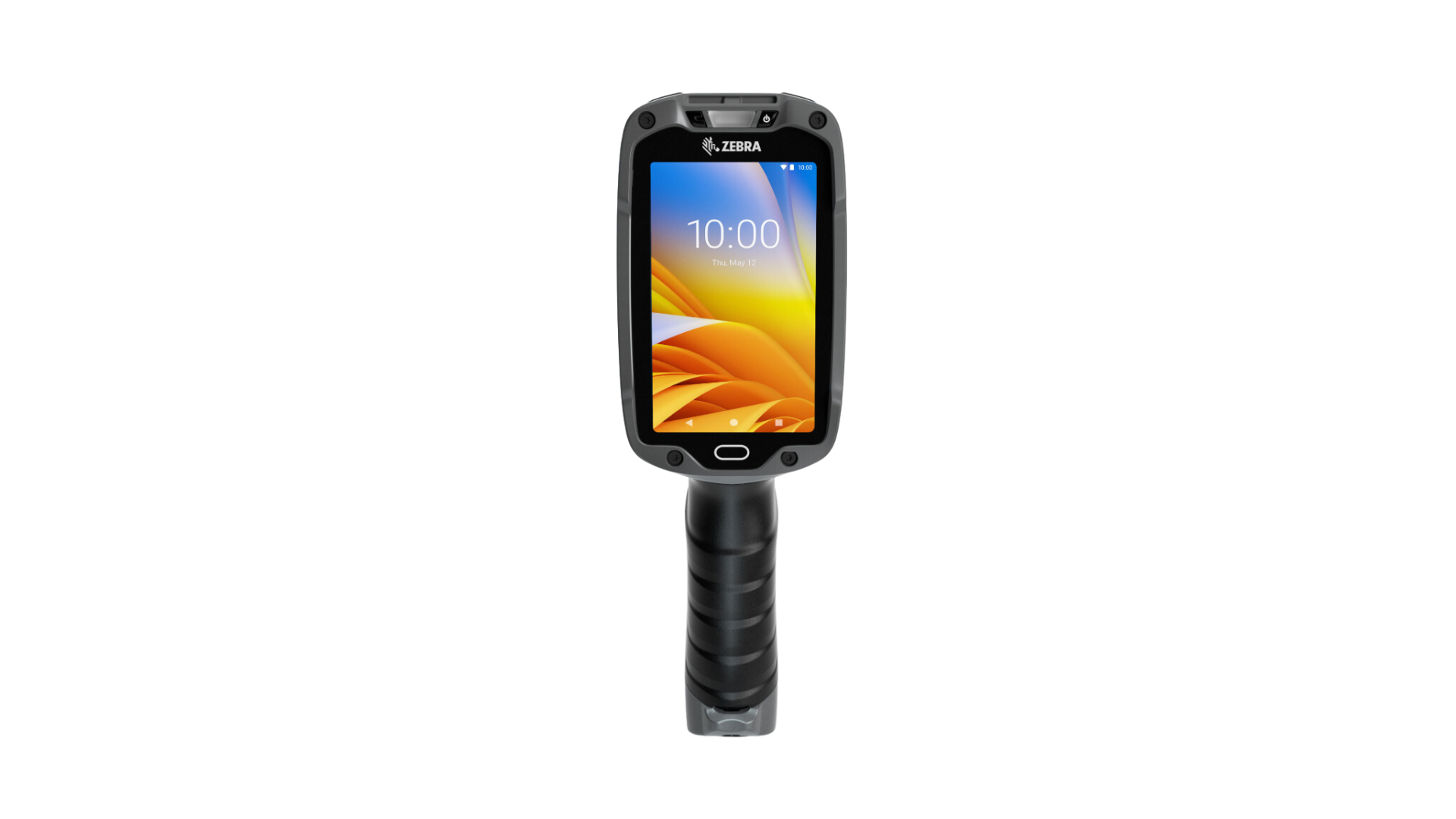
The Zebra TC8300 is a rugged Android touch computer designed for efficiency, featuring a 4-inch display and advanced 1D/2D scanning. Its hot-swappable 7000 mAh battery and ergonomic design make it well-suited for scan-intensive tasks.
Zebra TC8300 specs
- Built-in 1D/2D barcode scanner
- Android 11 Operating System
- Memory of up to 4GB RAM / 32GB Flash pSLC & microSD slot supporting up to 256 GB
- Wi-Fi 5 with 2x2 MU-MIMO, Bluetooth 5.0 & optional NFC connectivity options
- Qualcomm Snapdragon 660 octa-core processor
- 4” WVGA display
- PowerPrecision+ 7000 mAh Li-ion battery with hot-swap capability
- IP65-rated, water and dust resistant
- Optional 13 MP rear-facing camera
Zebra TC8300 setup guide
The Zebra TC8300 does not have a Google Play Store, so you’ll need to follow the steps below to install Orca Scan on the device:
- Open a web browser on the device
- Download the Orca Scan app
- Go to Settings > Security and enable Allow install from unknown sources
- Go to the download folder, open the orca-scan.apk and run install
- Open the DataWedge application
- Select Profile0
- Enable Keystroke output
- Tap Key event options
- Set Inter character delay to 10 milliseconds
- Enable Set Characters as Events
- Launch Orca Scan mobile app
That’s it! You can now use the scan buttons on the TC8300 to capture data.
Scan barcodes into the systems you love
You can now use the TC8300 to scan barcodes into the following systems:
- Scan barcodes to your Excel spreadsheets
- Scan barcodes to your Google spreadsheets
- Scan barcodes into MySQL
- Build dashboards in Google Data Studio
- Visualise barcode data in Microsoft Power BI
Zebra TC8300 related questions?
We’re happy to help troubleshoot any issues using Orca Scan with the Zebra TC8300, feel free to chat with us live or drop us an email.
Request a device integration
Need help getting Orca Scan working with your hardware? Request a Device Integration