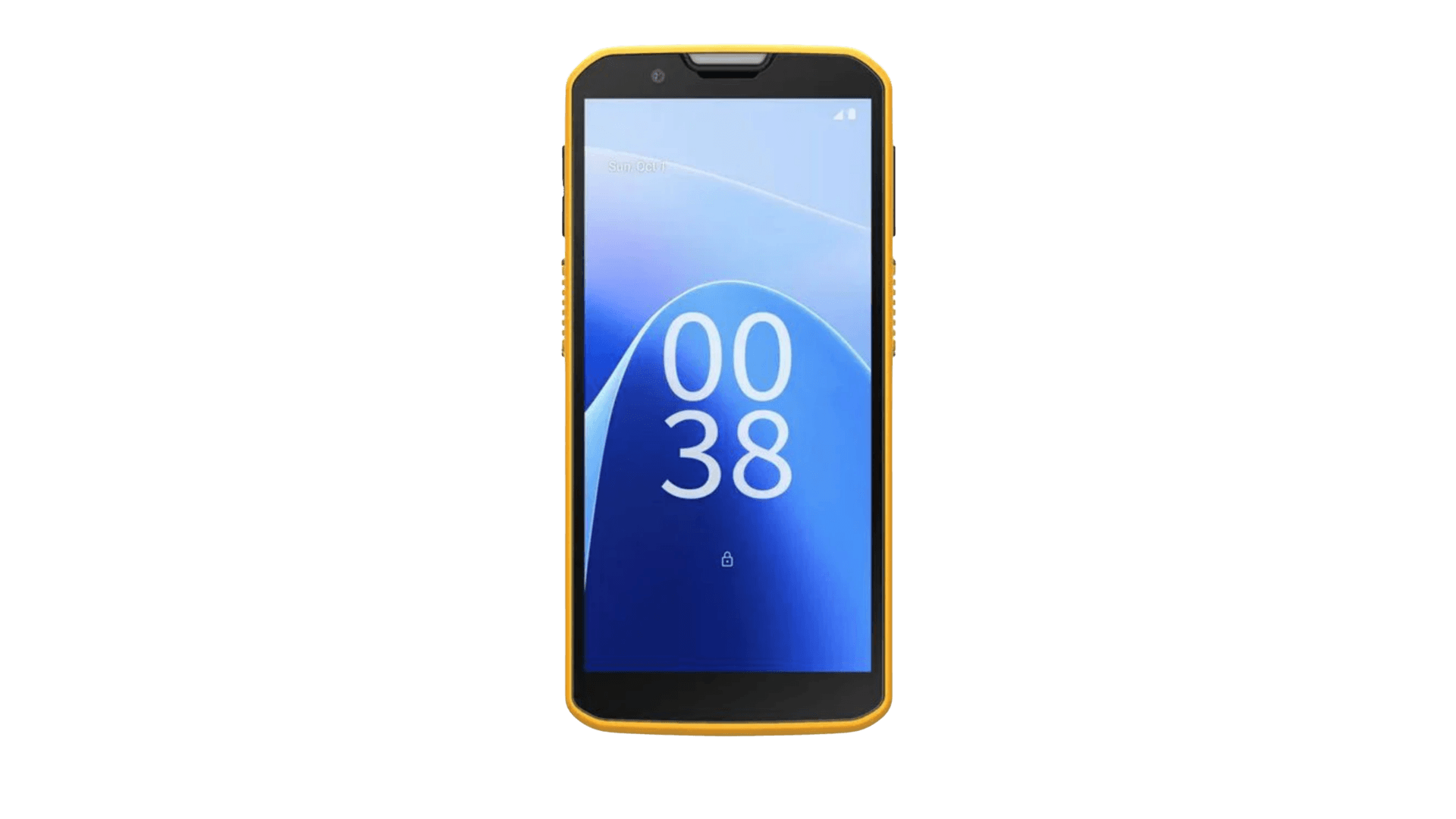
The CipherLab RS38 is a versatile enterprise mobile computer designed to enhance productivity in demanding working environments. Featuring a 6-inch touchscreen, advanced scanning features, and a hot-swappable battery, it delivers reliable performance and uninterrupted productivity.
Its rugged construction, advanced communication options, and intuitive Android platform make the RS38 a dependable choice for retail, logistics, transportation, and other demanding industries.
CipherLab RS38 specs
- Built-in 1D/2D barcode scanning and NFC (HF RFID); optional UHF RFID reader attachment
- Android 13 Operating System (Upgradable to Android 15, with planned support through Android 18)
- Memory of up to 8 GB RAM, 128 GB flash storage, expandable via MicroSD up to 1 TB
- Wi-Fi 6E, Bluetooth 5.2, 5G, LTE & NFC connectivity
- Qualcomm QCM4490 Octa-core 2.4 GHz processor
- 6-inch FHD+ (1080 x 2160) display
- Hot-swappable and rechargeable 4500 mAh battery (standard) or 6800 mAh (extended) Li-ion battery; provides 14+ hours (standard) or 21+ hours (extended) operation*
- Fast charging capabilities; fully charges the standard battery in approximately 2 hours and the extended battery in approximately 3 hours*
- IP65 and IP68 rated
- Extensive range of accessories available
*Battery life and charging times are manufacturer estimates and may vary depending on usage
CipherLab RS38 setup guide
- Visit the Google Play Store
- Download Orca Scan
- Log in or register for an account
- Open ReaderConfig app within RS38 settings
- Tap Default profile
- Under General Settings, tap Data Output
- Under Keyboard Emulation, tap Default Mode
- Select KeyEvent
- Under Keyboard Emulation, tap Related Settings
- Tap KeyEvent Delay Time and set it to 10
- Go back to Data Output, under Miscellaneous, tap Auto Enter and set to Decoded data + Enter char
- Launch the Orca Scan mobile app
Now you’re set up! The scan buttons on the RS38 are ready to capture data with Orca Scan.
Scan barcodes into the systems you love
You can now use the RS38 to scan barcodes into the following systems:
- Scan barcodes to your Excel spreadsheets
- Scan barcodes to your Google spreadsheets
- Scan barcodes into MySQL
- Build dashboards in Google Data Studio
- Visualise barcode data in Microsoft Power BI
CipherLab RS38 related questions?
We’re happy to help troubleshoot any issues you have using CipherLab RS38 with Orca scan, feel free to chat with us live or drop us an email.
CipherLab RS38 related files
Request a device integration
Need help getting Orca Scan working with your hardware? Request a Device Integration