Printing barcode labels shouldn’t be complicated, and with Orca Scan, it isn’t. Whether you use a standard office printer or a thermal label printer, you can turn the data in your sheet into professional barcode labels in seconds.
Simply select your rows, choose a label style and print them on the label type that best suits your workflow.
What labels are compatible with Orca Scan?
We currently support a range of barcode label types, including: Avery labels, which can be used with a typical office printer, Rollo labels for use with the Rollo Wireless printer and DYMO labels for use with the DYMO LabelWriter 450 thermal printer.
You can print QR Codes, Code 128, Code 39 and other barcode formats on all supported label types.
How to print barcode labels from the Web App
- Log in to the Orca Scan Web App
- Open the sheet containing the data you’d like to print labels for and expand the Labels tool from the left-hand panel
- Highlight the rows containing the data you want included on barcode labels
- Select your preferred label design - or create your own with our Barcode Label Designer
- If needed, you can map fields to make sure the data in your sheet matches the required fields in your label
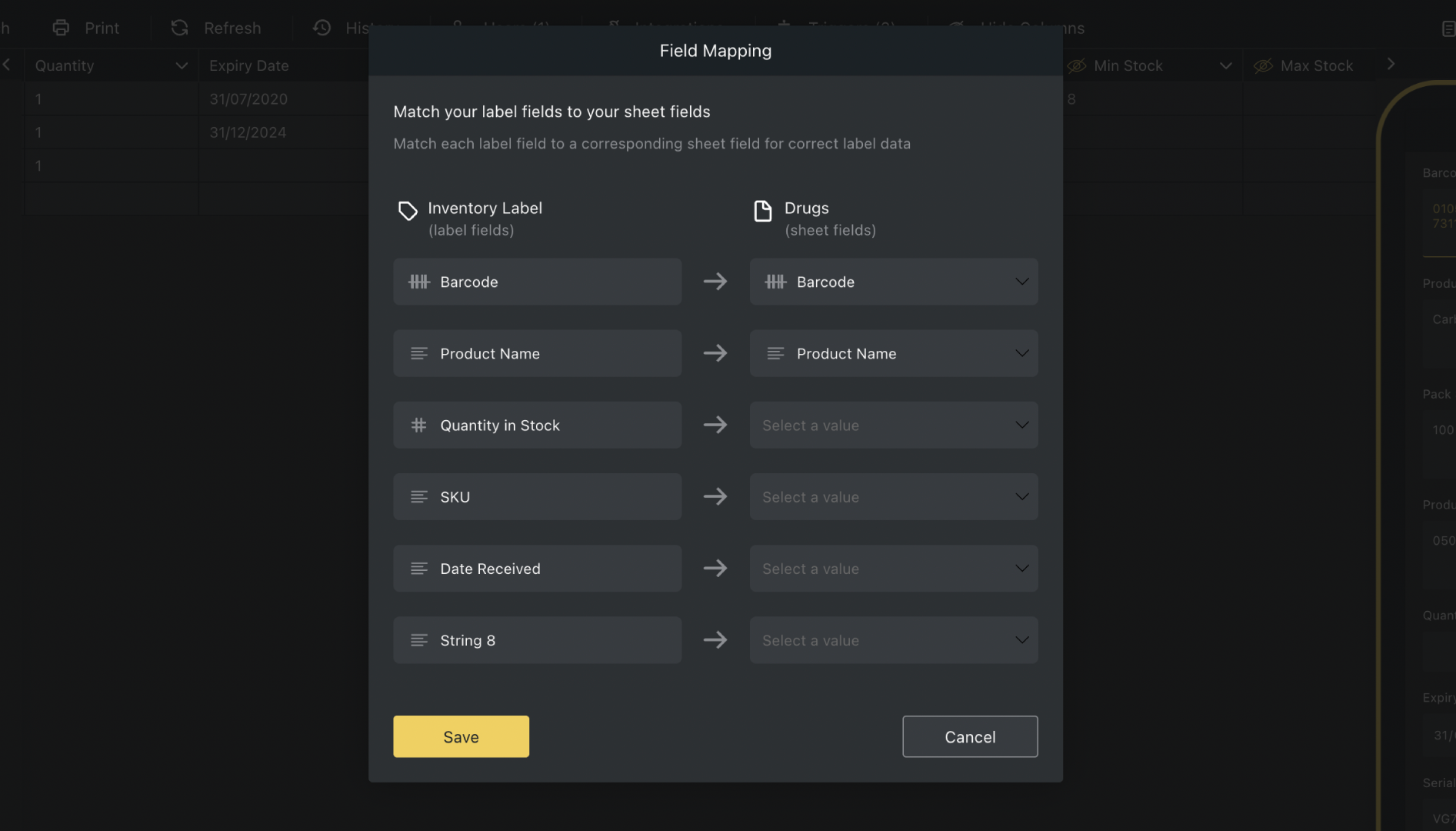
- When your label is complete, click Print and select the label type that best matches your labels
Top tips
- If you’d like to download your barcode labels as a PDF, click Print in the Labels sidebar**,** choose how many labels you’d like per page and click Download.
- You can download barcode labels as an SVG to send to a designer or professional printer when you click Download in the Labels sidebar.
- If you don’t want to download and you’re happy with your selection, hit Print, and you’re done.
Useful keyboard shortcuts
| Action | Description | Windows | MacOS |
|---|---|---|---|
| Copy | Copies the selected text or item to the clipboard | Ctrl + C |
Cmd + C |
| Paste | Pastes the copied text or item from the clipboard | Ctrl + V |
Cmd + V |
| Remove | Removes the selected item from the label | Backspace |
Delete |
| Zoom in/out | Zoom in and out on the label | Ctrl + Mouse Scroll |
Ctrl + Mouse Scroll |
| Select multiple rows | Multi-select non-adjacent rows | Ctrl + Click |
Cmd + Click |
How to print barcode labels from the Mobile App
You can also print barcodes directly from the Mobile App. To do this:
- Log in to the Orca Scan Mobile App
- Open the item you’d like to print a barcode for by scrolling through your sheet or using the search bar
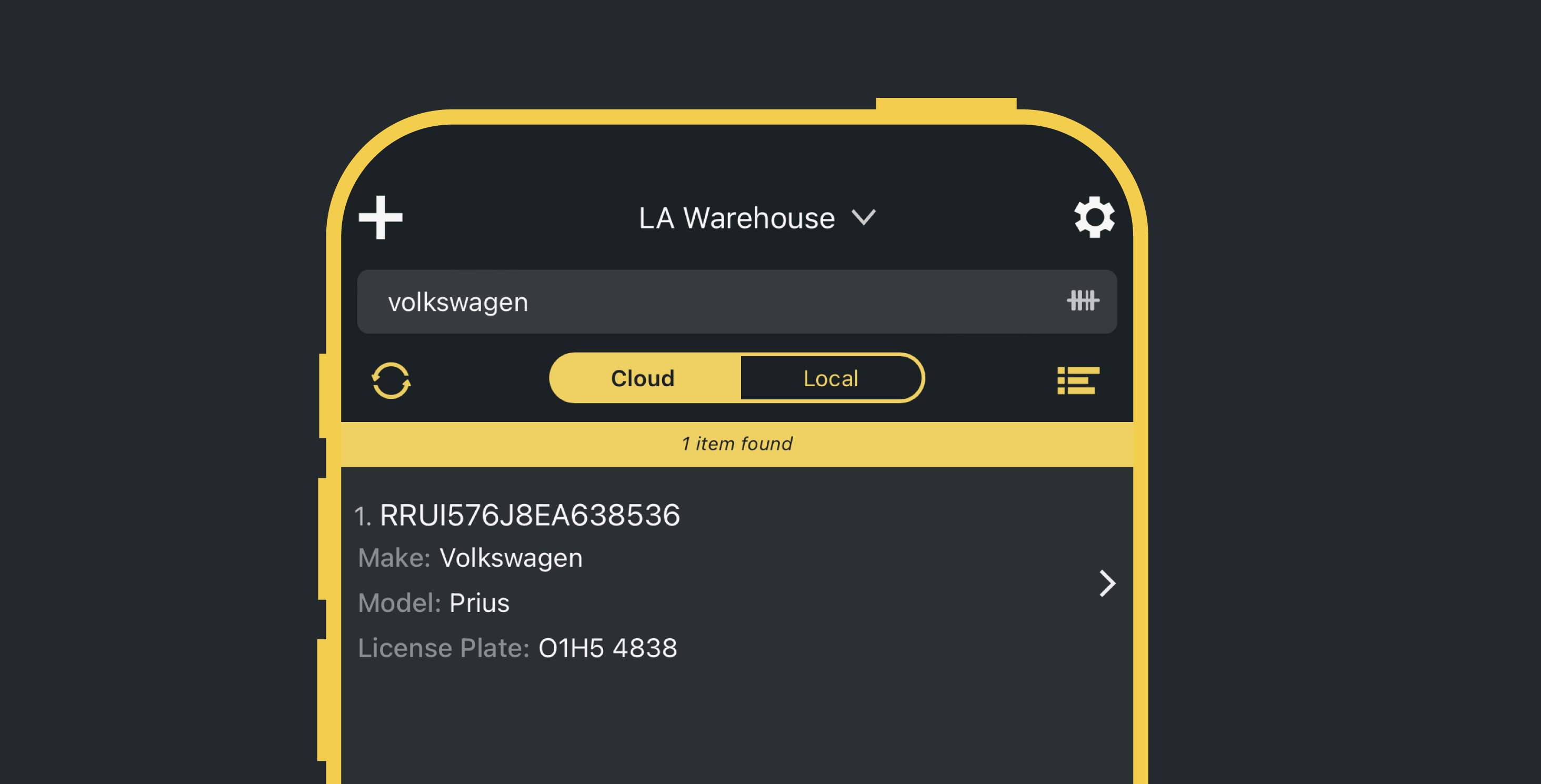
- Tap the print icon next to your barcode field. If your barcode field is missing, ensure Hidden in mobile is turned off in the Web App
- Select your preferred label design (e.g., QR Code, Code 39). Some labels require specific formatting, so you may need to adjust this in the Web App
- Choose your printer, paper size and scaling
- When you’re happy, hit Print
Tip: To make sure an item is searchable in the Mobile App, enable Searchable in mobile and Show in mobile list for the relevant fields in the Web App.
Recommended label suppliers for your barcode labels
The barcode printing feature was developed using genuine DYMO and Avery labels. We recommend working with compatible printers, including wireless label printers, for flexible deployment. Another great provider is Camcode, and you can visit their page to learn more about Camcode Durable Asset Labels. Alternatively, you can purchase Avery labels, DYMO labels and Rollo labels.
Questions about printing barcode labels?
We’re always happy to help, chat with us live or drop us an email.