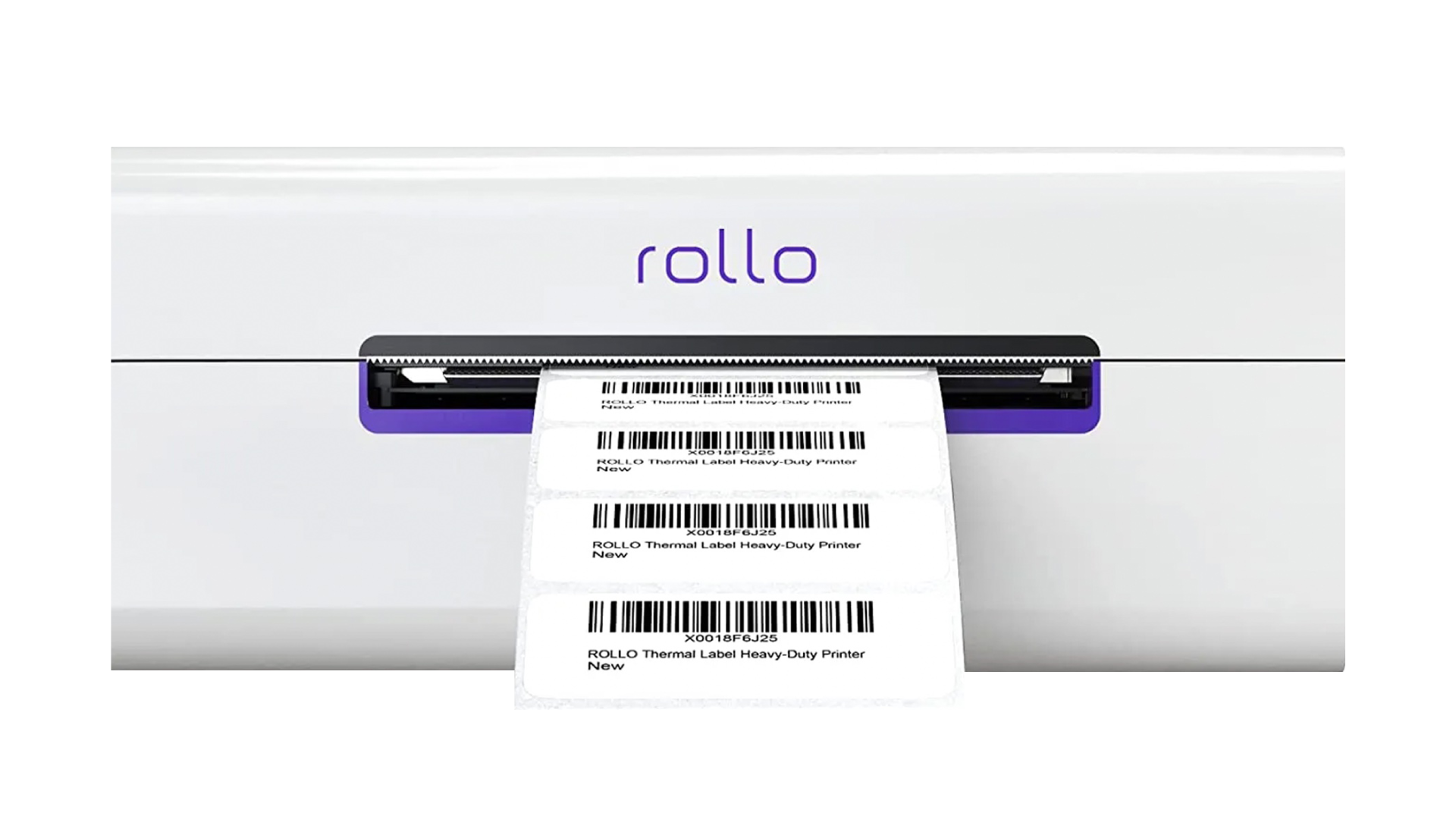
The Rollo is a compact, high-speed thermal printer that lets you print labels wirelessly via WiFi.
Rollo Wireless specs
- Thermal printer (no ink or toner required)
- Supports 4″ x 6″, 2″ x 1″, and 2″ round labels by default
- Compact size measuring 4x6”
- Prints one label per second
Rollo Wireless setup guide
To get started, you must first connect the printer to your network so it’s visible to your devices as a printer.
- Download the Rollo app from the iOS or Android app store
- Open the app and connect to the Rollo printer
- Add your wireless network details to add the Rollo printer to your network
Your Rollo printer should now be visible to all devices on your network.
How to set up the Rollo Wireless printer with Mac
- Click the Apple icon in the top-left of your screen and choose “System Preferences”
- Click on “Printers & Scanners”
- Click the “+” symbol to add a new printer
- Select the Rollo printer in the list and click “Add”
That’s it. You can now print barcodes using the Rollo printer from your Mac
How to set up the Rollo Wireless with Windows 11
- Open the Control Panel on your Windows computer
- Select “Devices and Printers
- Click on “Add a printer” or “Add a device”
- Your Rollo Wireless printer should appear in the list of available devices; select it
- Follow any additional on-screen prompts to complete the printer setup
- Make sure to set your Rollo printer as the default printer if you plan to use it regularly
That’s it. You can now print barcodes using the Rollo printer from Windows
How to load labels into the Rollo Wireless
The Rollo Wireless uses standard direct thermal labels in various sizes. You can find recommended label suppliers on the Rollo website.
To load your labels:
- Press the side release button to open cover and remove any existing labels
- Adjust the purple guides to match the width of your new label, then close the cover
- Feed the new labels from the back of the printer, ensuring the label side to be printed is facing up
- Rollo will automatically learn your labels and is now ready to print
How to print barcodes using the Rollo Wireless printer
You can print barcodes from your Orca Scan sheet, directly to the Rollo Wireless via the desktop. Follow our ‘Print Barcodes’ guide for more information on how to do this.
To print on Rollo Labels
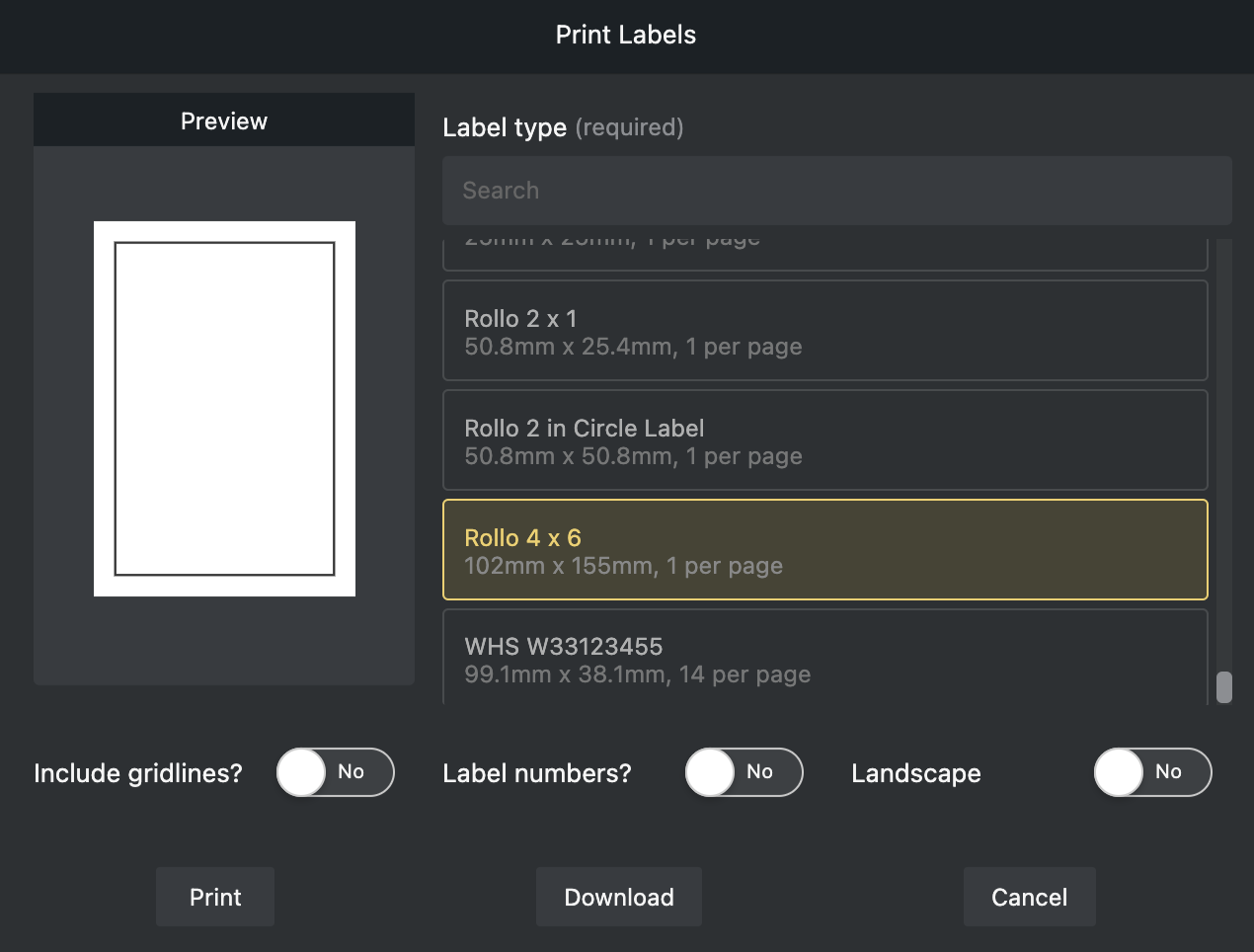
- Choose Rollo Labels when prompted
- Click Print
- Select Rollo Label Printer
- Change ‘Scale’ to ‘Fit to printable area’ or ‘Fit to paper’
- Click Print
Thank you to Farhad Azarbakkhsh from Payship, who tried and tested the Rollo Wireless Printer to confirm its compatibility with Orca Scan 🙏
Rollo Wireless printer-related questions?
We’re happy to help troubleshoot any issues you may have using Orca Scan with the Rollo printer; chat with us live or drop us an email.