Listen to this guide
0:00 / 0:00
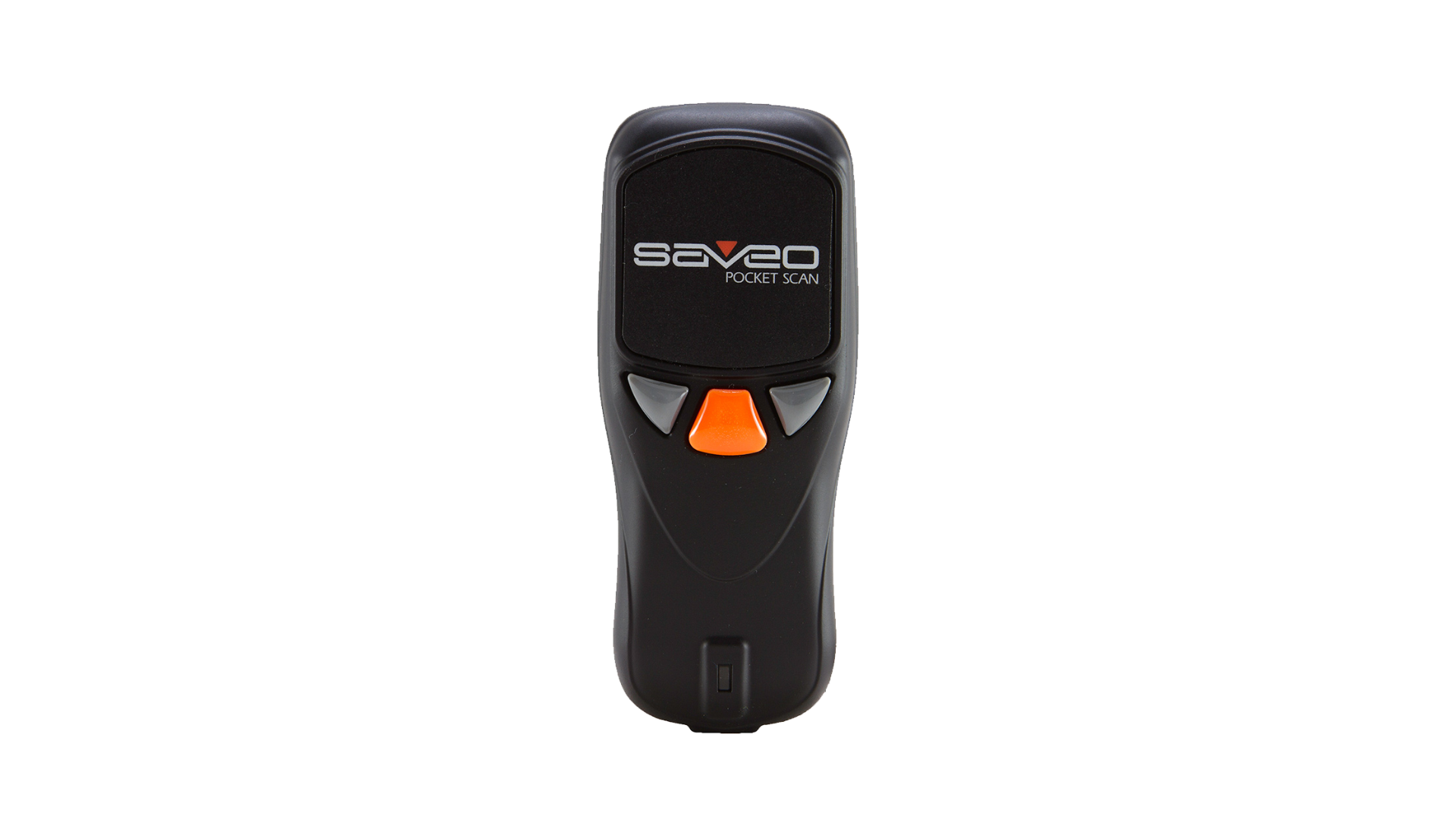
Saveo Pocket Scan M22D is a compact Bluetooth 1D/2D barcode scanner that pairs with Orca Scan for mobile, on-the-go data capture.
Saveo Pocket Scan M22D Specs
- Built-in 1D/2D barcode scanner (Motorola SE4500 imaging engine)
- Compatible with iOS and Android devices
- Internal memory of up to 1 MB for storing scanned barcodes
- Bluetooth connectivity for smartphones, tablets, and computers
- Scans barcodes on any surface, including paper, plastics, screens, and transparent materials
- Reads small barcodes at 55 cm and larger QR codes at several meters
- Supports real-time data transmission and offline storage
- Rechargeable Li-Ion battery
- Up to 6,000–10,000 scans per battery charge
- LED aimer and audible beeper for scan confirmation
- Compact, pocket-sized design
Saveo Pocket Scan setup guide
- Charge the Pocket Scan for 3-4 hours before setup
Connecting the Saveo Pocket Scan to an iOS device
- Open Bluetooth Settings on your device
- Turn on the Pocket Scan (using the orange button)
- Hold down the left button on the scanner until you hear a beep
- Tap R-A3E4C1 or Keyboard under Other Devices to pair (Number/letter sequence may change per device)
Connecting the Saveo Pocket Scan to an Android device
- Open Bluetooth Settings on your device (swipe from top-down)
- Turn on the Pocket Scan (using the orange button)
- Hold down the left button on the scanner until you hear a beep
- Tap R-A3E4C1 or Keyboard under Other Devices to pair (Number/letter sequence may change per device)
Troubleshooting the Saveo Pocket Scan
What should I do if the scanner is not showing when trying to connect?
- Press the centre orange button on the Saveo Pocket Scan once.
- Press and hold down the left button until you hear a beep.
What do I do if I cannot connect the Saveo Pocket scan to my device?
Unpair any other Bluetooth-connected scanner
How do I disconnect the Saveo Pocket Scan from my Android device?
- Go to Bluetooth settings (swipe from top-down)
- Tap Pocket Scan
- Tap Details
- Tap settings (blue gear icon)
- Tap unpair
What do I do if my Saveo Pocket Scan device is disabled?
Ensure that when the device is locked, the orange scan button is not pressed, as it can disable the device for 1 minute.
What do I do if unable to open the keyboard on my iOS device when using the Saveo Pocket Scan?
Press the left grey button to show the keyboard on IOS devices.
Scan barcodes into the systems you love
You can now use the Pocket Scan to scan barcodes into the following systems:
- Scan barcodes to your Excel spreadsheets
- Scan barcodes to your Google spreadsheets
- Scan barcodes into MySQL
- Build dashboards in Google Data Studio
- Visualise barcode data in Microsoft Power BI
Saveo Pocket Scan related questions?
We’re happy to help troubleshoot any issues using Orca Scan with the Saveo Pocket Scan M22D, feel free to chat with us live or drop us an email.
Saveo Pocket Scan related files
- Saveo Pocket Scan Advanced Settings Guide.pdf
- Saveo Pocket Scan User Manual.pdf
- Saveo Pocket Scan R12D BT Specs.pdf
Request a device integration
Need help getting Orca Scan working with your hardware? Request a Device Integration