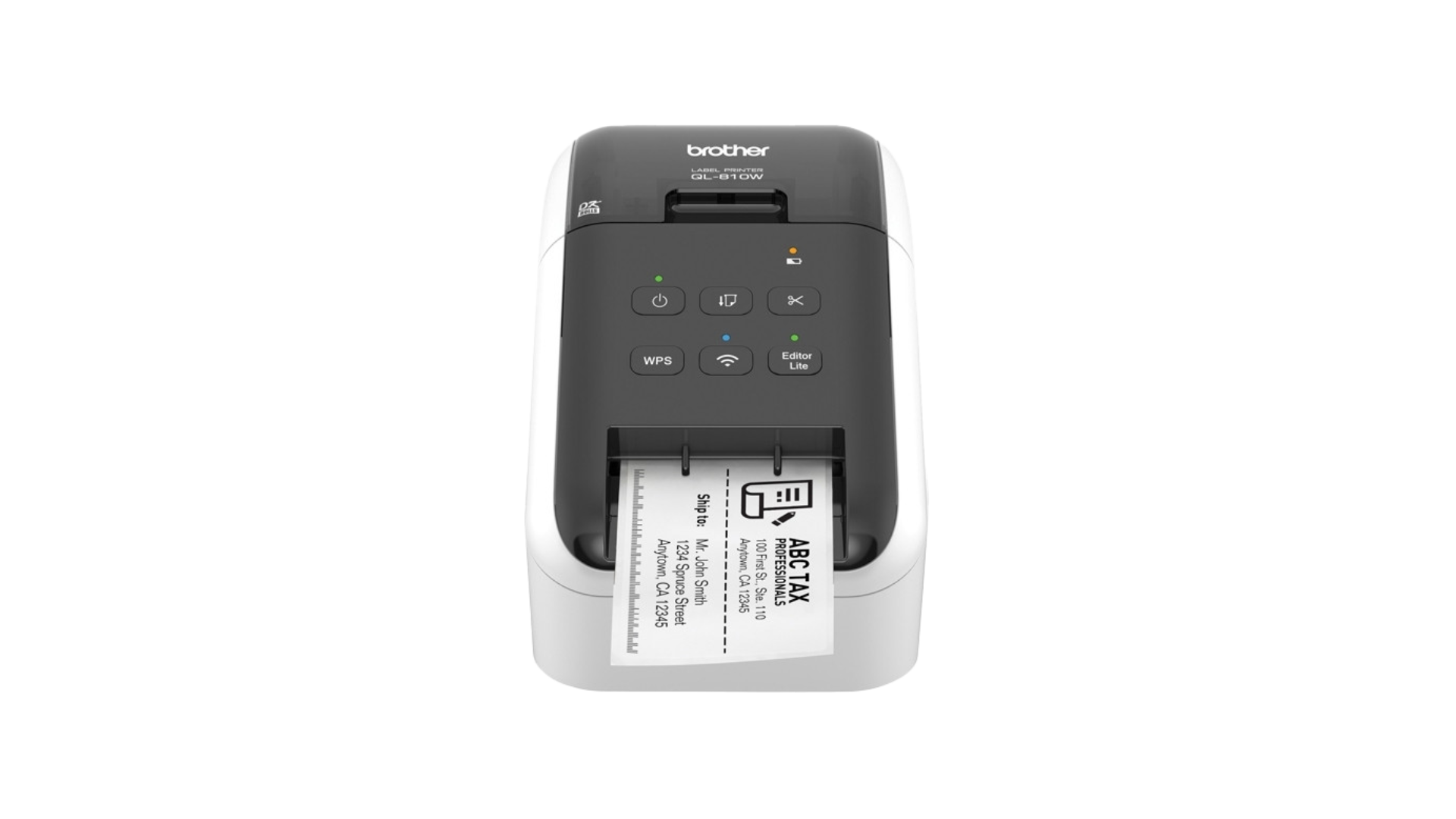
The Brother QL-810W Wireless Label Printer is a versatile, easy-to-use printer compatible with Orca Scan. It can print high-quality labels in both black and red, without the need for ink or toner, making it ideal for inventory, assets, and stock tracking.
Brother QL-810W Specs
- High-speed printing of up to 110 standard address labels per minute
- Wireless, USB, and Ethernet connectivity options
- Supports continuous labels and pre-sized labels
- Automatic cutter for easy label customisation
- Up to 300dpi print resolution for sharp, clear labels
- Compatible with Windows, macOS, and mobile devices via the Brother iPrint&Label app
Brother QL-810W setup guides
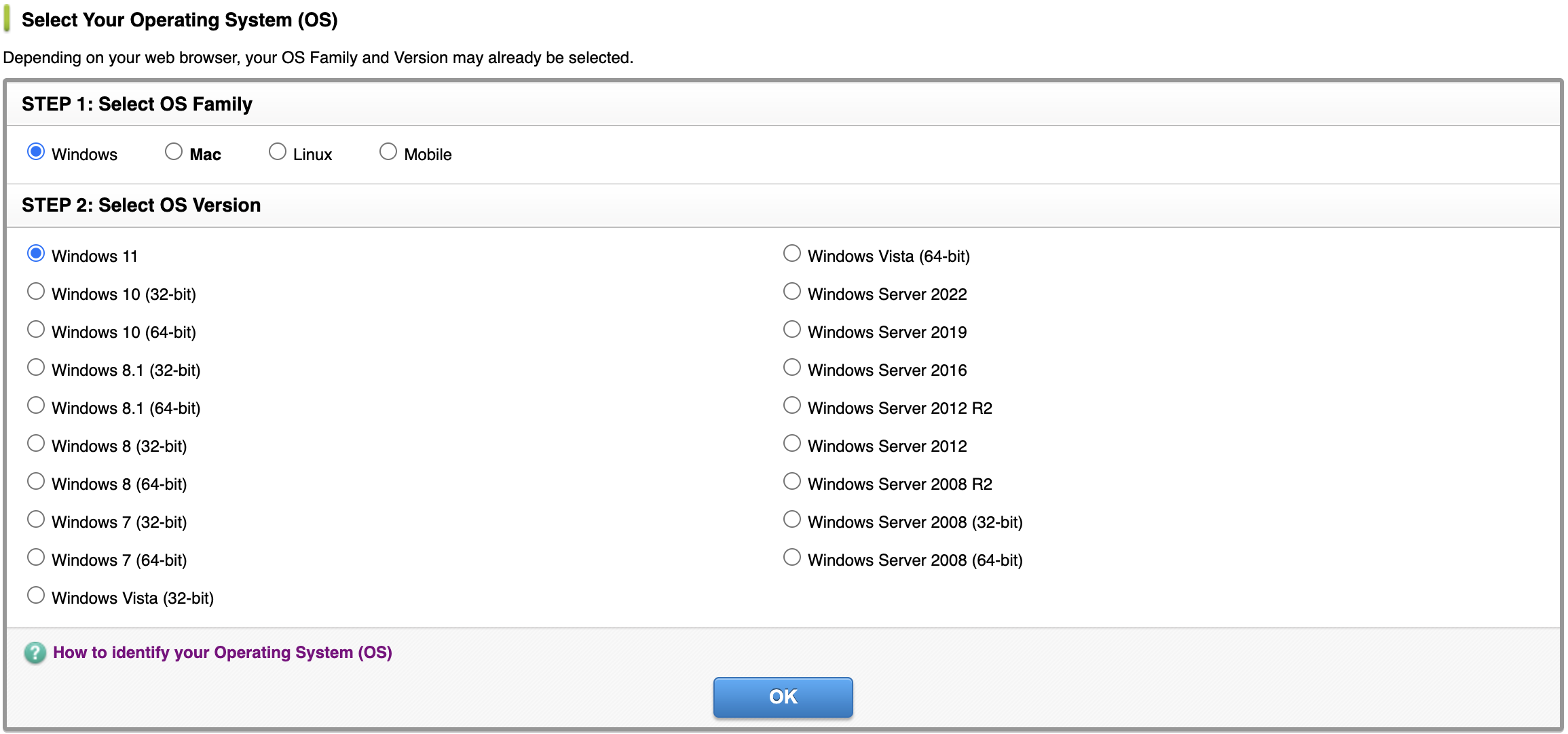
How to set up the Brother QL-810W with Windows 11
- Go to: https://www.brother.co.uk/support/ql810w/downloads
- Choose the option that matches your machine
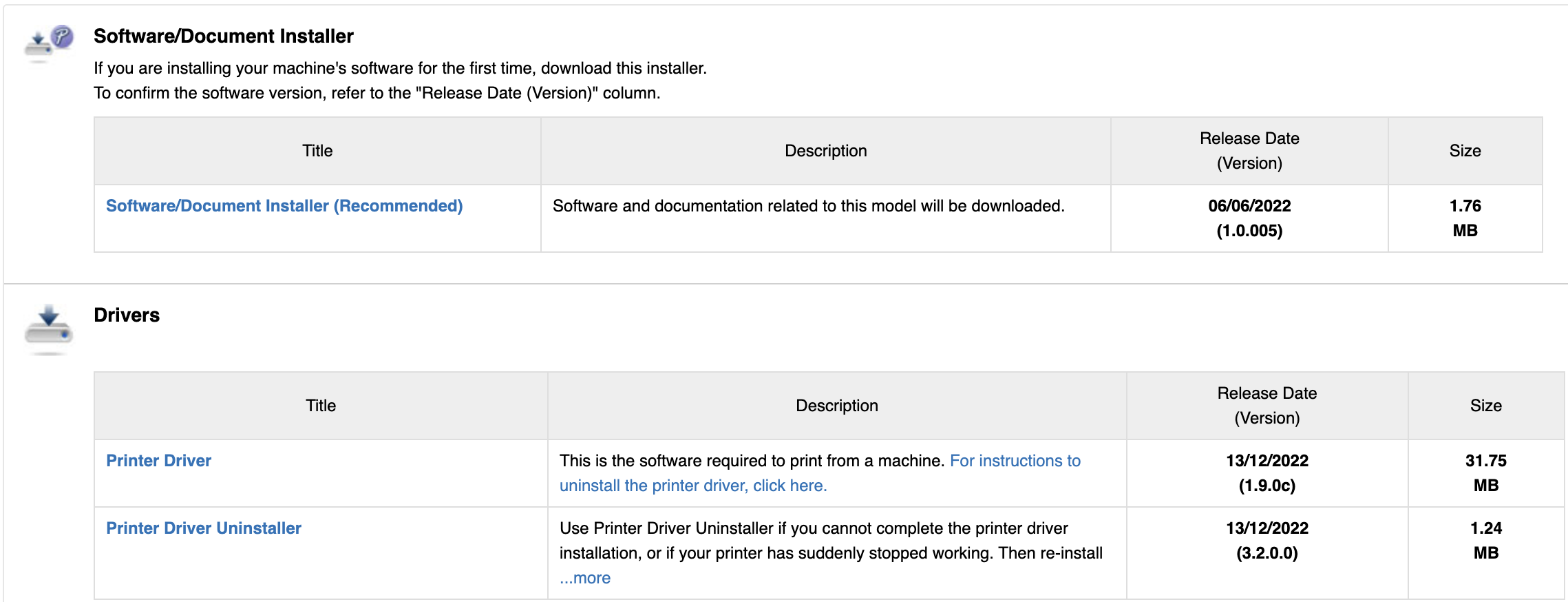
- Install the Driver and Document installer
Once installation is complete:
- Login to Orca Scan in your preferred browser
- Choose a barcode to use for a test print
That’s it! You’re ready to print your barcode labels using the Brother QL-810W printer
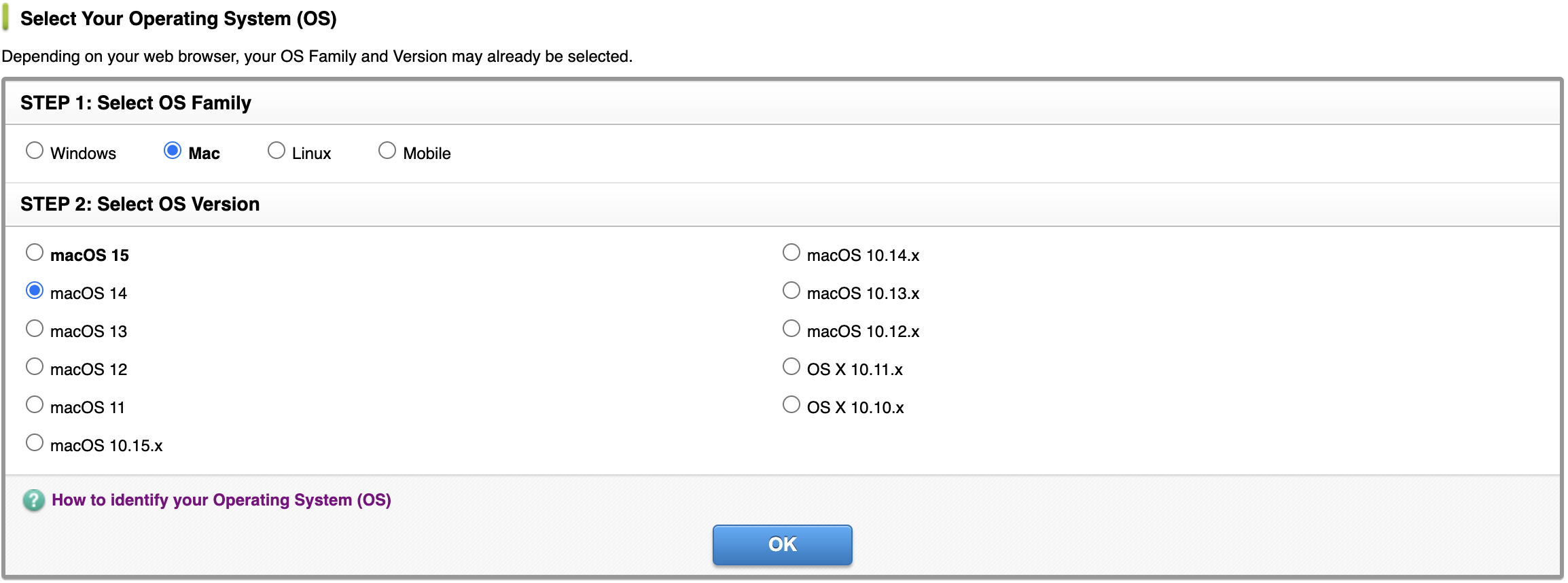
How to set up the Brother QL-810W with macOS 14 or earlier
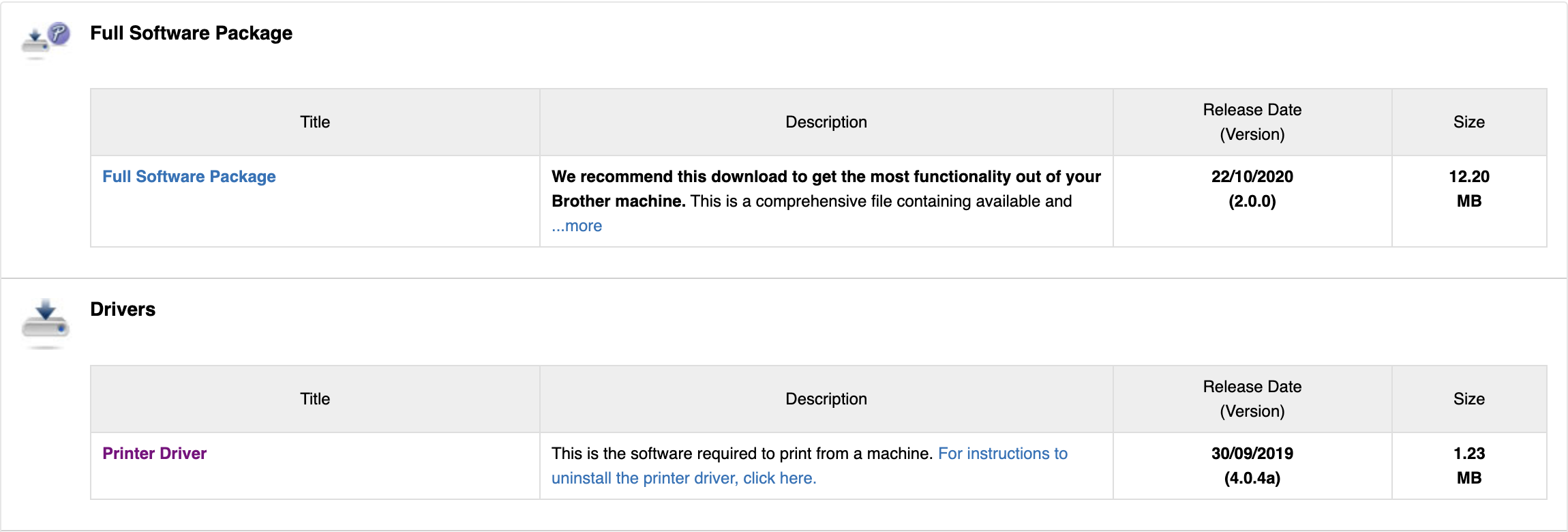
- Go to: https://www.brother.co.uk/support/ql810w/downloads
- Choose the option that matches your machine
- Install the Driver and Document installer
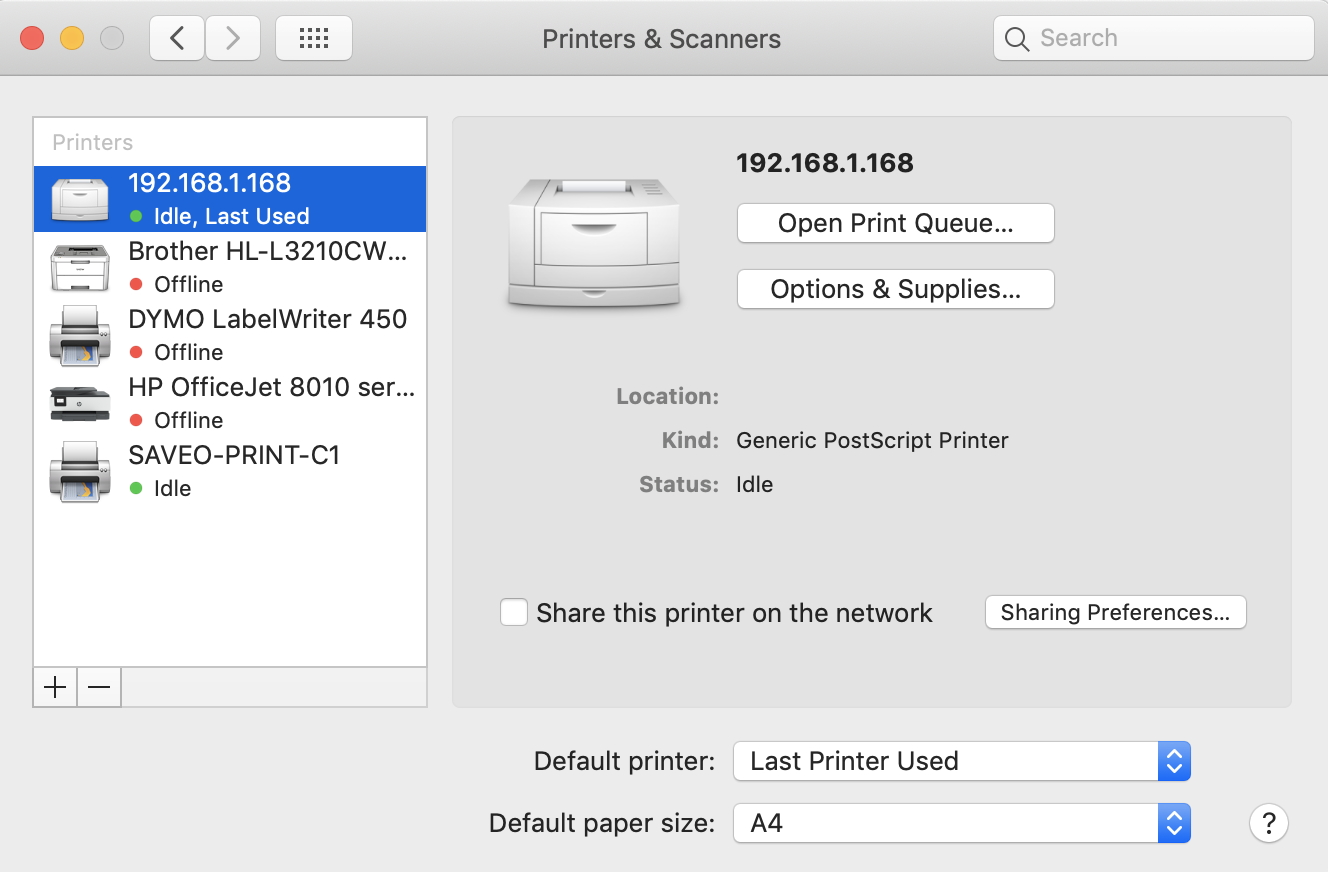
- Open System Preferences on your Mac
- Go to Printers & Scanners
- Click the + button to add a new printer
- Select the Brother QL-810W from the list (you may need to wait a few seconds for it to appear)
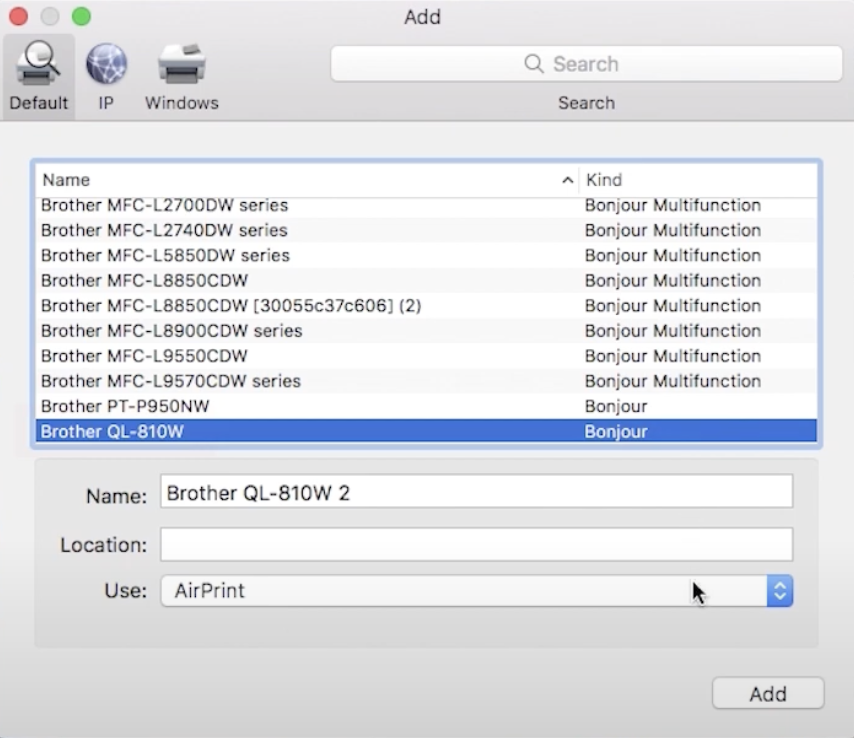
- Choose Bonjour
- Click Add
How to set up the Brother QL-810W with macOS 15
- Go to: https://www.brother.co.uk/support/ql810w/downloads
- Choose the option that matches your machine
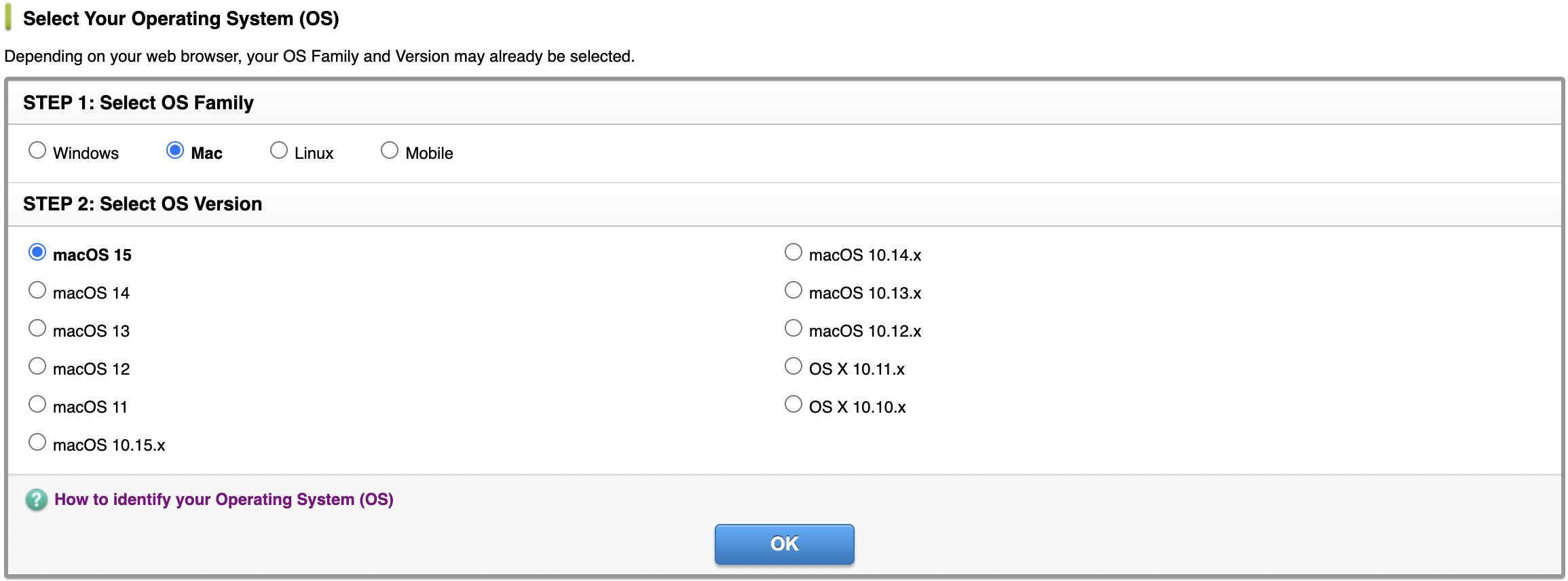
- Download the Brother P-touch Editor application via the App Store
Have a Different Brother Model? If you’re using the larger format Brother TD-4550DNWB printer instead, check out our complete setup and troubleshooting guide for that model.
How to load labels into the Brother QL-810W
The Brother QL-810W uses DK Roll labels, including the DK-22205 (continuous paper) and DK-11202 (pre-sized address labels). You can find recommended label suppliers on the Brother website.
To load your labels:
- Turn the printer off before loading
- Open the DK roll compartment by holding the printer at the front and lifting the cover
- Place the DK roll into the roll spool guide. Ensure the roll spool arm is firmly seated in the guide and the stabiliser slides into the notch of the printer
- On your computer, check that the Paper Type (Windows) / Print Media (Mac) in P-touch Editor matches the installed media
- Thread the DK roll through the printer
- Align the edge of the roll with the upright edge of the label output slot
- Insert the first label through the slot inside the compartment and push it through until it reaches the visible mark
- Close the DK roll compartment cover until it locks
- Turn the printer on. The end of the DK roll should align automatically
How to print barcodes with the Brother QL-810W
You can print barcodes from your Orca Scan sheet directly to the Brother QL-810W via Mobile or Desktop. Follow our ‘Print Barcodes’ guide for more information on how to do this.
Brother QL-810W Troubleshooting
How do I add my own label sizes in OSX?
This example uses Chrome. This will work with most browsers installed on OSX that have a print function.
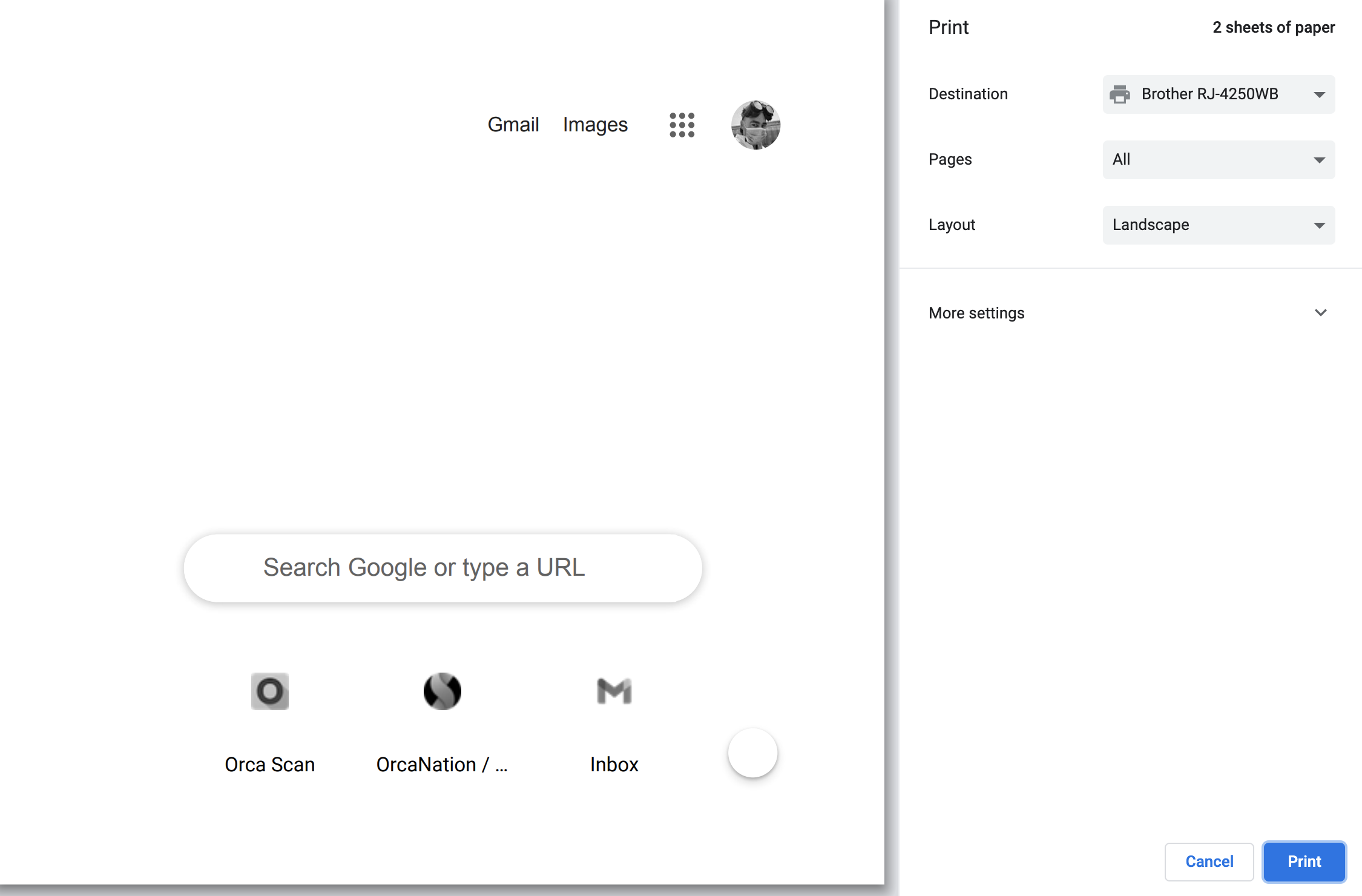
- Go to File in the top menu bar and click Print
- Click on More settings
- Click on Paper Size drop-down
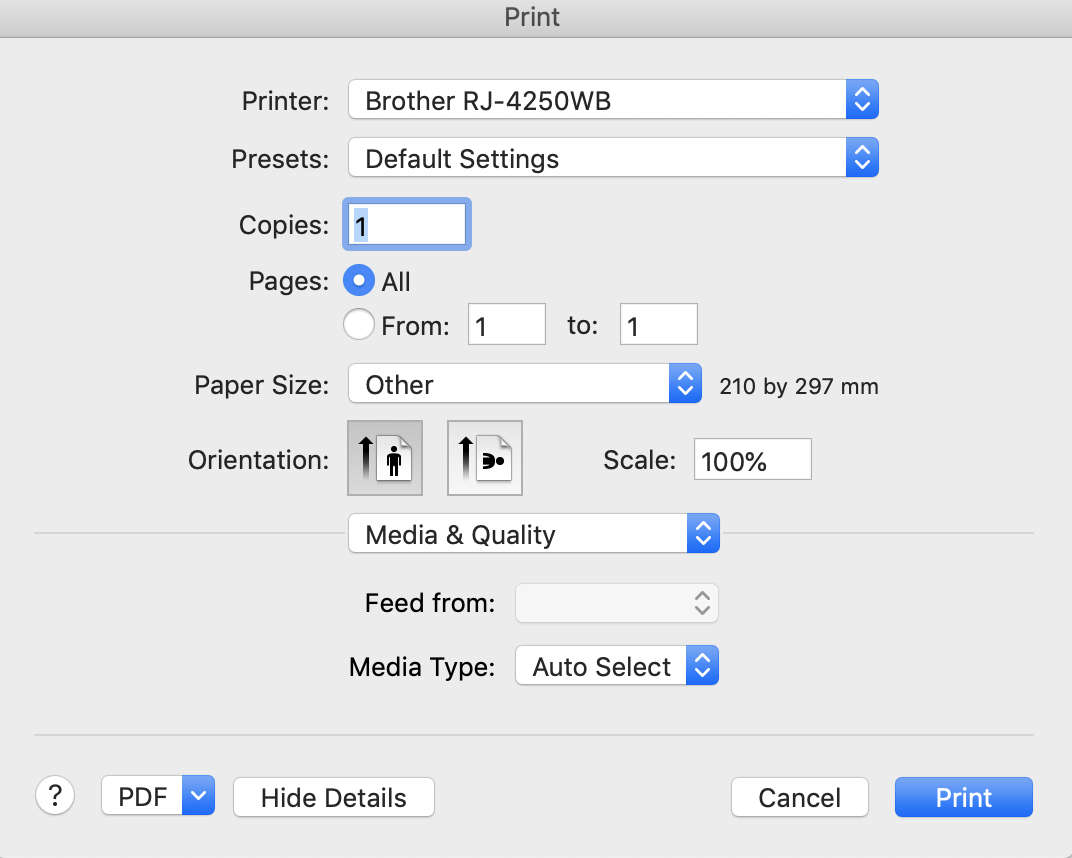
- Click on Manage Custom Sizes
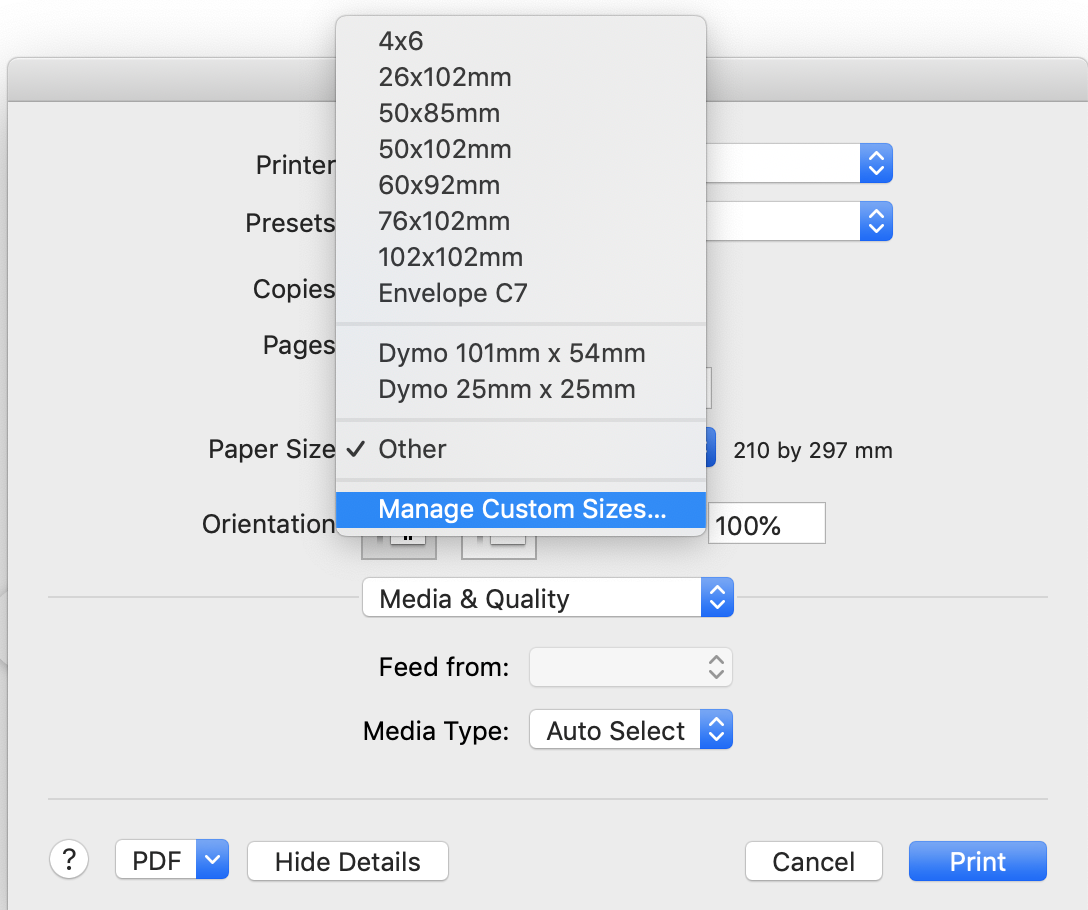
- Click Add
- Add specified size, remove all non-printable areas (you can adjust this later if needed) and give it a name
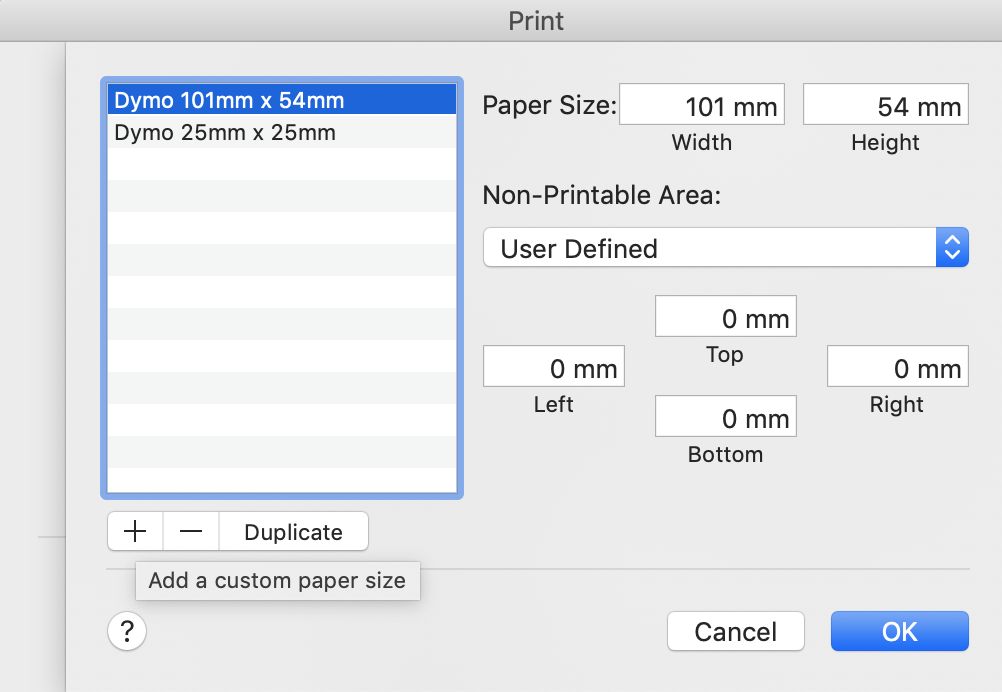
- Click Ok and it’s done!
Other Common Issues
- Wi-Fi Connection Drops: Ensure the printer is within range of the router and there are no obstructions.
- Labels Not Printing: Check if the correct label roll is installed and the printer software is updated.
- Poor Print Quality: Clean the print head and verify that the label roll is compatible.
For official support, visit Brother’s QL-810W troubleshooting page
Brother QL-810W related questions?
We’re happy to help troubleshoot any issues using Orca Scan with the Brother QL-810W, chat with us live or drop us an email.