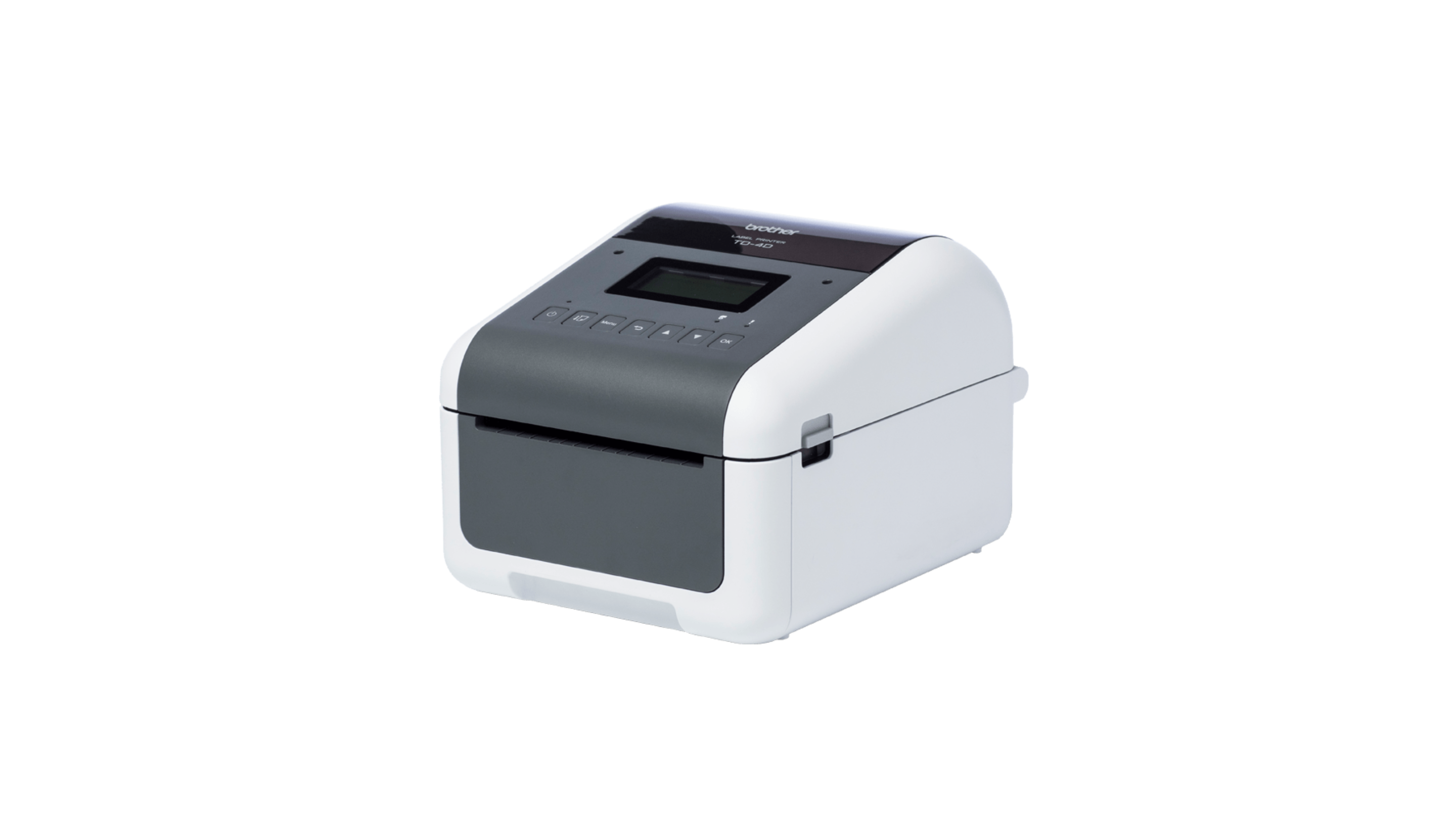
The Brother TD-4550DNWB is a professional desktop label printer compatible with Orca Scan. Ideal for printing 2D barcodes, it offers Bluetooth and wireless connectivity so you can connect directly from a smartphone, tablet or desktop without the need for network cables.
Designed for reliability, it also helps reduce sheet label wastage, ensuring accurate and efficient label printing every time.
Brother TD-4550DNWB Specs
- High-speed printing of up to 6 inches per second
- Prints width up to 4.27 inches / 108mm
- Wired Ethernet, USB, Bluetooth and Wi-Fi connectivity options
- Supports continuous rolls and die-cut labels
- Automatic cutter for precise label cutting
- Up to 300dpi print resolution for clear, professional labels
- Compatible with Windows, macOS, AirPrint(iOS) and the Brother Mobile Transfer Express app for Android
Brother TD-4550DNWB setup guide
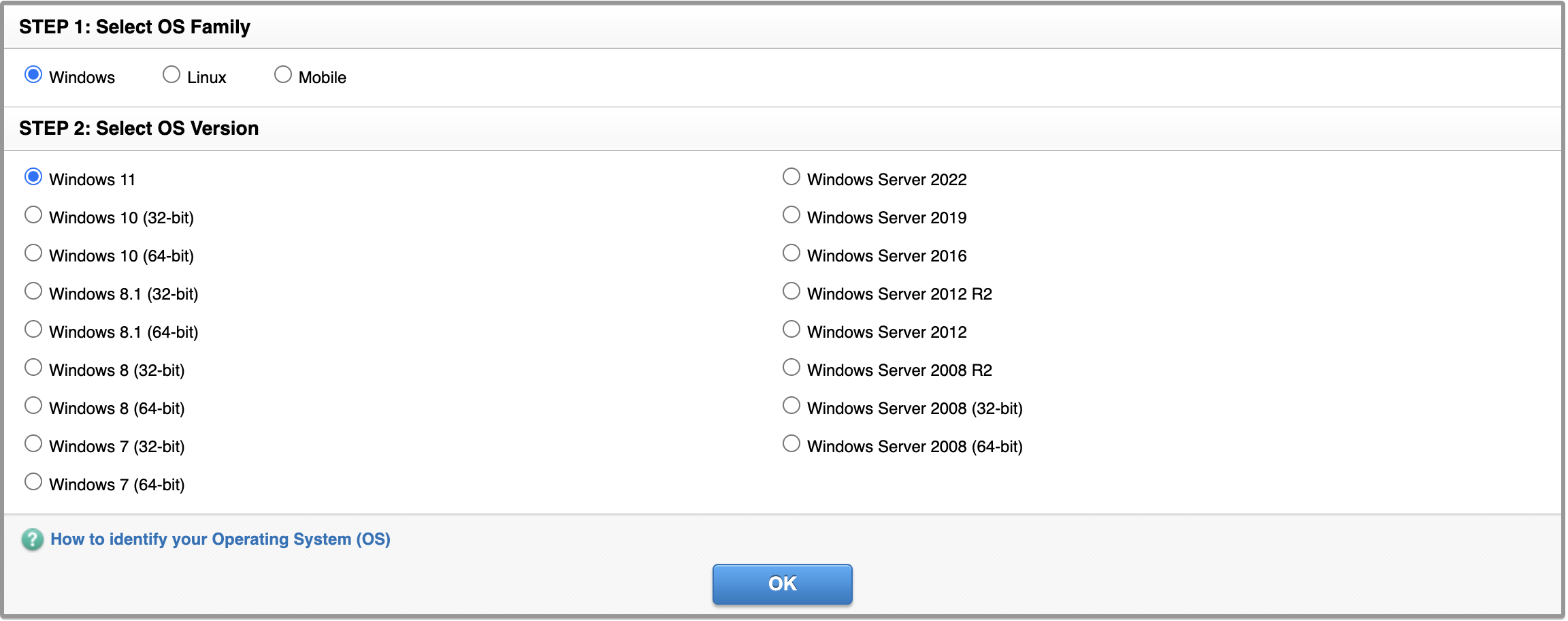
How to set up the Brother TD-4550DNWB with Windows 11
- Start by going to: https://www.brother.co.uk/support/td4550dnwb/downloads
- Choose the option that matches your machine
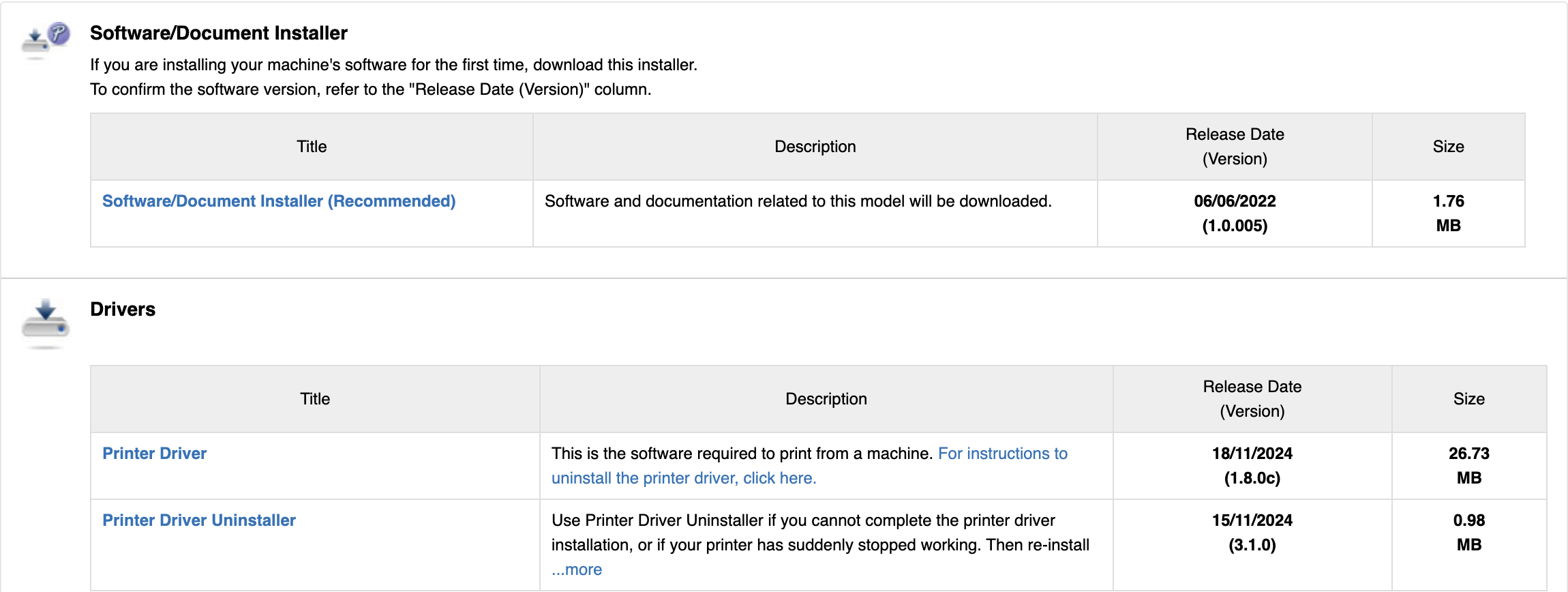
- Install the Driver and Document installer
Once installation is complete:
- Login to Orca Scan using your preferred browser
- Choose a barcode to use for a test print, similar to the printing process with QL-810W
That’s it! You’re ready to print your barcode labels using the Brother TD-4550DNWB printer.
Set up the Brother TD-4550DNWB with macOS 15 or earlier
To set up with macOS 15 or earlier, you can download the Brother P-touch Editor application via the App Store.
Alternatively, set up the printer via USB with your Mac:
- Open System Preferences on your Mac
- Go to Printers & Scanners
- Click the + button to add a new printer
- Add the Brother TD-4550DNWB printer by selecting it from the list
That’s it. You can now print barcodes using the Brother TD-4550DNWB printer on your device.
How to load labels into the Brother TD-4550DNWB
The TD-4550DNWB supports a range of direct thermal labels, including continuous rolls and general-purpose labels. You can find recommended label suppliers on the Brother website.
To load your labels:
- Turn the printer off before loading labels
- Pull up the release levers on both sides of the printer to unlock the roll compartment
- Holding the printer at the front, lift the roll compartment to open it
- Slide the roll guides outwards to make space for the label roll
- Rotate the adjuster dial towards you to lock the roll guides in position
- Insert the label roll with the label print side facing up
- Feed the end of the roll under the media guide tips
- Close the roll compartment until it locks securely into place
How to print barcodes with the Brother TD-4550DNWB
You can print barcodes from your Orca Scan sheet, directly to the Brother TD-4550DNWB via Mobile, Desktop. Follow our ‘Print Barcodes’ guide for more information on how to do this.
How to Print from the Orca App on iOS (AirPrint)
- Long press on a Row
- A menu will appear - choose Print Barcode
- Choose a barcode type of your choice
- Press Print
- IOS printing Options will appear on the screen along with several print options, such as copies, Paper Size, Orientation, etc. Under Printer, select TD-4550DNWB if it doesn’t automatically appear
- Once you have chosen, press the Print button
Brother TD-4550DNWB Troubleshooting
Common Issues:
- Wi-Fi Connection Drops: Ensure the printer is within range of the router and there are no obstructions
- Labels Not Printing: Check if the correct label roll is installed and the printer software is updated
- Poor Print Quality: Clean the print head and verify that the label roll is compatible
For official support, visit Brother’s TD-4550DNWB troubleshooting page.
Brother TD-4550DNWB related questions?
We’re happy to help troubleshoot any issues using Orca Scan with the Brother TD-4550DNWB, chat with us live or drop us an email.