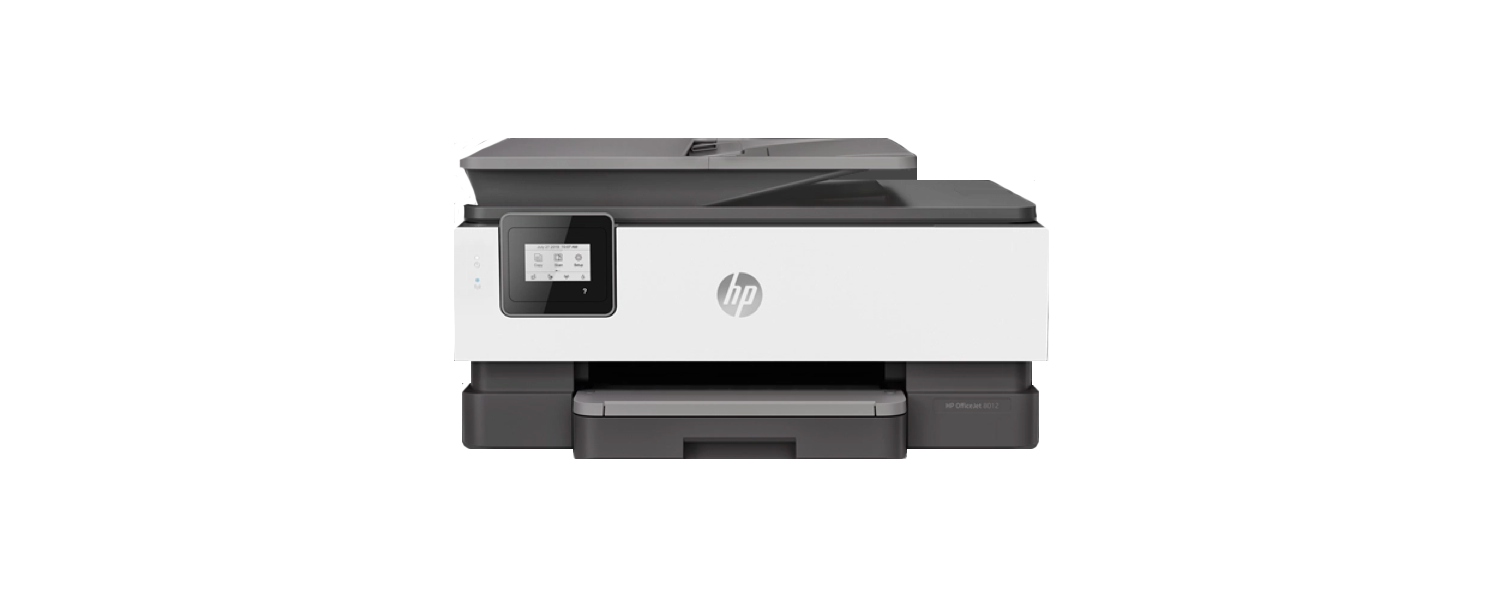
The HP OfficeJet 8012 is a reliable all-in-one inkjet printer compatible with Orca Scan, ideal for everyday printing in office and home-office environments. Designed for ease of use, it supports wireless printing from your computer.
HP OfficeJet 8012 Printer Specs
- Colour multifunction Printer
- Print, copy, scan and automatic two-sided printing
- A4 paper support with 35-sheet Automatic Document Feeder (ADF)
- Wireless connectivity options, including Apple AirPrint™; HP Smart, Wi-Fi® Direct; Mopria™ Certified & mobile apps
- 5.58 cm Mono Touchscreen Display
- Compatible with Windows and OSX
HP OfficeJet 8012 setup guide
To set up the HP OfficeJet 8012, you can follow these steps:
- Visit the drivers page for the HP OfficeJet 8012
- Choose which Operating System your device is working on
- Click submit
- When prompted, click to install HP Smart from the MS store
- Follow the directions to connect your device to the printer
There are instructional videos at the bottom of the page on other ways to install.
How to print barcodes with the HP OfficeJet 8012
You can print barcodes from your Orca Scan sheet, directly to the HP OfficeJet 8012 via the desktop. Follow our ‘Print Barcodes’ guide for more information on how to do this.
How to Print Labels Using Avery Templates with Orca Scan
If you’re using Avery labels, follow these steps after selecting the barcodes you want to print and clicking ‘Print Labels’:
- Choose the Avery label size to match your labels
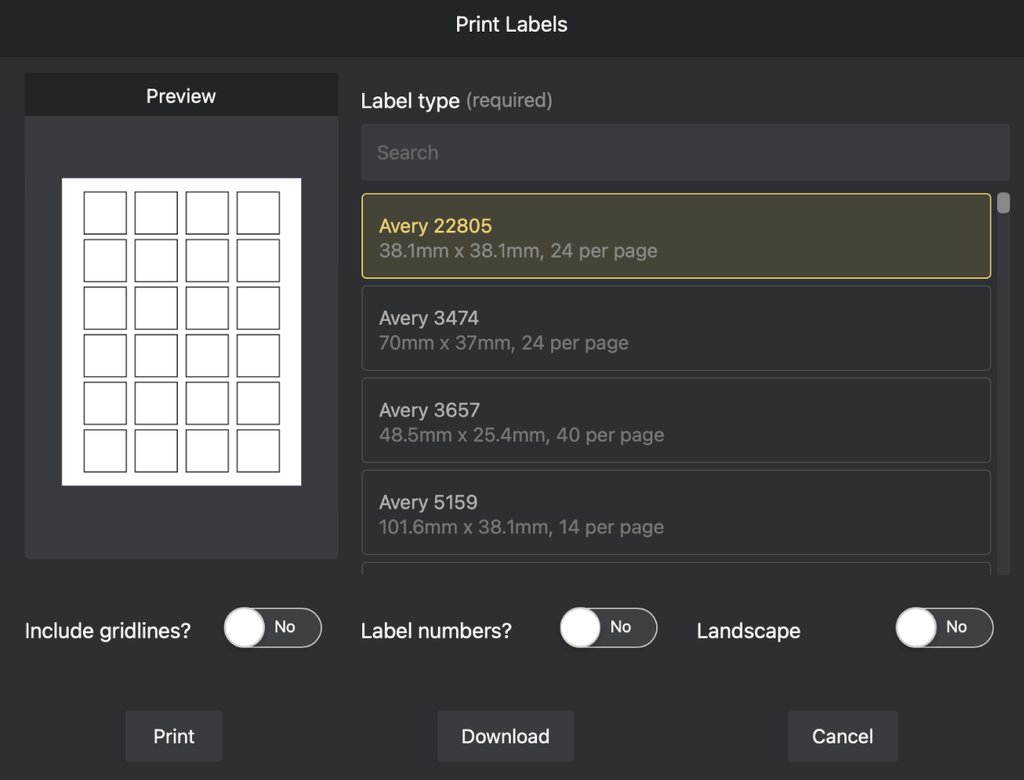
- Click Print
- Select your HP OfficeJet 8012 printer
- Click Print
How to load the HP OfficeJet 8012
- Pull out the input tray and ensure it is empty
- Slide the paper-width guides to the edges of the tray
- Insert the paper in portrait orientation, with the print side faced down
- Align the paper with the correct paper size lines at the front of the tray. Make sure the stack does not exceed the stack height marking on the left edge
- Adjust the paper-width guides until they rest on the paper
- Gently push the input tray back into the printer
- Pull out the output tray extension before printing
You can follow the same steps for envelopes, legal paper, cards or photo paper.
Just check that each media type is aligned with the appropriate paper size lines and doesn’t exceed the stack height marking.
For more information, refer to the official HP OfficeJet 8012 model specifications.
HP OfficeJet 8012 Troubleshooting
How to clear a paper jam in the HP OfficeJet 8012
- Turn off the printer, and then disconnect the power cord and any other cables.
- Turn the printer so that the rear access door faces you.
- Press the tab on the rear access door and open the door.
- Carefully remove any **jammed paper (check if the paper is torn)**5. Close the rear access door.
For a video step-by-step, check out the HP YouTube channel
How to replace the ink cartridges in the HP Office Jet 8012
- Open the front door, and then lift the ink cartridge access door.
- Wait until the carriage stops moving before you continue.
- Remove the ink cartridge from its slot.
- Remove the new ink cartridge from its package, and then pull the orange pull-tab straight back to remove the plastic wrap.
HP Office Jet 8012 Printer related questions?
We’re happy to help troubleshoot any issues using Orca Scan with the HP Office Jet 8012 Printer, chat with us live or drop us an email.