Listen to this guide
0:00 / 0:00
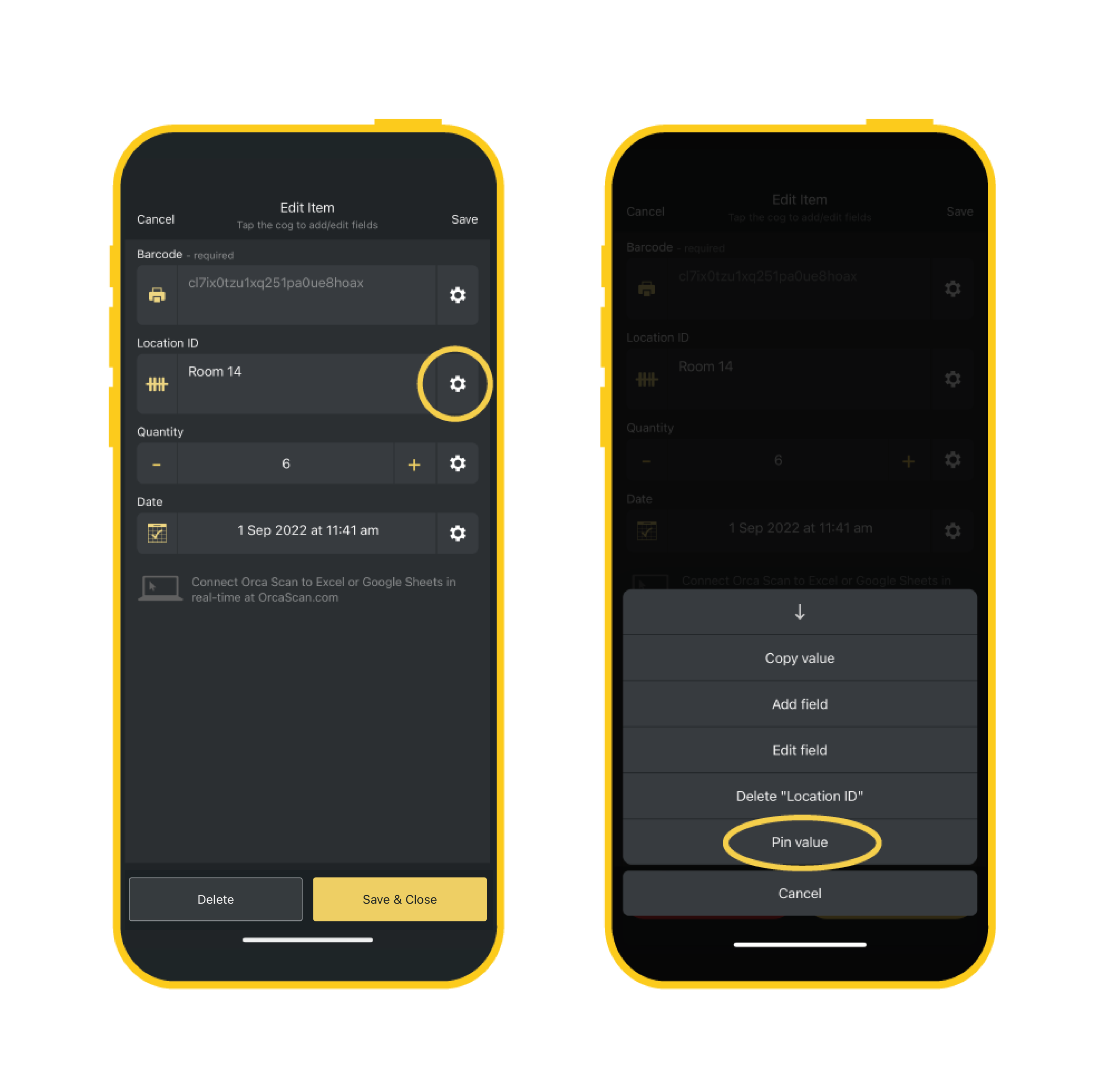
When scanning barcodes and collecting data, you often need to capture the same value multiple times. Pinning a value to a field lets you enter it once and have it automatically set on future scans.
How to use pinned values
- Scan your first item, add the data needed and decide which fields you want to repeat as you scan
- Tap the cogwheel on the right side of the field you want to repeat and tap Pin value
- Once you’re ready to move on to another project, location or order ID, simply tap the cogwheel again and Unpin value
Pro tip: use Continuous Scan
To make the process even faster, you can remove the need to open the details screen and tap Save for every scan. Turn Continuous Scan On and turn Add details after scan Off in Settings to do this.
Next steps
- Get started with the Web App
- Scan barcodes into your Excel spreadsheets
- Learn about supported hardware scanners
Questions about pinned values?
We’re always happy to help, chat with us live or drop us an email.