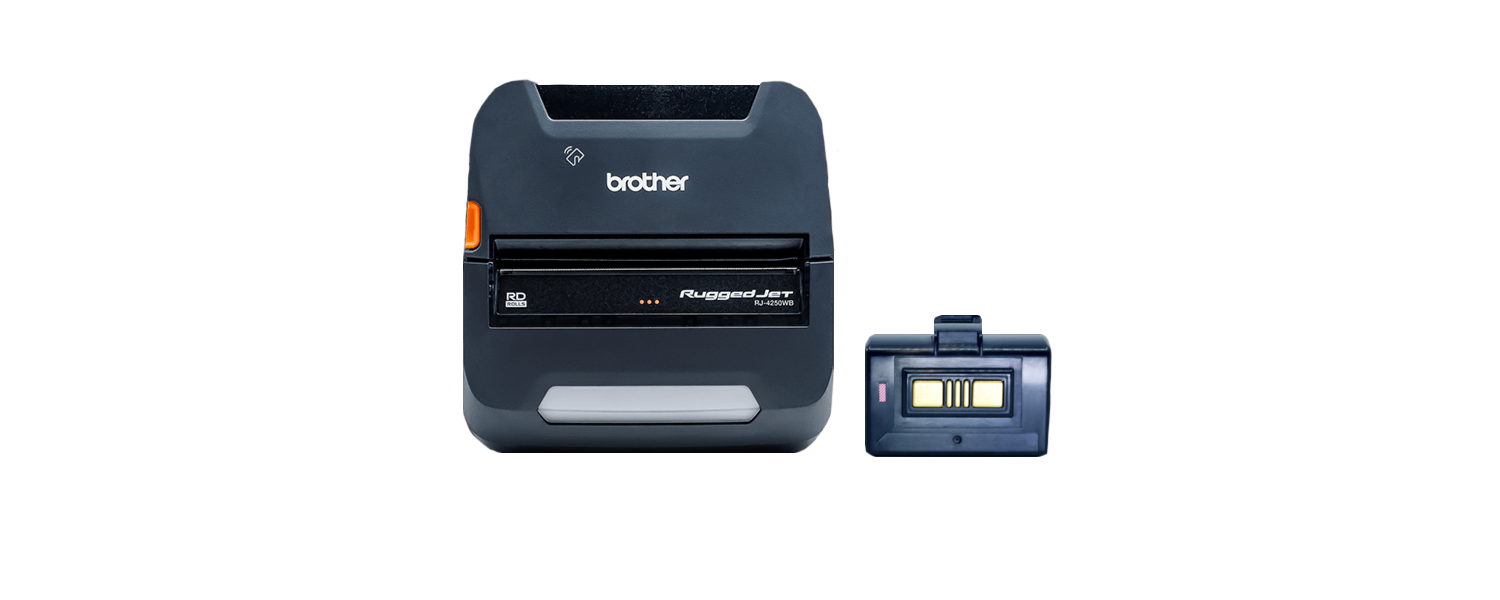
The Brother RJ-4250WB is a rugged 4-inch mobile label and receipt printer compatible with Orca Scan, designed for reliable on-the-go printing. With flexible connectivity options, it lets you print labels and receipts directly from your device, making it ideal for delivery, logistics, retail, and field service environments.
Brother RJ-4250WB Specs
- Rugged construction (2.1m drop protection) with reinforced parts and moulded rubber housing engineered for improved toughness
- IP54 rated for dust and moisture exposure
- Bluetooth, USB and wireless connectivity
- Fast print speeds of up to 5ips
- Optional extras include: Extra batteries, shoulder strap, in-vehicle/charging cradle, power options, and single battery charger
- Up to 203dpi print resolution
- Smart Li-ion Battery (optional) with industry-leading battery life to last a full shift and indicator for health status
Brother RJ-4250WB setup guides
How to set up the Brother RJ-4250WB with an Android device
- Turn on printer
- Press Menu
- Press Menu again to get to Bluetooth
- Press OK
- Using the Menu button select ON/OFF and press OK
- Using the Menu button make sure On is selected
- Press OK
- On your Android device go to Bluetooth settings
- Choose RJ4250WB (it may take a few seconds for the printer to appear)
- Open the Google Play Store
- Download the Brother Print Service Plugin app (Do after step 9 otherwise plugin is not always recognised)
How to set up the Brother RJ-4250WB with an iOS device
- Turn on the printer
- Press the down arrow button
- Choose WLAN and press OK
- Down arrow key to WPS and press OK
- Press the WPS button on the Router
- Press OK on the printer
- WPS Setting will stay on the screen until the set up is complete
As long as the phone you want to print from is on the same network, you can now print directly from the Orca Scan mobile app
How to set up the Brother RJ-4250WB with OSX
- Turn on printer
- Connect printer to your Mac via USB
- Open System Preferences on your Mac
- Go to Printers & Scanners
- Click the + button to add a new printer
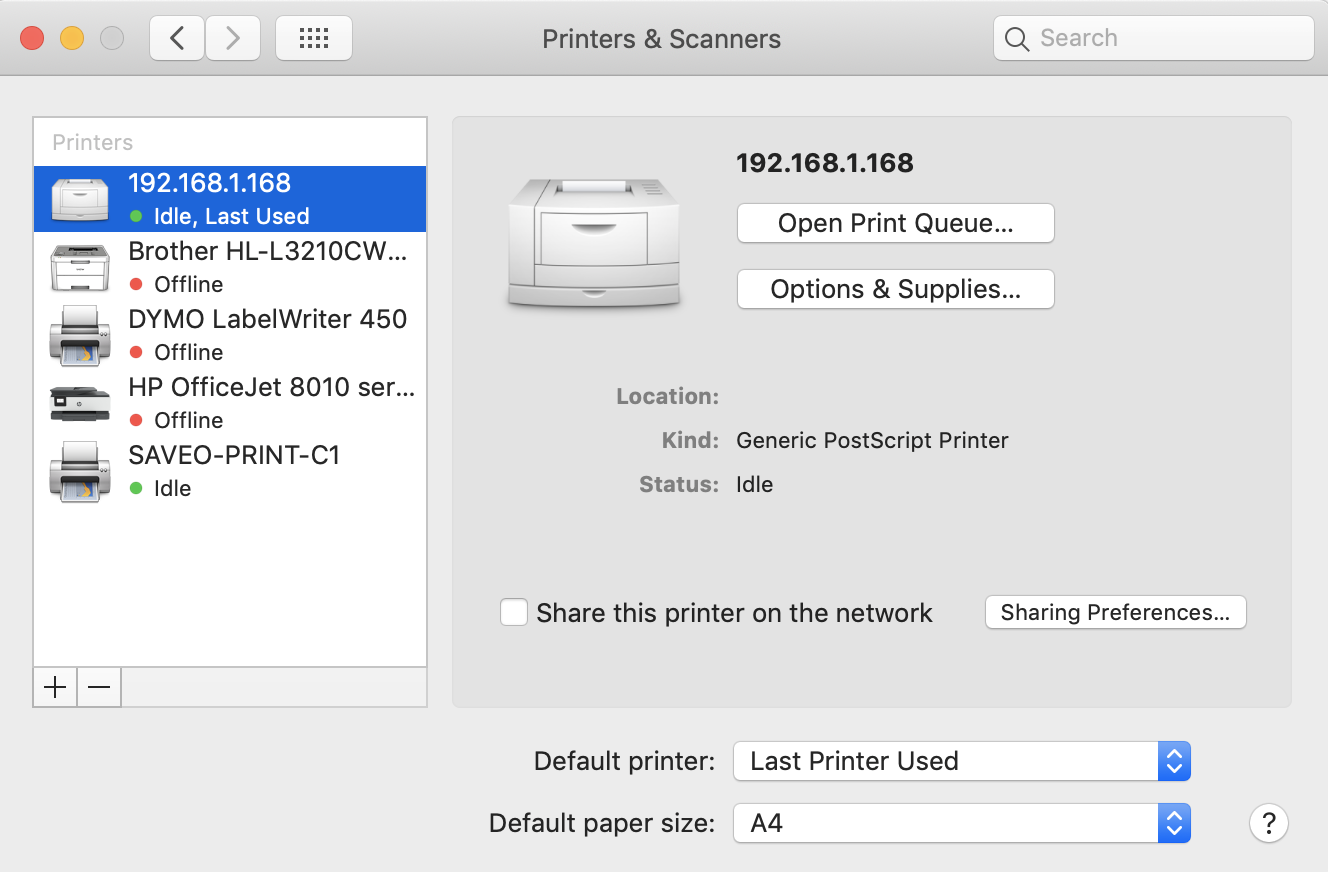
- Two options will be shown for the same printer. You may need to wait up to 1 min for both to be shown
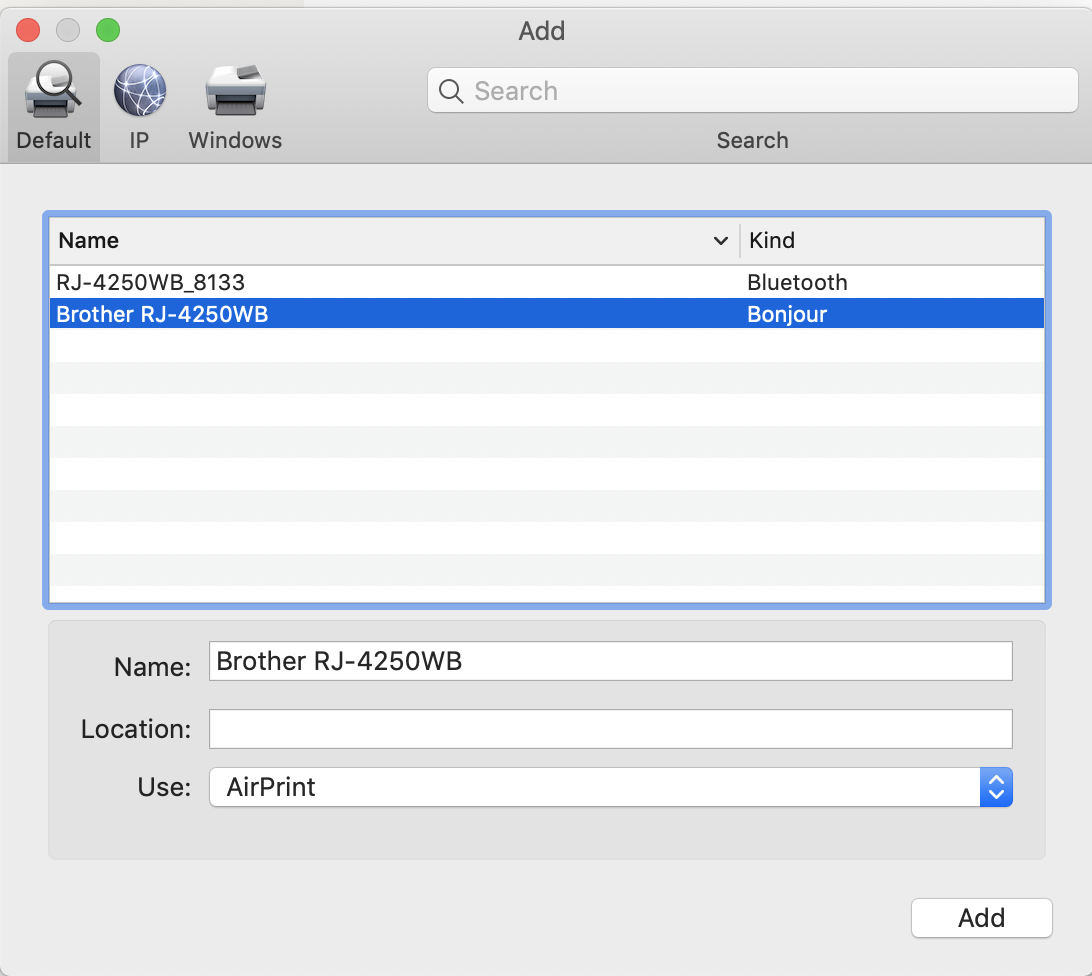
- Choose Bonjour
- Click Add
How to set up the Brother RJ-4250WB with Windows 10
- Go to: https://support.brother.com/g/b/downloadtop.aspx?c=gb&lang=en&prod=rj4250wbeuk
- Choose the option that matches your machine
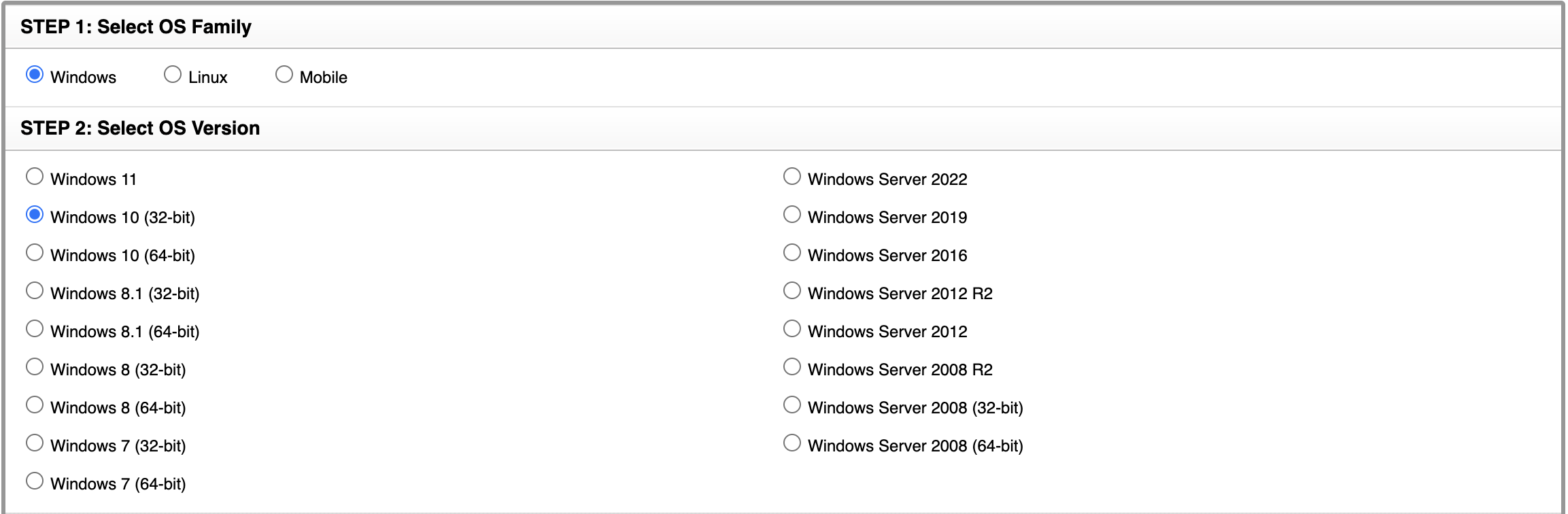
- Install the Driver and the Document Installer
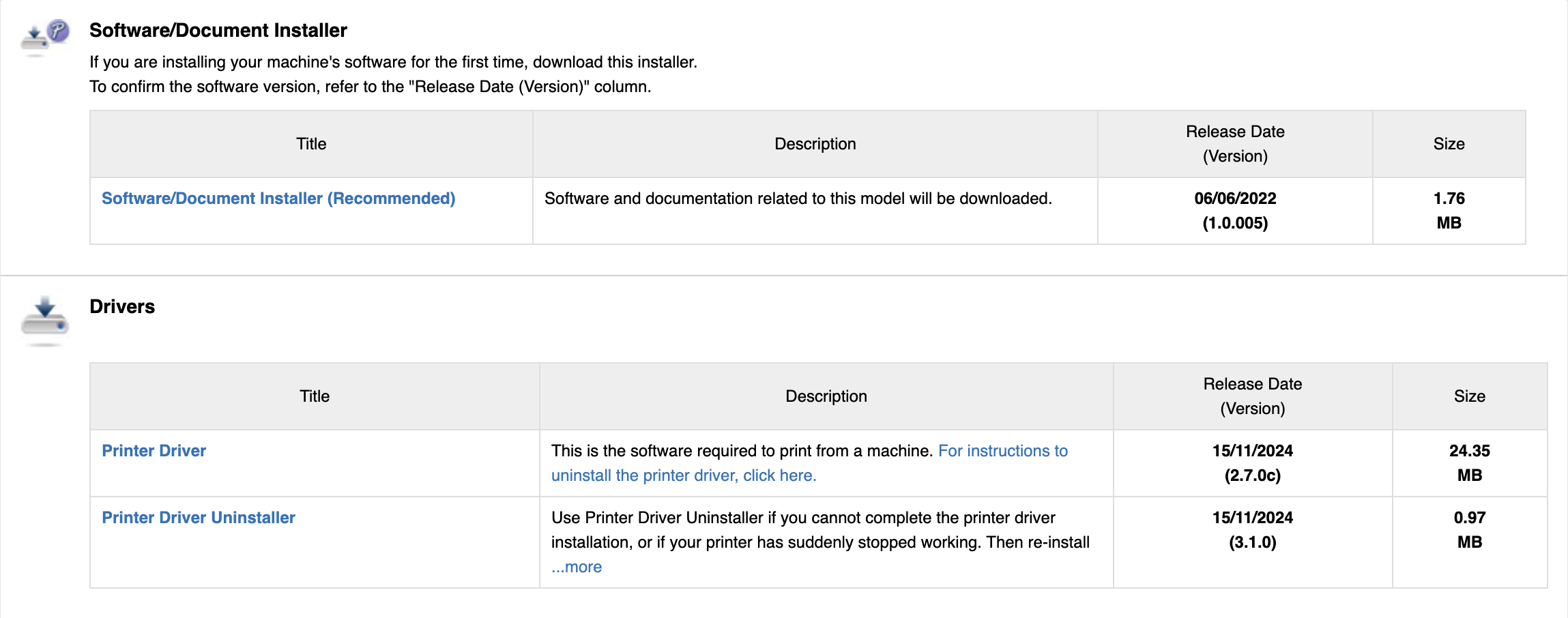
Once installation is complete:
- Login to Orca Scan in your preferred browser
- Choose a barcode to use for a test print
How to load labels into the Brother RJ-4250WB
The Brother RJ-4250WB supports a range of media types, including die-cut labels, continuous paper rolls, receipt rolls, and linerless labels. You can find recommended label suppliers on the Brother website.
To load your labels:
- Push the roll cover release lever to open the roll compartment
- Slide both roll guides outwards to make space for the roll
- Insert the label roll, ensuring its positioned correctly
- Close the roll compartment cover until it locks securely into place
How to print barcodes with the Brother RJ-4250WB
You can print barcodes from your Orca Scan sheet, directly to the Brother RJ-4250WB via Mobile, Desktop. Follow our ‘Print Barcodes’ guide for more information on how to do this.
Also Available from Brother: For industrial-grade label printing with wider format options, see our guide on the Brother TD-4550DNWB, which supports labels up to 4.27 inches wide.
Brother RJ-4250WB Troubleshooting
How do I add my own label sizes in OSX?
This example uses Chrome. This will work with most browsers installed on OSX that has a print function.
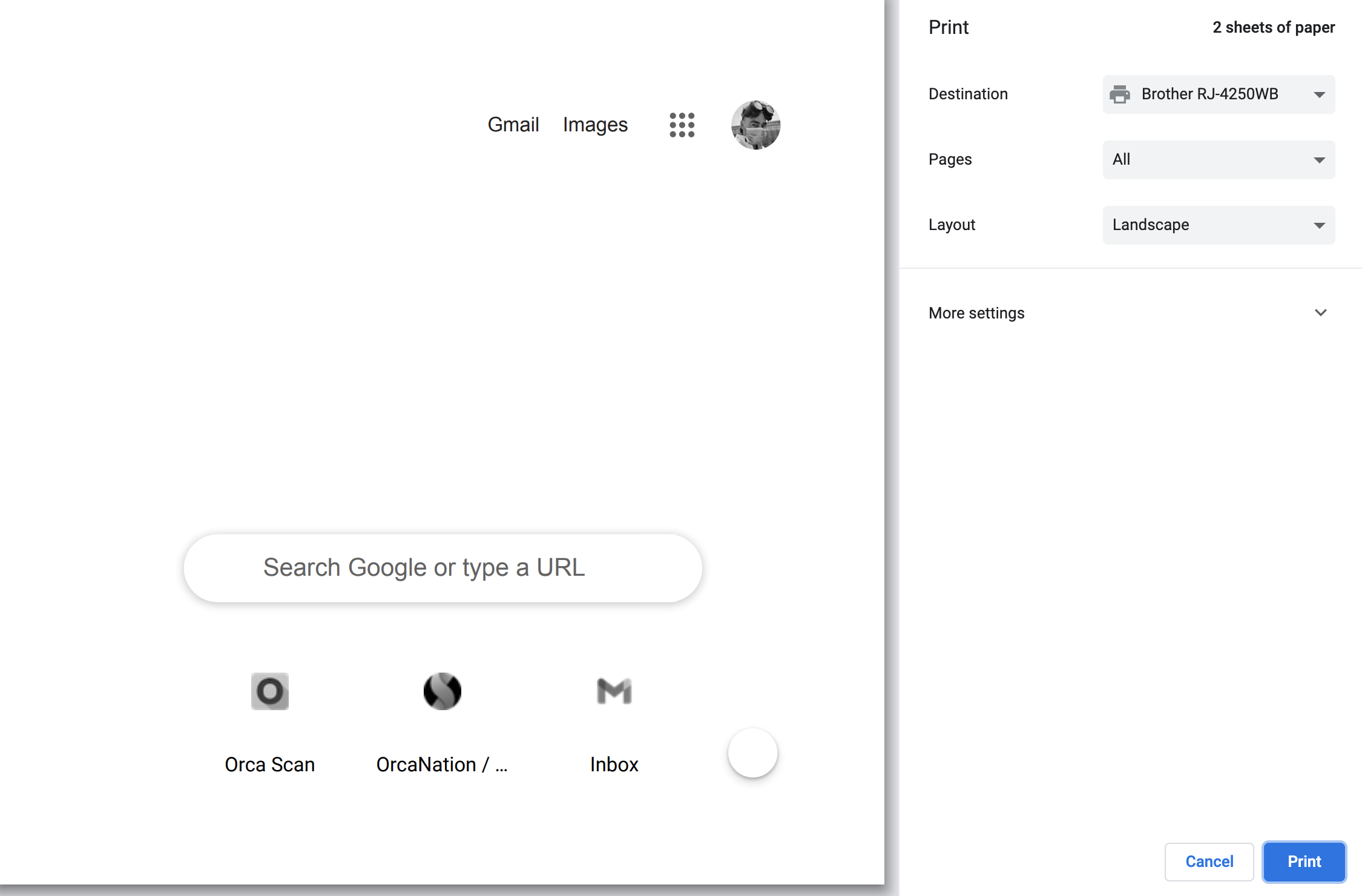
- Go to File in the top menu bar and click Print
- Click on More settings
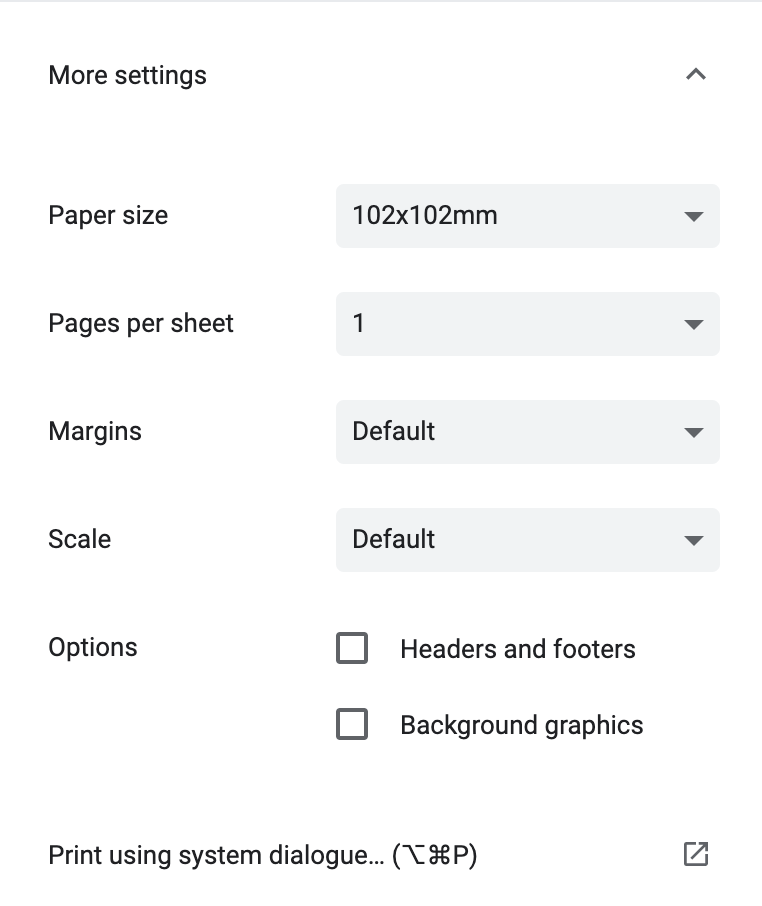
- Click on the Paper Size drop-down
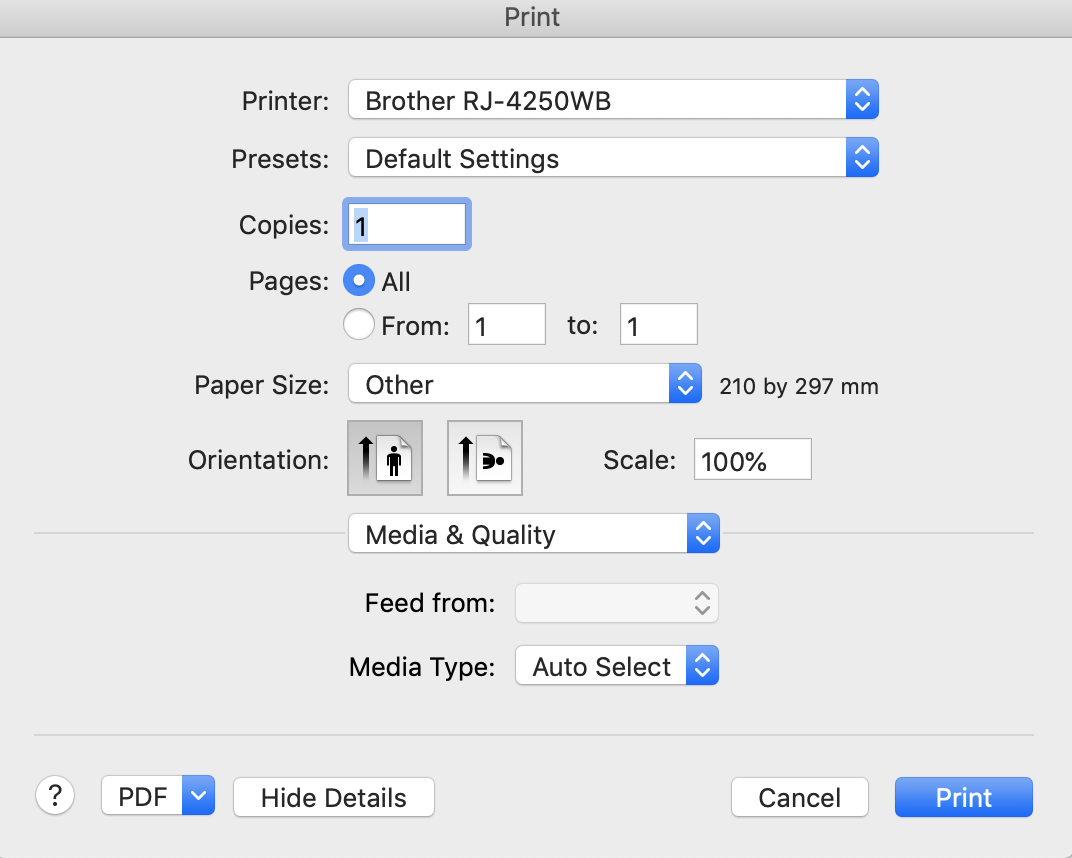
- Click on Manage Custom Sizes
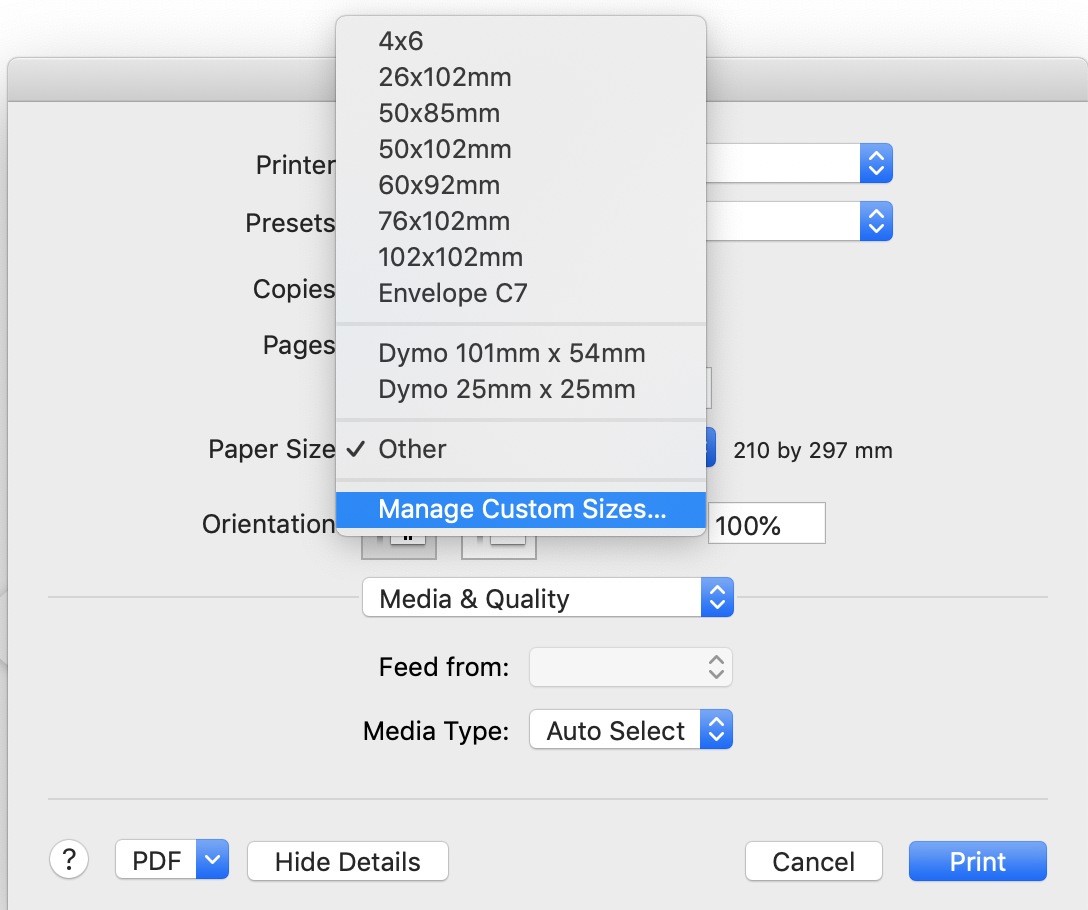
- Click Add
- Add specified size, remove all non-printable areas (you can adjust this later if needed) and give it a name
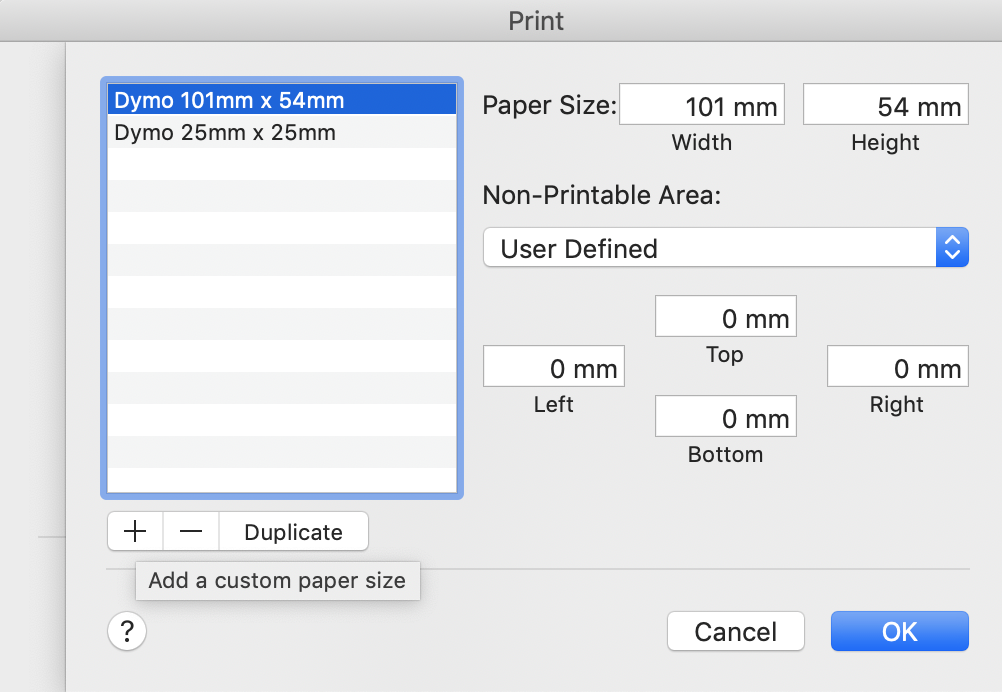
- Click Ok and it’s done!
Other Common issues:
- Wi-Fi Connection Drops: Ensure the printer is within range of the router and there are no obstructions.
- Labels Not Printing: Check if the correct label roll is installed and the printer software is updated.
- Poor Print Quality: Clean the print head and verify that the label roll is compatible.
For official support, visit Brother’s RJ-4250WB troubleshooting page.
Brother RJ4250WB related questions?
We’re happy to help troubleshoot any issues using Orca Scan with the Brother RJ-4250WB, chat with us live or drop us an email.