Listen to this guide
00:00
Orca Scan’s bulk update feature makes managing large datasets from the mobile app simple. Whether adjusting inventory levels, updating statuses, or modifying other details, this guide covers the steps to bulk update all your records simultaneously.
How to Use the Bulk Update Feature in Orca Scan
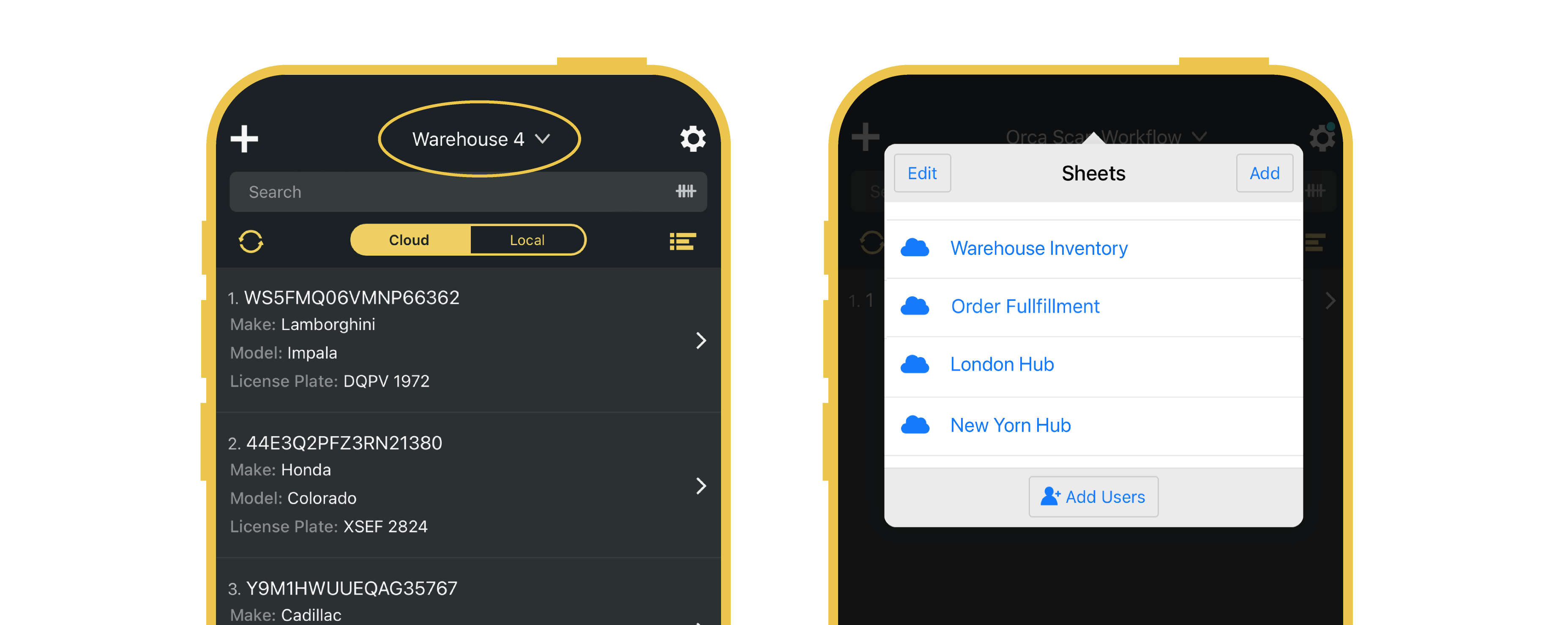
- Open the Orca Scan app and choose the sheet containing the records you want to update
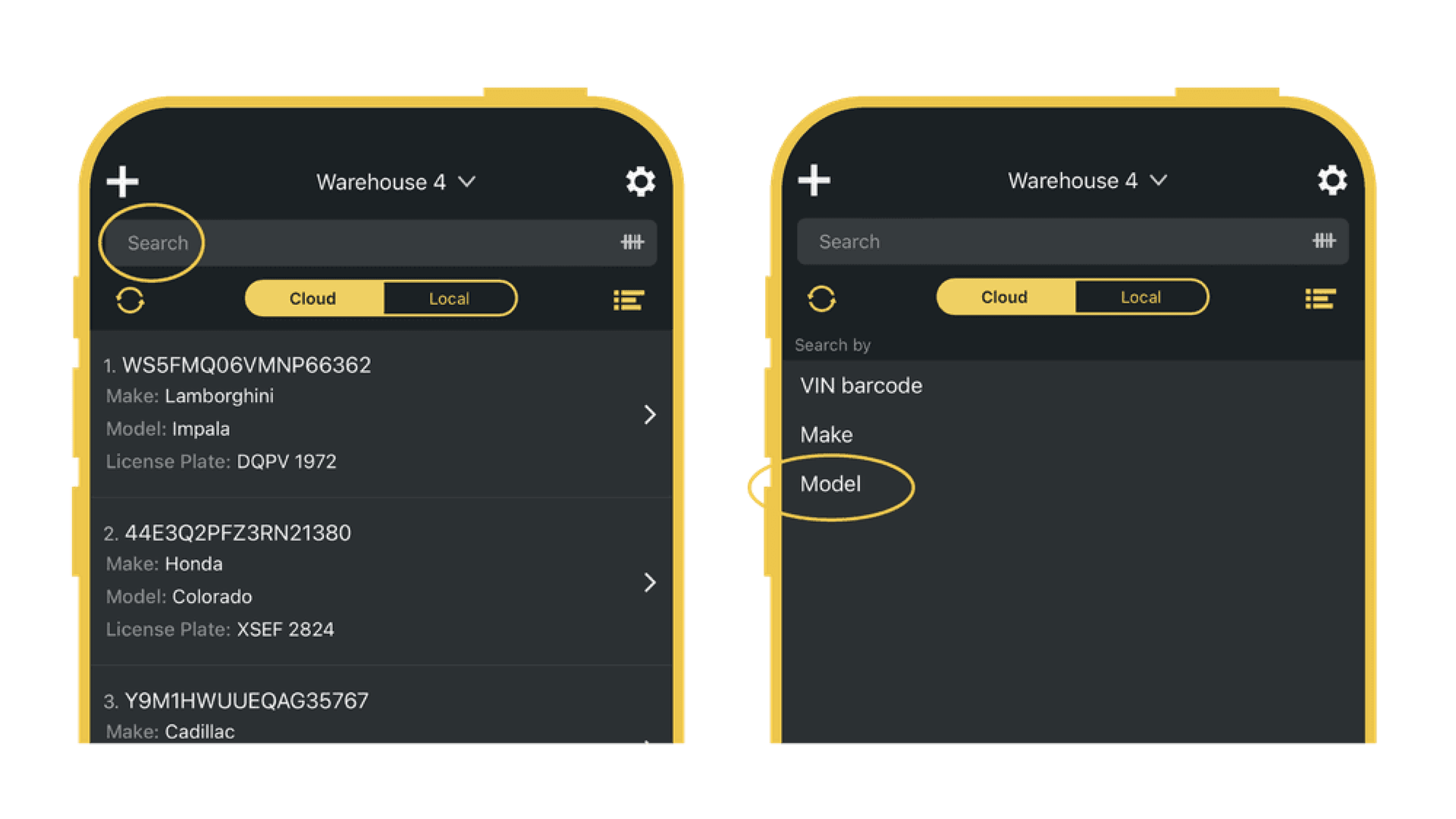
- Tap the Search bar at the top
- Select the field you want to search by (e.g., Product Name, SKU, Location), or scan a barcode to filter records by that value
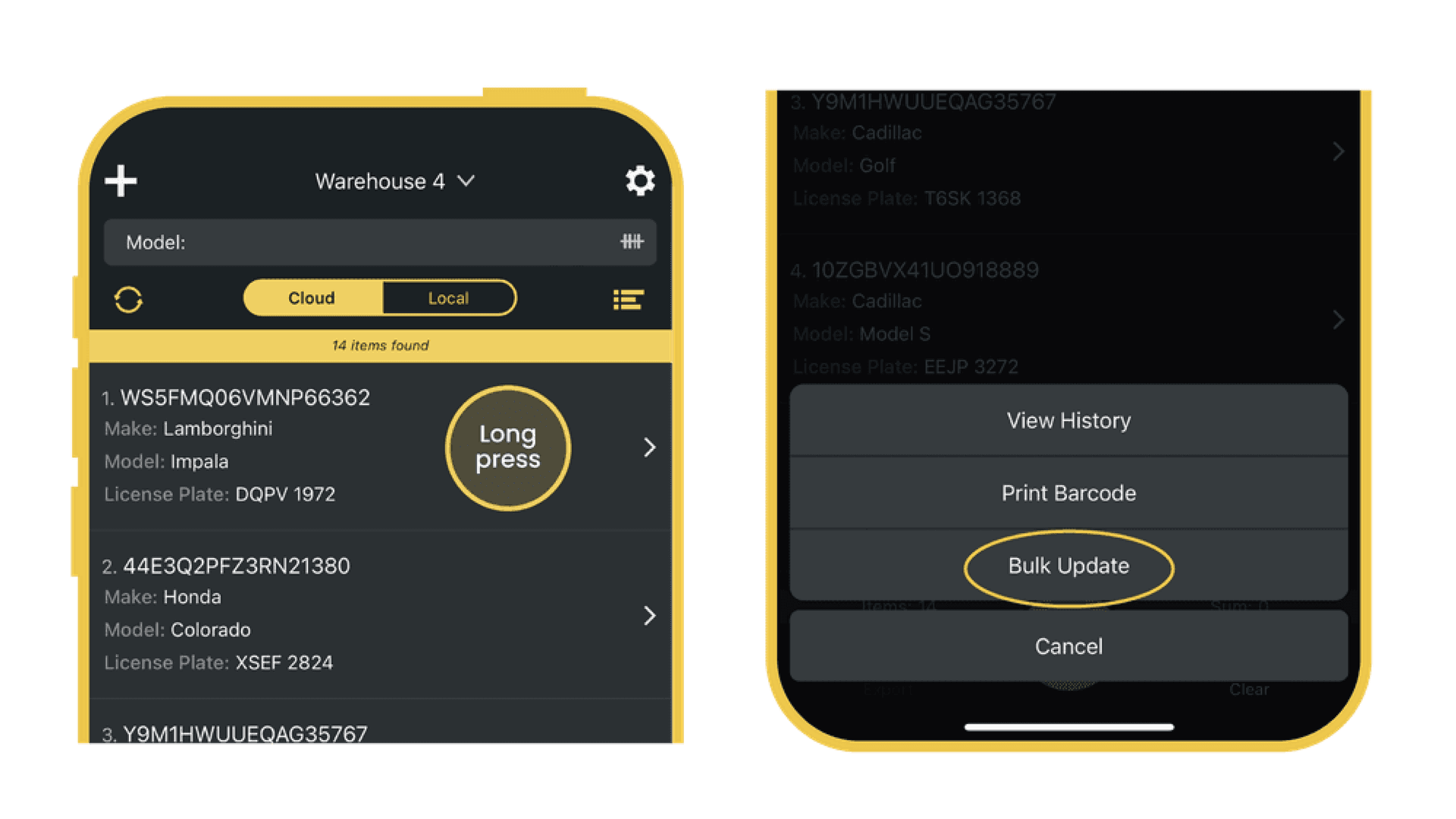
- Long-press any record available in the search results to enable selection mode
- Tap Bulk Update
- Select the field you want to update across the selected records
- When ready, tap Update & Close, then tap Update to apply them
Bulk Updating Records via the Web App
- Click and drag, or use
Shift + Clickto select multiple rows in your sheet - Once selected, right-click anywhere in the highlighted area
- When the bulk update panel opens, choose which fields you would like to update across the selected rows.
- Select the fields you want to update across the selected records
- Type in the new value(s) you want to apply, such as changing the colour, model or asset status
- Hit Update, and your selected rows will be updated instantly
Questions about Bulk Updating?
We’re always happy to help, chat with us live or drop us an email.