You can use the signature field to capture proof of delivery information at the point of scanning a barcode, which includes GPS location and date/time stamp.
How to add a signature field on the mobile app
- Scan a barcode or tap to edit an item in the list
- Tap the cog icon next to any of the fields
- Click Add new field
- Name the field Signature
- Set the data type to Signature
- Tap Save to add the field
After adding the field, refresh the mobile app. You can now scan a barcode (or tap an item) to add a signature.
How to add a signature field on the web app
- Right-click on a column and select Add Column
- Enter a name for your new column
- Set the data type to Signature
- Click Add to create the column
Your Signature Field is now ready to use.
Using Signatures
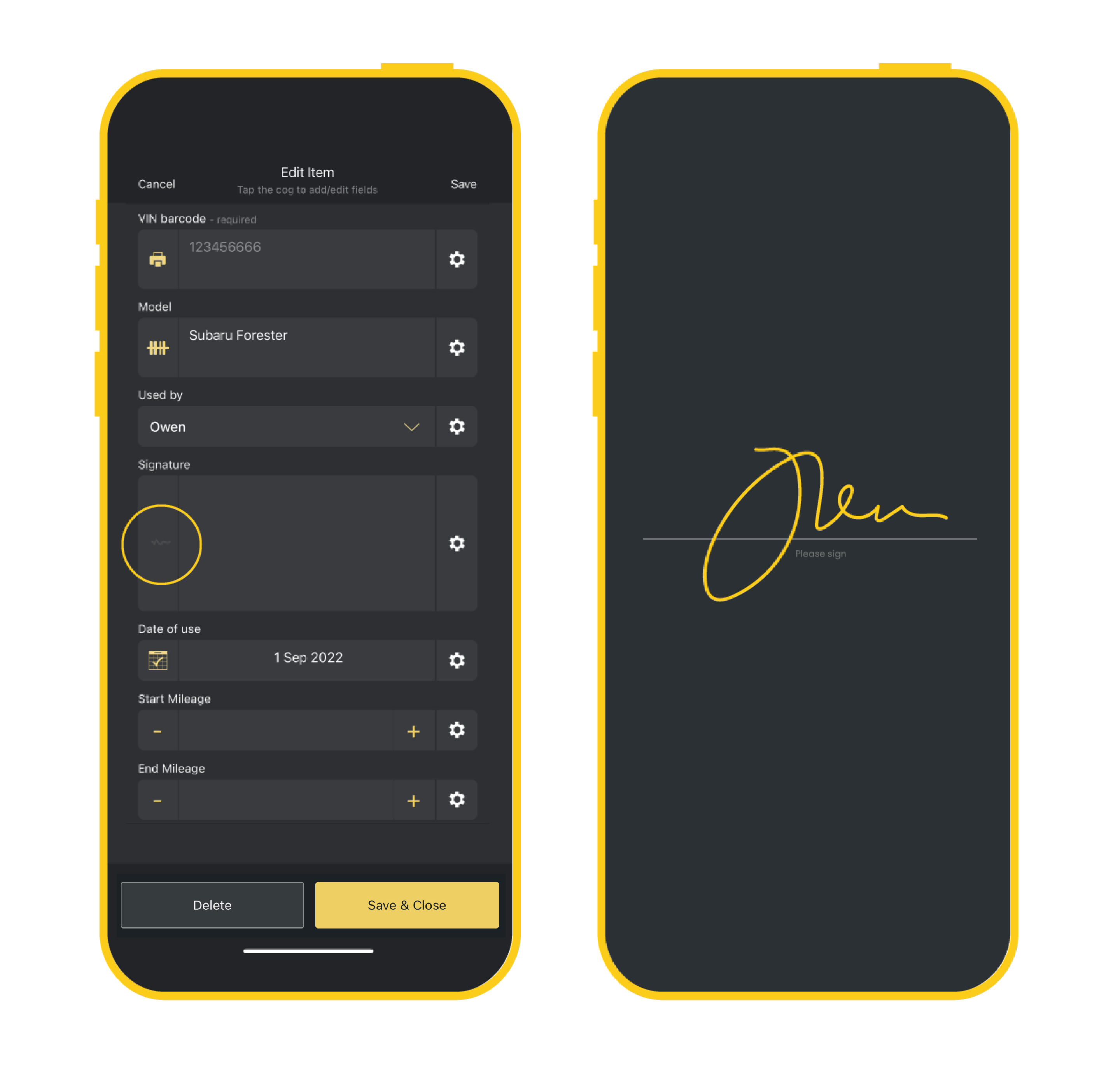
To use the signature field:
- Tap the field to open
- Sign on screen & save
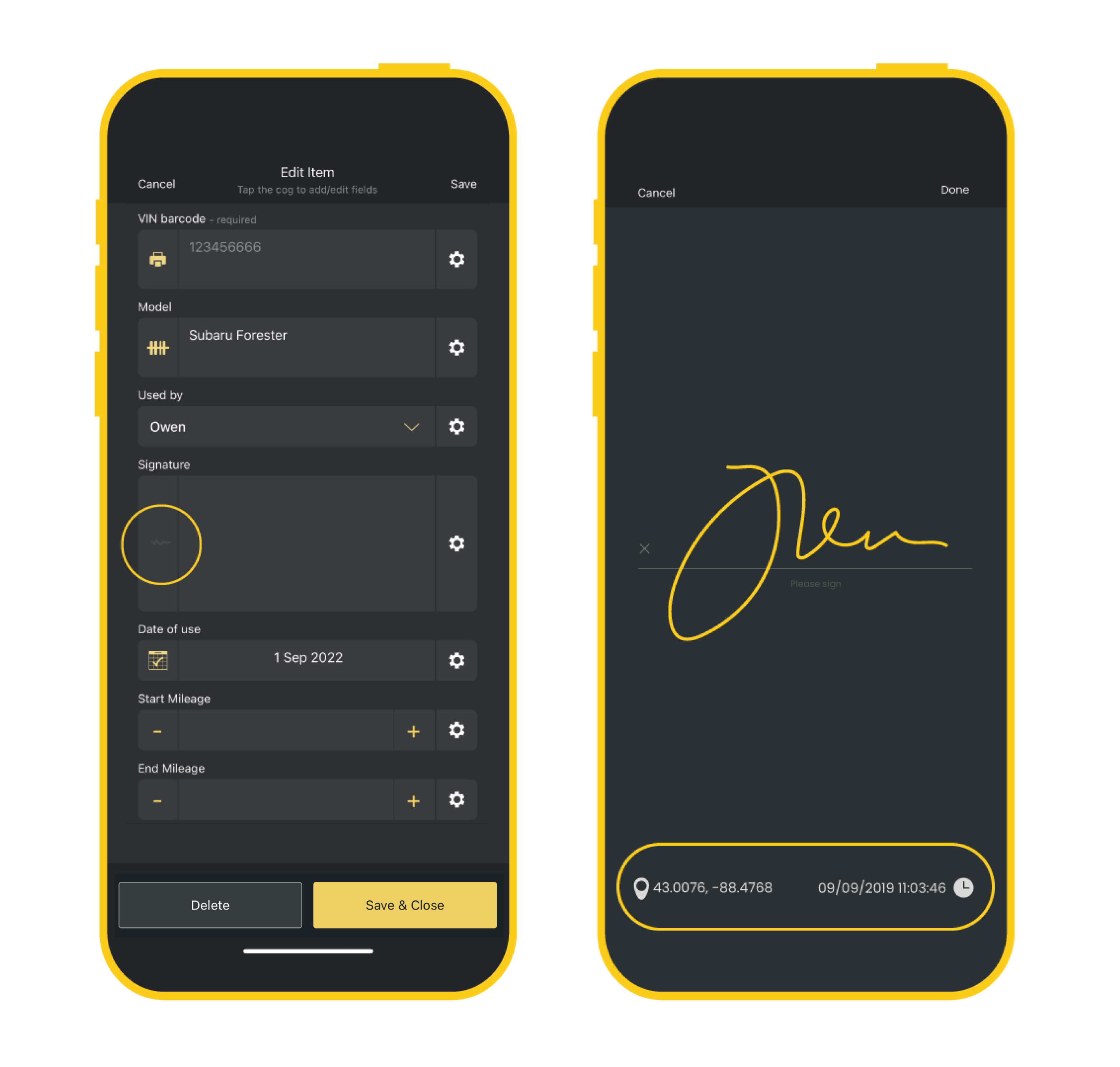
GPS and Timestamp
Orca Scan automatically captures the GPS location and date/time upon signing. To view these:
- Tap the field to open
- Sign on screen & save
Viewing Signatures
A signature (or proof of delivery) can be viewed using the Orca Scan web application. Simply click the magnifying glass next to the signed date/time.
Exporting Signatures
When you export a sheet containing signatures, each signature is exported as an image URL, allowing you to quickly view or share it outside Orca Scan. The export also includes the date and time the signature was captured.
Questions about Signatures?
We’re always happy to help, chat with us live or drop us an email.