Connect your Orca Scan account to an AI assistant like Claude or ChatGPT and manage your barcode data just by chatting. Ask it to list your sheets, add rows, find low‑stock items, set up webhooks, or summarise recent scans in plain English, without code.
What you can ask it
Once connected, you can ask your assistant things like:
- “List all my Orca Scan sheets.”
- “How many rows are in my Inventory sheet?”
- “Create a new sheet called Warehouse Audit.”
- “Create a trigger to notify me by email if the stock is low”
- “Help me visualize the most scanned barcodes in my sheets”
- “Add a row to Inventory: SKU 12345, quantity 10.”
- “Which products in Inventory are below 5 in stock?”
- “Give my teammate access to the Deliveries sheet.”
- “Notify my system whenever a row is added to Inventory.” (sets up a webhook)
- “Summarise everything scanned into Inventory this week.”
The assistant can do anything your Orca Scan account can: read, add, update, and organise your data, through plain conversation.
How it works
- You connect your AI assistant to Orca Scan once, using your Orca Scan API key.
- When you ask a question about your barcode data, the assistant securely calls Orca Scan on your behalf, gets the answer, and replies in plain language.
- It can only do what you can do, it uses your key and respects your permissions on each sheet. It can’t see or change anything you couldn’t yourself.
- Nothing is installed. It’s a secure online connection over HTTPS.
Before you start
Make sure you have:
- An Orca Scan account with at least one sheet
- A Business or Enterprise subscription
- An AI assistant that supports connectors: Claude Desktop, Claude.ai, or ChatGPT
- Your Orca Scan API key (get it in the next step)
Get your API key
- Log in to the Orca Scan web app
- Go to Account Settings in the top right
- Copy your API key (it starts with
orca_)
Keep it handy, you’ll paste it once during setup. Treat it like a password.
Set it up
Claude Desktop
- Open Claude Desktop and go to Settings → Connectors
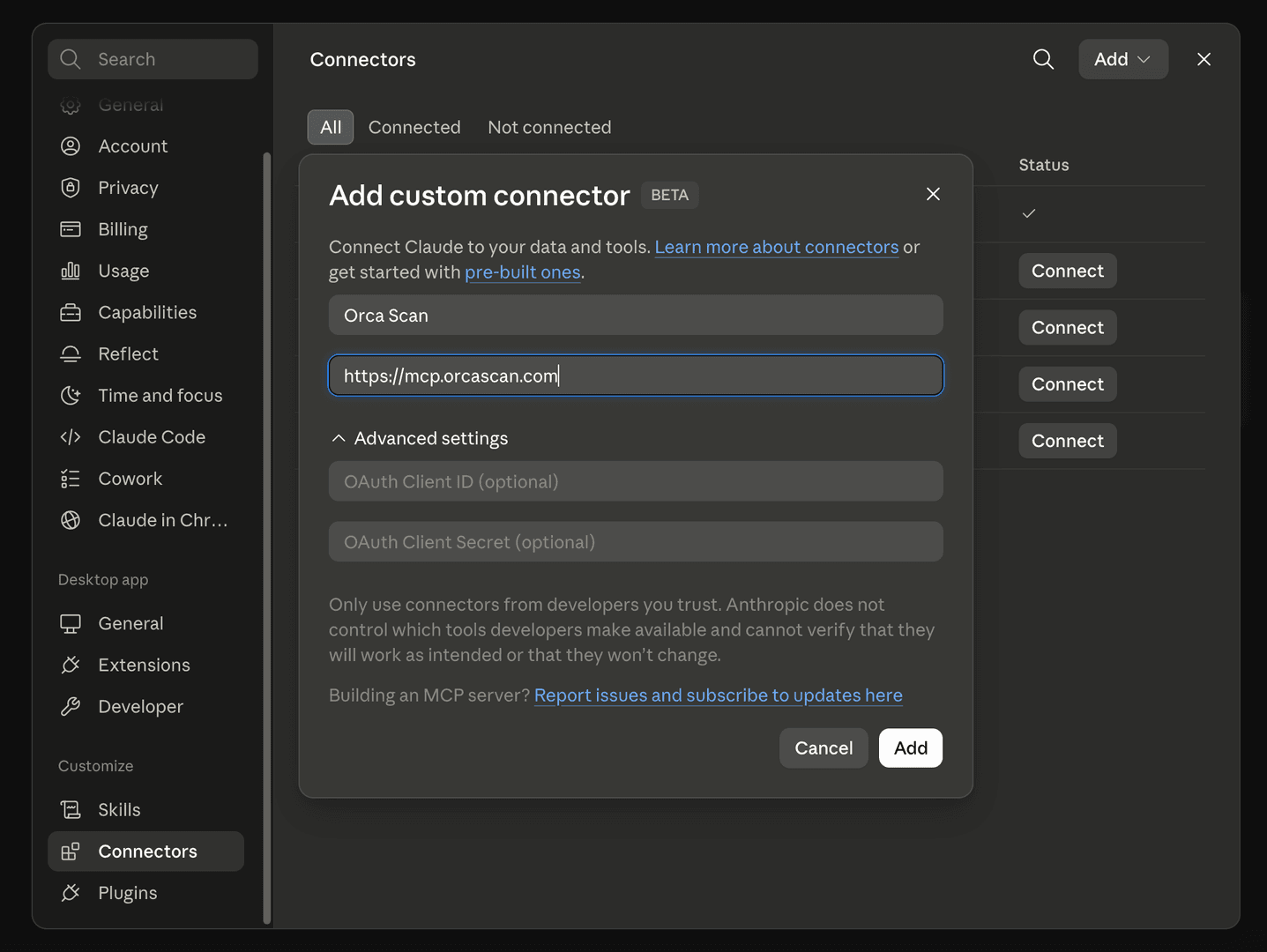
- Click Add → Add custom connector
- Give it a name (e.g. Orca Scan) and enter this URL:
https://mcp.orcascan.com - Click Add, then Connect, an Orca Scan sign‑in page opens
- Paste your API key and click Allow access
- Done. Ask Claude “List my Orca Scan sheets” to test it
Claude.ai (web)
- Go to claude.ai and open Settings → Connectors
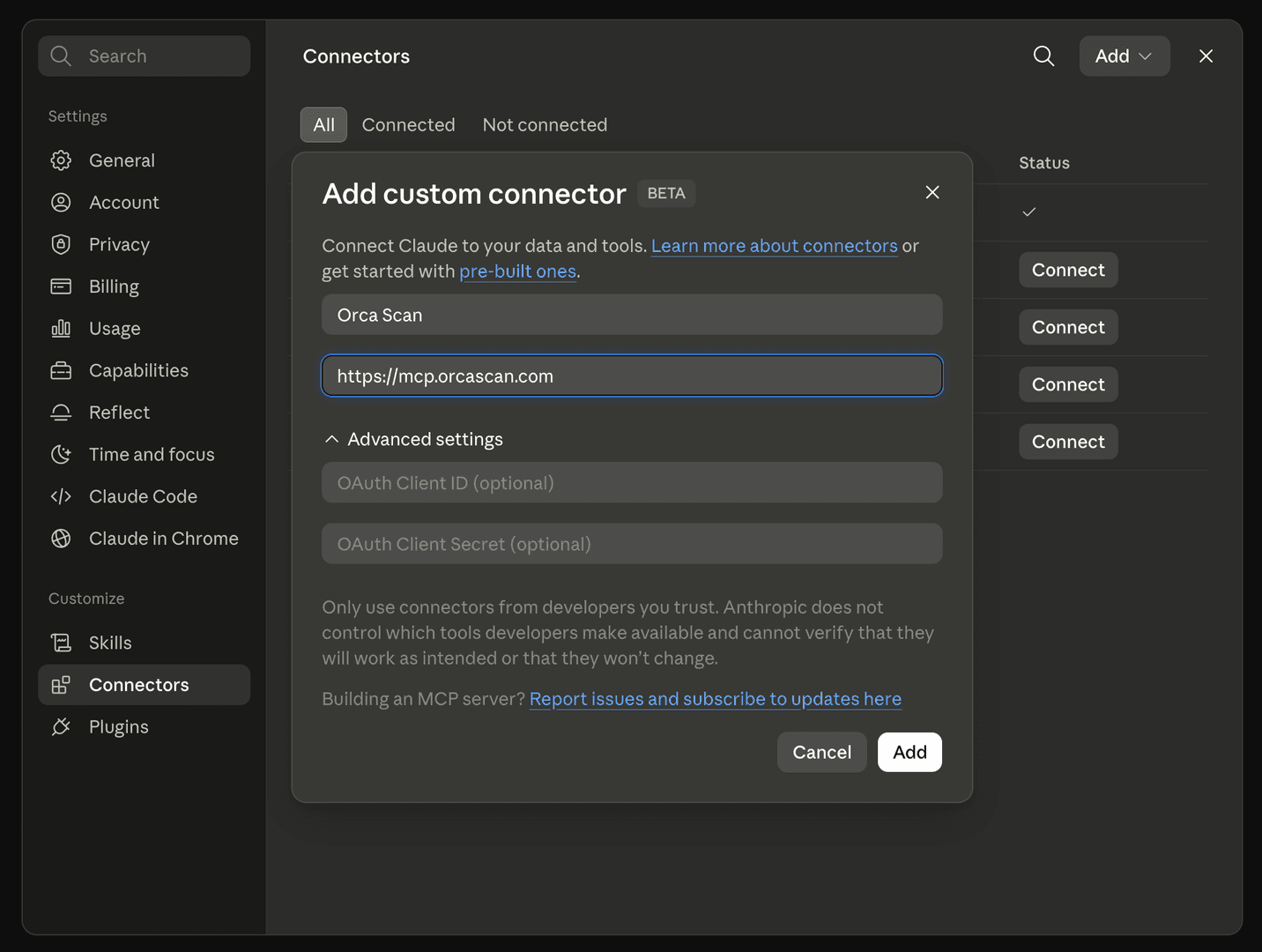
- Click Add → Add custom connector
- Give it a name (e.g. Orca Scan) and enter this URL:
https://mcp.orcascan.com - Click Add, then Connect, an Orca Scan sign‑in page opens
- Paste your API key and click Allow access
- Done. Start a new chat and ask “List my Orca Scan sheets”
ChatGPT Desktop
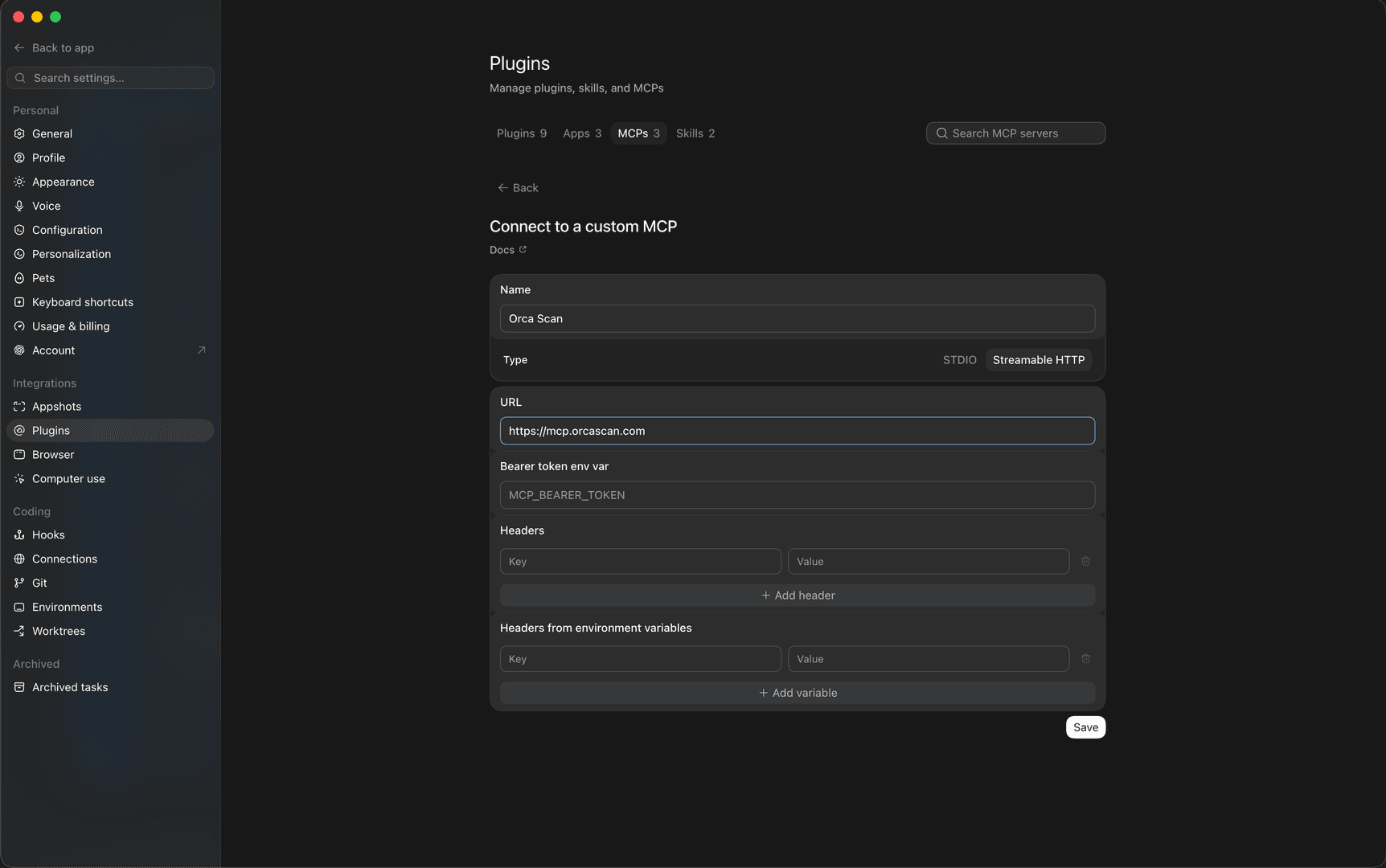
- In ChatGPT, open Settings → Plugins
- Click on MCPs
- Click on Add Server
- Set Server Name to “Orca Scan”
- set Type to “Streamable HTTP”
- Set this as the URL:
https://mcp.orcascan.com - Click Save
- Click Authenticate
- When prompted, Sign in — an Orca Scan page opens
- Paste your API key and click Allow access
- Done. Ask ChatGPT “List my Orca Scan sheets”
ChatGPT.com (web)
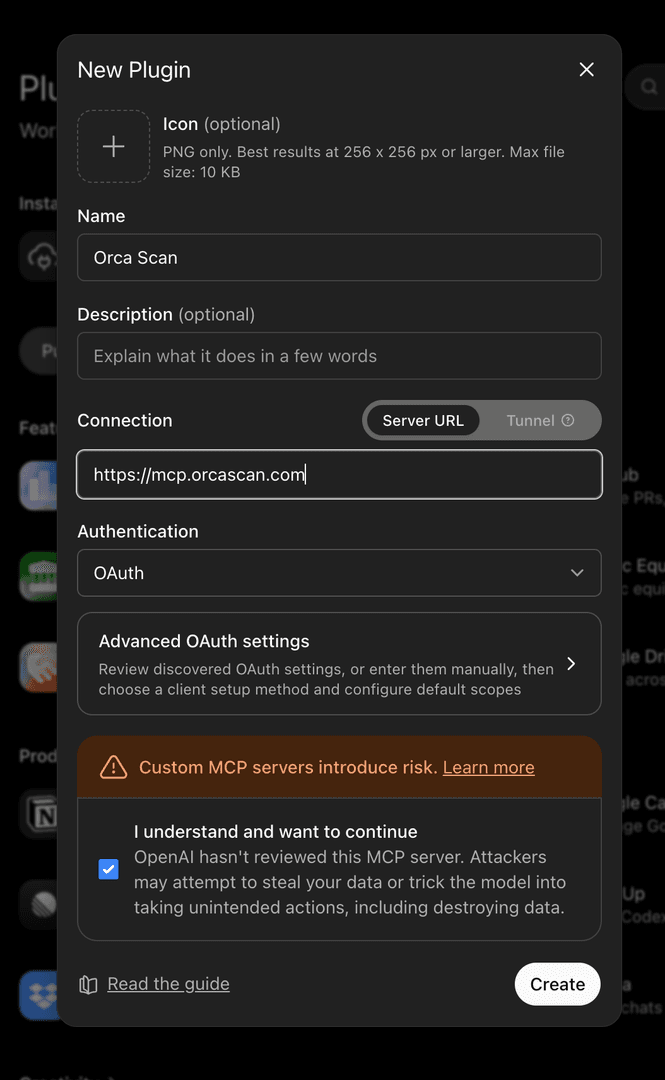
- In ChatGPT, open Settings → Plugins (you may need to turn on developer mode first, by going to “Security and login”)
- Click Browse Plugins
- Click on the Plus Sign
- Set Name to “Orca Scan”
- Set Connection URL this URL:
https://mcp.orcascan.com - Click “Create”
- Click “Sign in with Orca Scan”
- Paste your API key and click Allow access
- Done. Ask ChatGPT “List my Orca Scan sheets”
Frequently asked questions
Do I need to know how to code?
No. Once it’s connected, you just chat in plain English.
Is my data safe?
Your API key is the only credential, and it’s never stored in a database, it’s held inside an encrypted token that only the Orca Scan connector can read, and all traffic is encrypted (HTTPS).
What can the assistant access?
Exactly what you can: the sheets you have access to, with your permissions (view, update, delete, admin) on each. It can’t do anything you couldn’t do yourself in the app.
Will it change my data without asking?
Your AI app asks for your approval before it runs an action such as adding or deleting data. You can approve each time, or choose “always allow” for an action you trust.
Does the AI “see” my barcode data?
When you ask the assistant to work with data (for example, rows in a sheet), that data is sent to the AI to answer you, the same as any AI tool. Only connect data you’re comfortable sharing with your AI provider (Anthropic or OpenAI).
How do I disconnect or revoke access?
Two ways: remove the connector in your AI app, or regenerate your API key in Account Settings. Please note that regenerating instantly breaks any existing connection.
Which AI apps work?
Claude Desktop, Claude.ai, ChatGPT, and other tools that support MCP connectors.
It keeps asking permission for every action, can I stop that?
Yes. In your AI app, choose “always allow” for the Orca Scan actions you trust.
Request an integration
Need help getting Orca Scan working with your software? Request a Software Integration