Orca Scan gives every item you track its own unique, permanent QR code and item.link web address. Unlike UPC, EAN and other product barcodes you may already use to track it, each Item Link identifies one specific physical item. Scan it with any phone to view, update or collect data without an app. The same address also works as an API endpoint.
How Item Link QR codes work
- Every row gets a unique, permanent
item.linkaddress - Print the Item Link QR code and attach it to the item
- Scan with any phone camera, no app or account required
- Set what happens: show details, collect data or redirect
What happens when an Item Link is scanned
The sheet owner sets what happens when someone scans an Item Link QR code. This can be changed at any time without replacing the QR code.
| Mode | What the person scanning sees |
|---|---|
Do nothing |
The Item Link is valid but disabled |
Show details |
Show selected data about the item |
Collect data |
Show a form to view or update the item |
Redirect to URL |
Open another website with the Item Link attached |
Item Link vs product barcodes
Product barcodes such as UPC and EAN identify a product type, so multiple identical products can share the same barcode. Item Link adds a unique identity to each individual item without replacing its existing barcode.
How to enable Item Link QR codes
- Log in to the Orca Scan web app
- Select the sheet you want to enable Item Link for
- Click Settings on the toolbar
- Select Item Link from the menu
- Choose what happens when an Item Link QR code is scanned
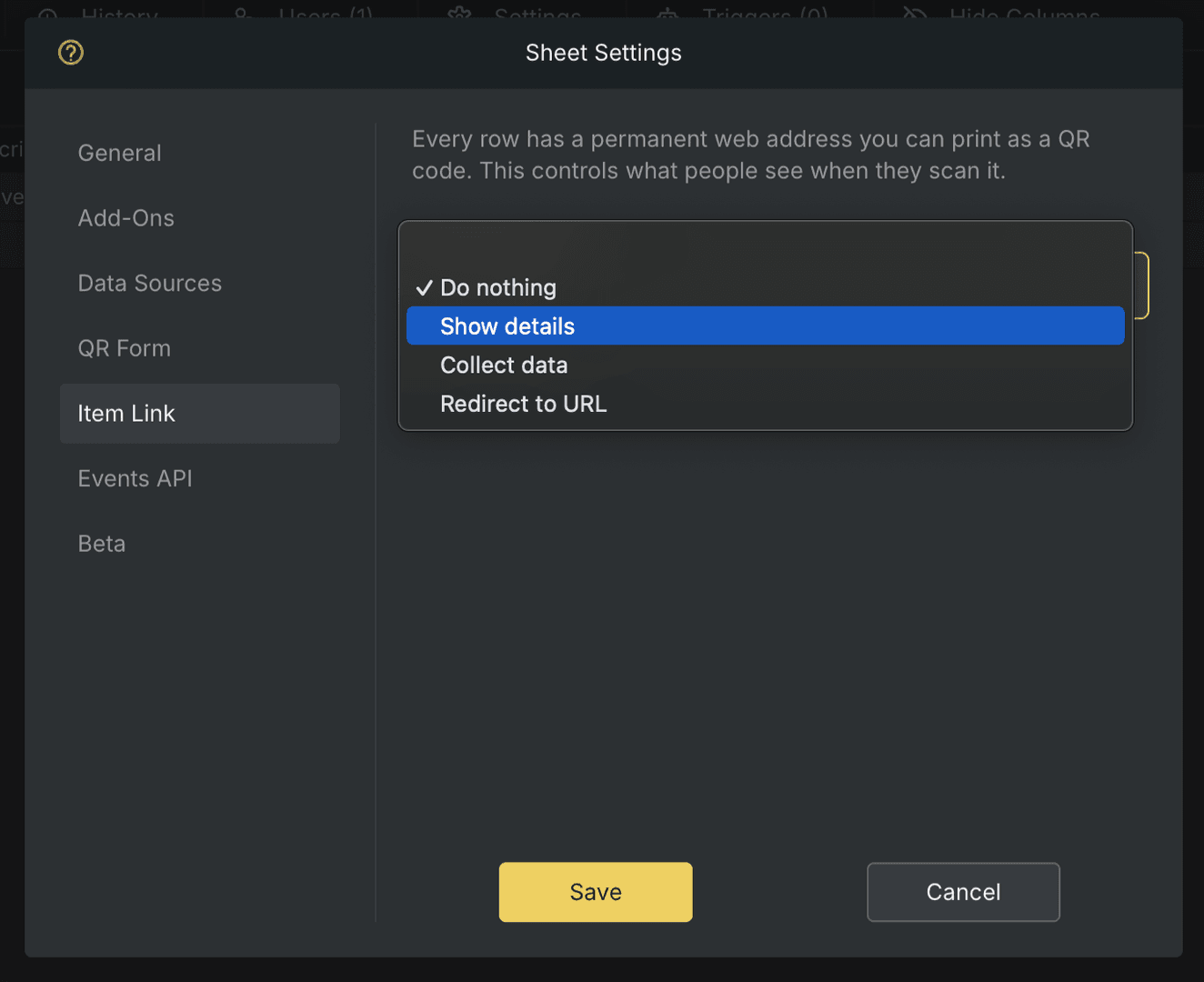
- Configure any additional options for the selected mode
- Click Save
How to download or print Item Link QR codes
- Select a number of rows in your sheet
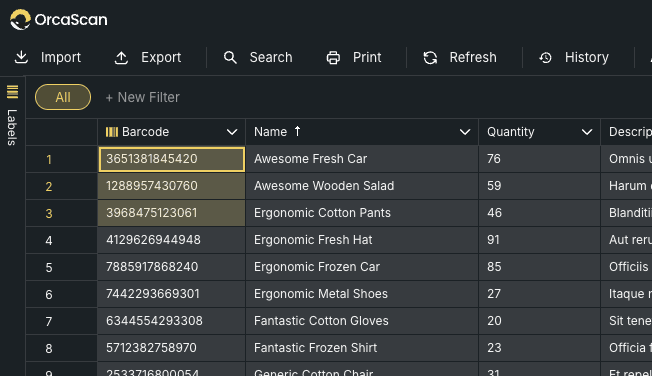
- Open the Labels panel and select Item Link label
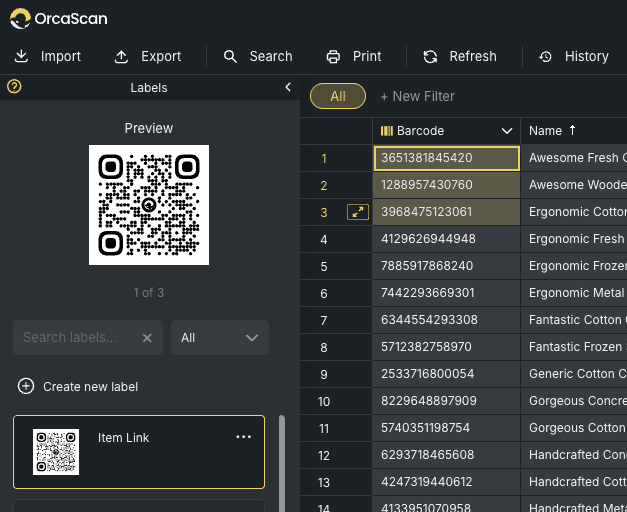
- Click Print or Download
How to use an Item Link as an API endpoint
Every item.link address is also an API endpoint, allowing other systems to access data about that specific item. Sending an HTTP GET request with Accept: application/json returns JSON instead of the web page:
# run this in your terminal
curl https://item.link/14k7rZpycx3kiK6qtw -H "Accept: application/json"
Item Link responses use the same structure { mode, data, schema, links }:
{
  "mode": "collect data",
  "data": {
    "name": "Awesome Fresh Car",
    "quantity": 76,
    "location": "51.8811280, 1.1314275"
  },
  "schema": {
    "type": "object",
    "properties": {
      "name": { "title": "Name", "type": "string" },
      "quantity": { "title": "Quantity", "type": "number" },
      "location": { "title": "Location", "type": "string" }
    }
  },
  "links": [
    {
	    "rel": "update",
	    "href": "https://item.link/14k7rZpycx3kiK6qtw",
	    "method": "PUT"
    }
  ]
}
mode- how the Item Link is configured to behavedata- the current data for this specific itemschema- JSON Schema (draft-03) describing the data fieldslinks- actions available for this item
The schema describes the fields in data, including their names, types and formats, so software can understand the item without prior knowledge of the Orca Scan sheet.
Modes
The mode determines what data and links you get back:
mode |
data |
links |
|---|---|---|
do nothing |
empty | none |
redirect to url |
empty | rel: redirect (GET) |
show details |
read-only field values | none |
collect data |
current item data | rel: update (PUT) |
Updating an item
When mode is collect data, the rel: update link tells the client the item can be updated with a PUT to the supplied href:
curl -X PUT https://item.link/14k7rZpycx3kiK6qtw \
  -H "Content-Type: application/json" \
  -d '{ "quantity": 77 }'
PIN protection (optional)
A collect data Item Link may be PIN protected. If it is, the first request returns 401 with a schema asking for a PIN and a rel: next link to POST it to:
{
  "mode": "collect data",
  "data": {},
  "schema": {
    "properties": {
      "_pin": {
        "title": "Please enter the 4-digit PIN",
        "type": "string"
      }
    }
  },
  "links": [
    {
      "rel": "next",
      "href": "https://item.link/14k7rZpycx3kiK6qtw",
      "method": "POST"
    }
  ]
}
POST the PIN and follow the redirect to access the data:
curl -L -X POST https://item.link/14k7rZpycx3kiK6qtw \
  -H "Accept: application/json" \
  -H "Content-Type: application/json" \
  -d '{ "_pin": "1234" }'
Status codes
| Code | Meaning | Body shape |
|---|---|---|
200 |
Success | { mode, data, schema, links } |
204 |
Update succeeded | (empty) |
401 |
PIN required or invalid | { mode, data, schema, links } |
404 |
Item Link not found | { status, error, message } |
500 |
Server error | { status, error, message } |
A 401 indicates that a PIN is required or invalid, follow the rel: next link to submit it. Errors (404, 500) return:
{
  "status": 404,
  "error": "Not found",
  "message": "Sorry, we were unable to find what you're looking for"
}
Item Link QR code use cases
- Equipment tracking: give each asset a permanent QR code
- Inspections: view details or record inspections
- Maintenance: access and update service records
- Asset identification: give identical assets their own identity
- Data collection: collect information without an app
- System integration: give each item a permanent API endpoint
Item Link QR code FAQs
Does Item Link replace existing barcodes?
No. Existing UPC, EAN and other barcodes continue to work normally. Item Link adds a unique identity for an individual item.
Do I need to print an Item Link QR code for every item?
No. Every item gets an Item Link, but you only need to print and attach the QR code when you want to use it on the physical item.
Does someone need Orca Scan to scan an Item Link?
No. Item Link QR codes can be scanned using a normal phone camera without an app or Orca Scan account.
Can I change what an Item Link does after printing it?
Yes. The sheet owner can change its mode without replacing the printed QR code.
What happens if the item’s data changes?
The Item Link address and printed QR code stay the same, so you can update the item’s data without replacing its label.
Is each Item Link unique?
Yes. Each Item Link identifies one individual item rather than a product type.
Can Item Link be used without a QR code?
Yes. The item.link address can be accessed directly by a browser or used as an API endpoint by another system.
Need help tracking assets using QR codes?
We’re happy to help, chat with us live or book a free implementation call.