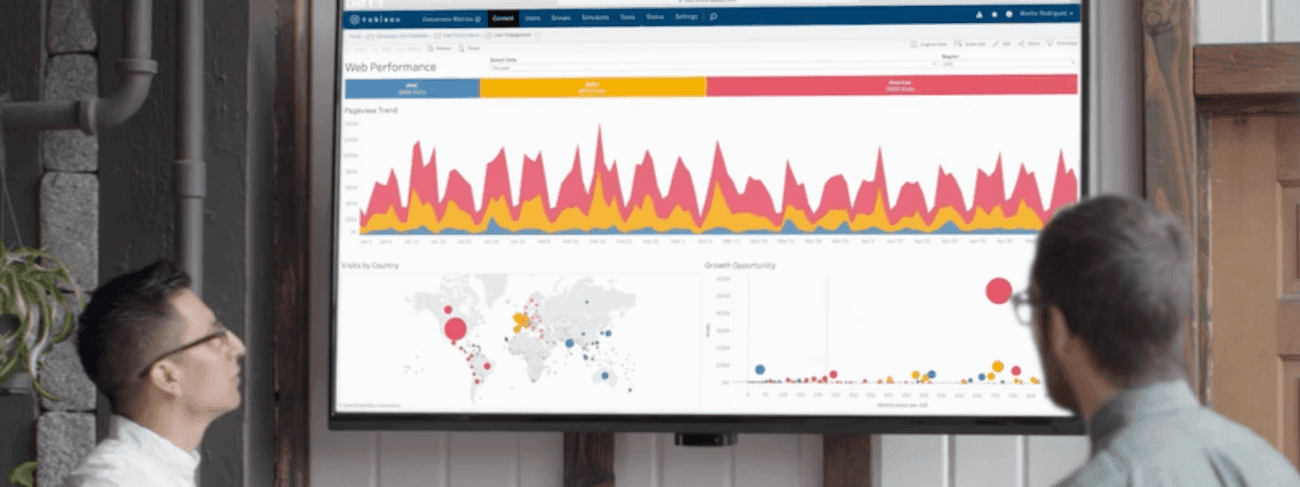
In this guide, we’ll walk you through integrating Cloud Sheets with Tableau’s data analytics application to model and analyse your Orca Scan data in real-time.
1. Install Tableau
To get started, install Tableau Desktop or sign up for Tableau Online
Tableau Desktop vs Tableau Online
The main difference between the two is that Tableau Online is fully cloud-based and lets you publish and share dashboards with anyone, anywhere.
2. Open Sheet Integrations
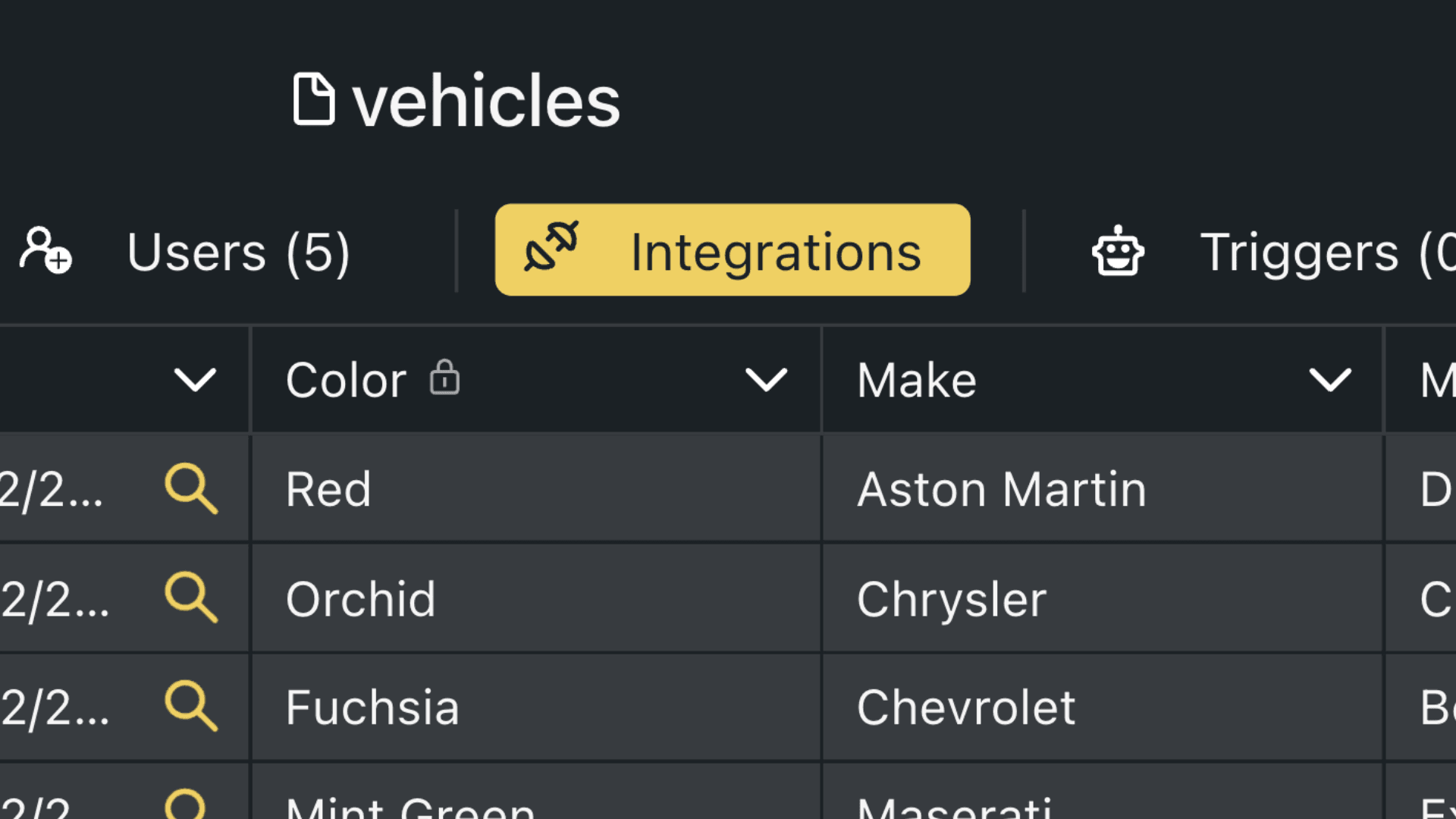
Start by logging in to your Orca Scan account, selecting the sheet that you want to connect to Tableau and opening the Integrations settings
3. Get Live Data URL
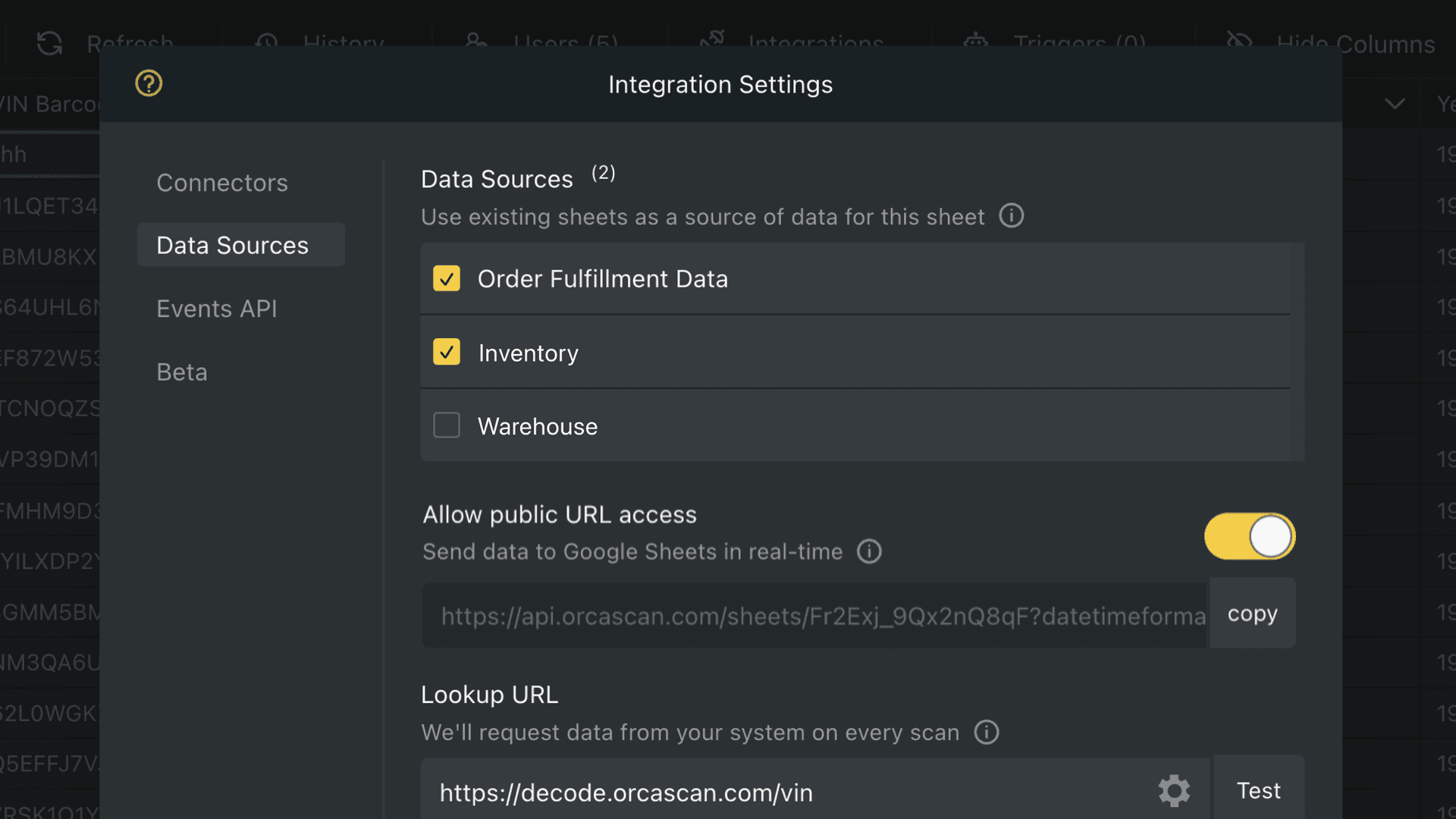
Now, Allow Public URL access and copy the Live Data URL to your clipboard. We’ll use this URL to query Orca Scan data in real-time
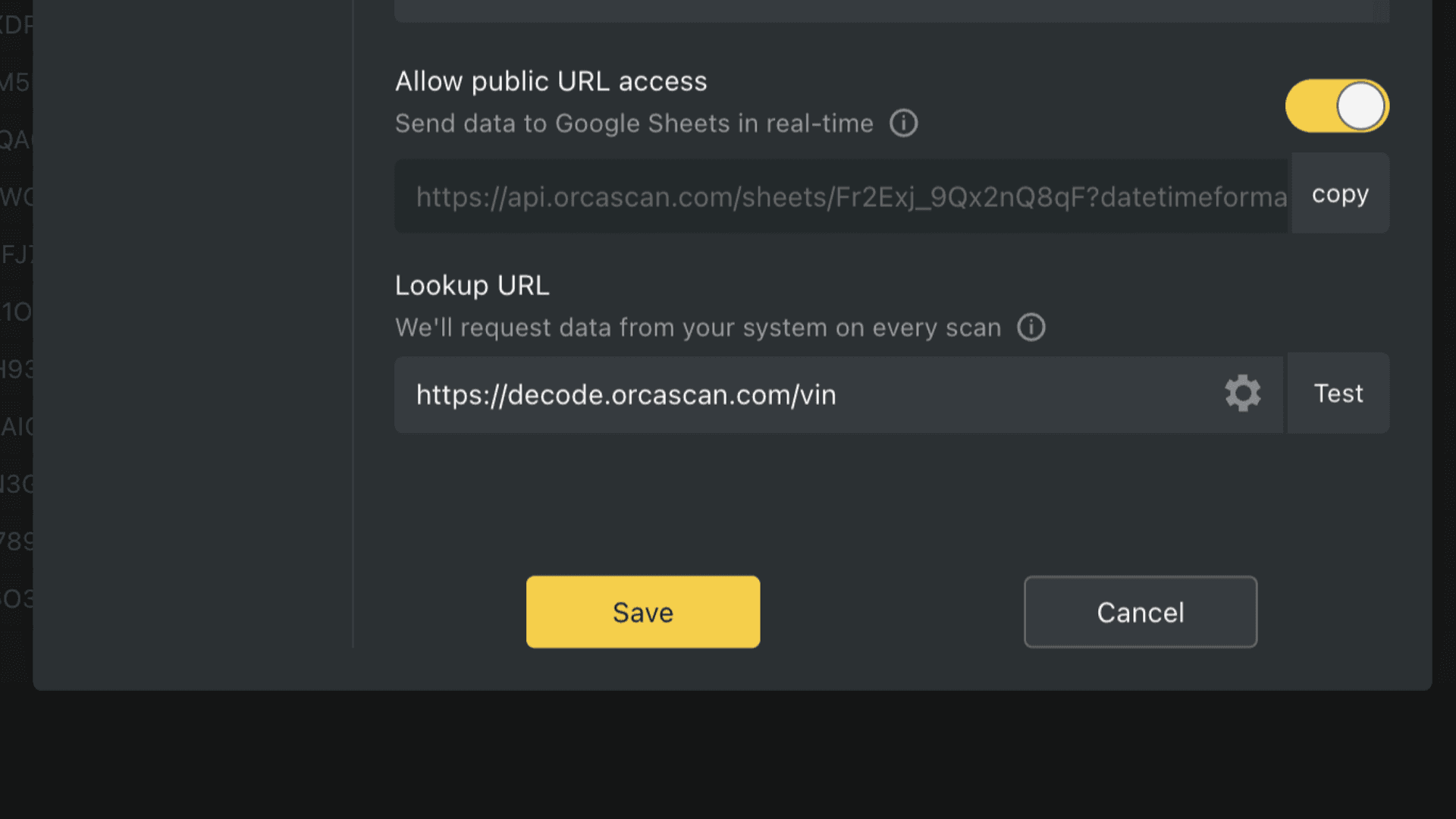
As an additional confirmation check, you must save the integration changes
Now, let’s head over to Google Sheets…
4. Connect a Google Sheet
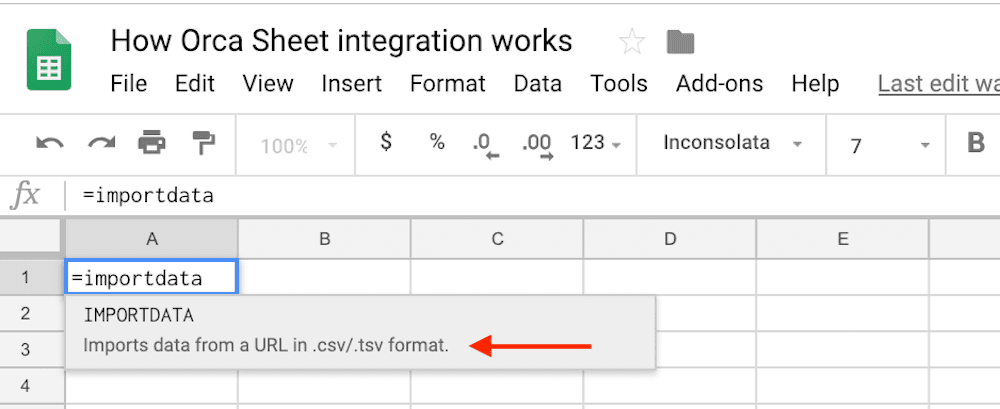
Add the IMPORTDATA formula
Place the cursor in the A1 cell and add the =IMPORTDATA formula to the first cell of your sheet
Paste the Live Data URL from Orca Scan
Now add the export link from Orca Scan within the brackets =IMPORTDATA(“replace-with-your-orca-sheet-url-here.csv”) - be sure to include the quotation marks!
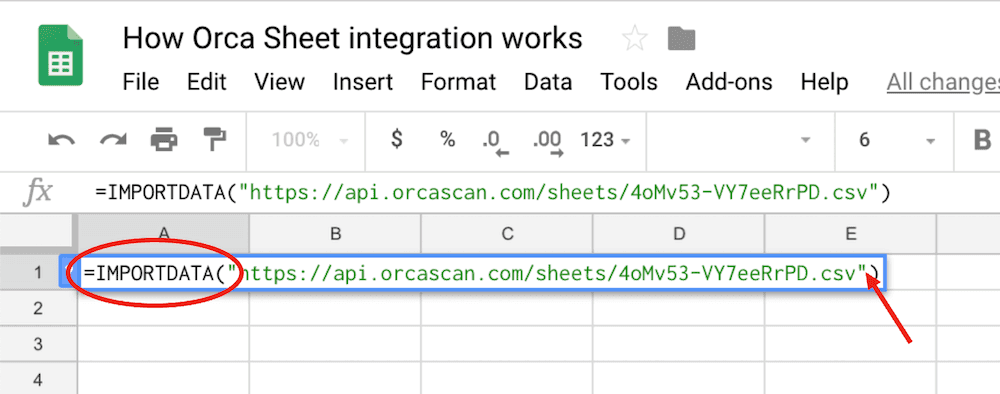
- If you run into issues, check out the full integration guide for Google Sheets
- If successful let’s head over to Tableau…
5. Connect Sheet to Tableau
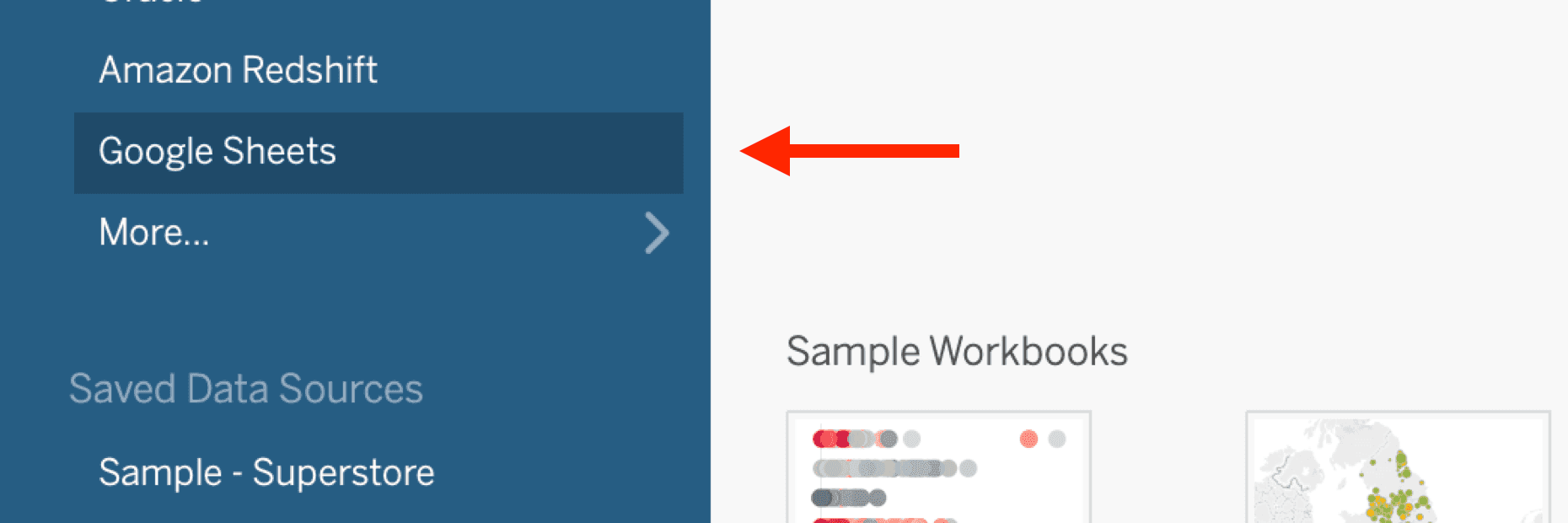
We can now add the Google Sheet as a connector in Tableau
Add Google Sheets as a Connector
If you’re using Tableau Online, it will be called Google Drive
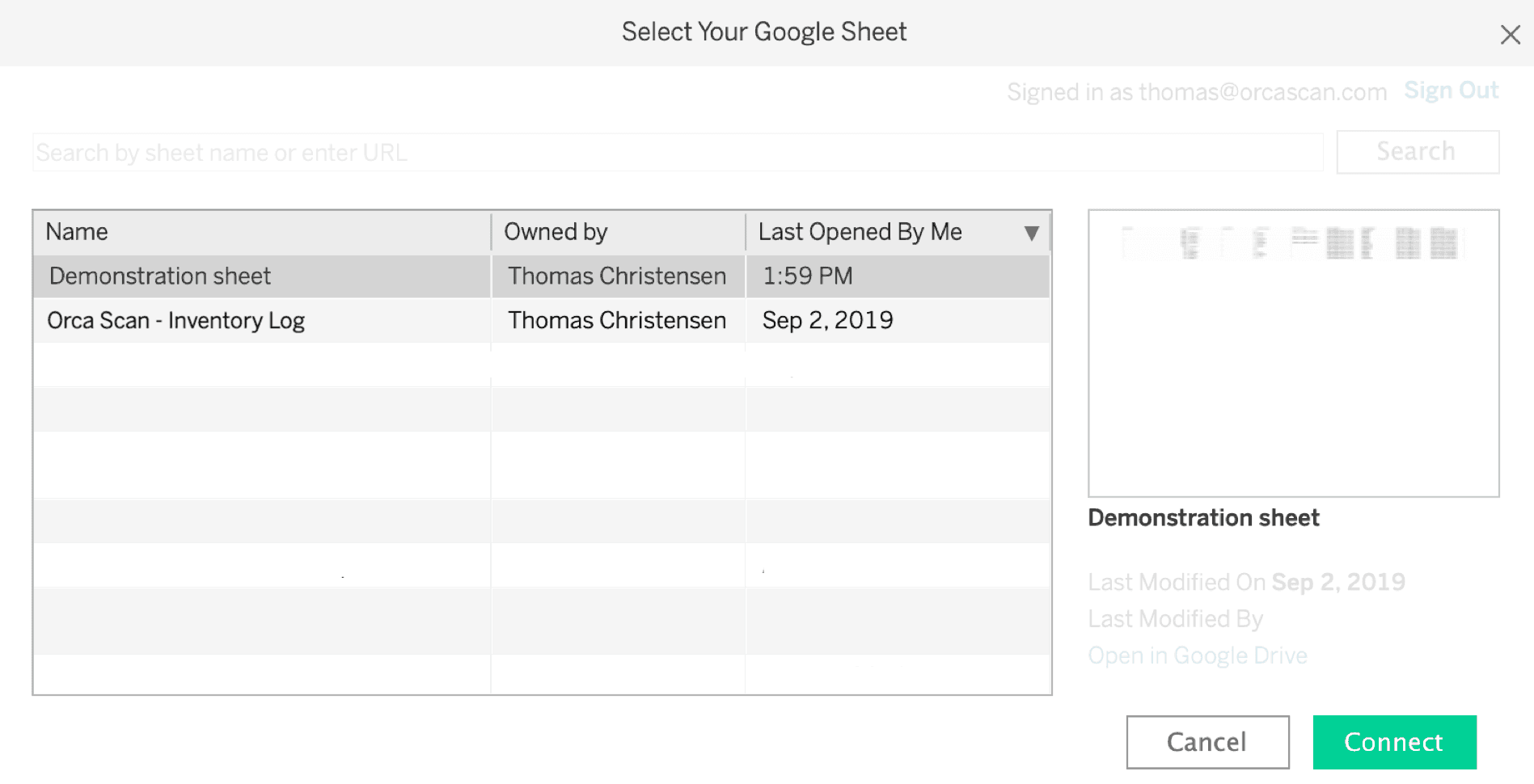
Find the Google Sheet to use as a source
Once authorised, all your Google Sheets will surface. Pick the one that you have connected Orca Scan to and click Connect
Using Tableau
Once connected, the columns from Orca Scan surface as Dimensions and Measures in the left-side data pane
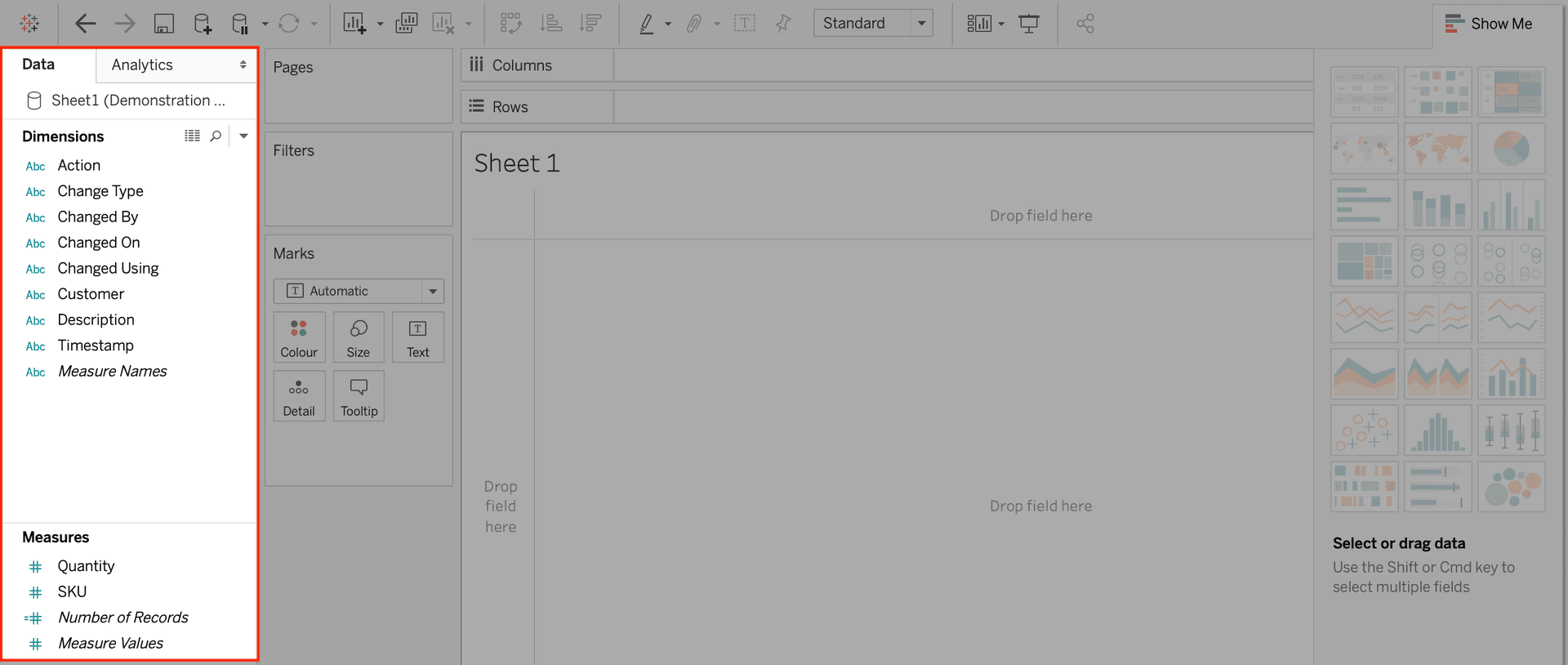
One thing noticeably great about Tableau is the drag and drop interface that we can use for both analysing and visualising the data.
To learn more about what you can do with Tableau, check out the Tableau training videos
Refreshing Data
Google Sheets will pull data from Orca Scan once every 60 minutes. Tableau will automatically update the data, but you can also trigger it with the Refresh option yourself
Data Import Configurations
You can configure the data that you send to Google Sheets, which ultimately ends up in Tableau. You do this by appending parameters to the URL, for example:
| URL parameter | Function |
|---|---|
transactions=true |
Including audit trail |
timezone=-03:00 |
Changing time zone |
datetimeformat=DD/MM/YYYY |
Changing date format |
deltas=true |
Including deltas for numeric columns |
sortby=barcode&sortorder=desc |
Sort output by column |
Questions about visualising barcode data using Tableau?
We’re always happy to help, chat with us live or drop us an email.
Request an integration
Need help getting Orca Scan working with your software? Request a Software Integration