Orca Scan gives every sheet its own unique, permanent QR code and orca.link web address. Scan it with any camera phone to open a form and submit data directly to the sheet - no app or account required. Each submission creates a new row. The same address also works as an API endpoint.
How QR Code Forms Work
- Every sheet gets a unique, permanent
orca.linkaddress - Print or share the QR code anywhere you want to collect data
- Scan with any phone camera, no app or account required
- Complete the form to add a new row to your sheet
What happens when a QR Form is scanned
Anyone can scan a QR Form using their phone camera. No app or Orca Scan account is required.
- A form opens in the phone browser
- The person completes the fields and taps submit
- The data is added to your Orca Scan sheet
QR Form vs Item Link
Use QR Form to collect records and Item Link to view or update an item.
| QR Form | Item Link | |
|---|---|---|
| Used for | Adding records | Viewing or updating records |
| Each scan | Adds a new record | Views or updates a record |
| Setup | One per sheet | One per item |
How to enable a QR Code Form
- Log in to the Orca Scan web app
- Select the sheet you want to enable QR Code Form for
- Click Settings on the toolbar
- Select QR Form from the menu
- Enable Allow new entries
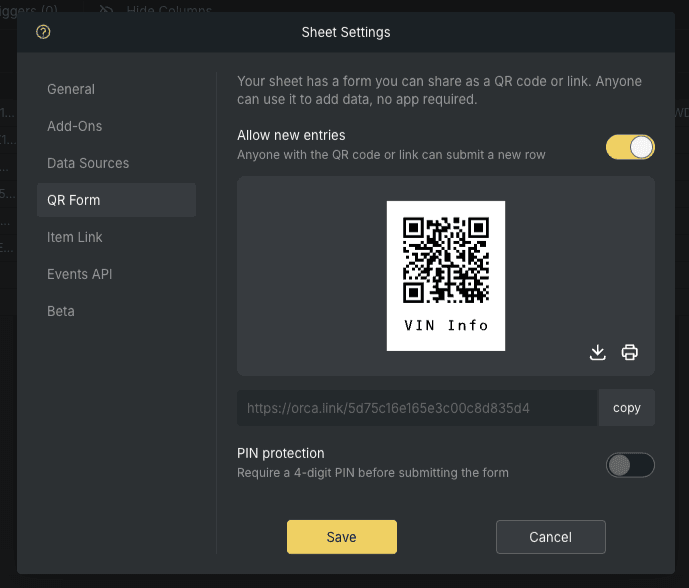
- Optionally enable a PIN Protection
- Download or Print the QR code
- Click Save
How to use a QR Form as an API endpoint
Every orca.link address is also an API endpoint. Send an HTTP GET request with Accept: application/json to return JSON instead of the web page:
# run this in your terminal
curl https://orca.link/5cfc84ed8ff98000c076e703 -H "Accept: application/json"
The response includes the form schema and POST URL:
{
  "mode": "enabled",
  "schema": {
    "id": "5cfc84ed8ff98000c076e703",
    "$schema": "http://json-schema.org/draft-03/schema#"
    "title": "Live URL Example",
    "type": "object",
    "additionalProperties": false,
    "properties": {
      "name": {
        "title": "Name",
        "type": "string",
        "format": "textarea"
      },
      "quantity": {
        "title": "Quantity",
        "type": "number"
      },
      "description": {
        "title": "Description",
        "type": "string",
        "format": "textarea"
      },
      "location": {
        "title": "Location",
        "type": "string",
        "format": "gps-location-auto"
      },
      "date": {
        "title": "Date",
        "type": "string",
        "format": "date-time"
      }
    }
  },
  "links": [
    {
      "title": "Submit",
      "rel": "create",
      "href": "https://orca.link/5cfc84ed8ff98000c076e703",
      "method": "POST"
    }
  ]
}
PIN protection (optional)
A QR Form may be PIN protected. If it is, the first request returns 401 with a schema asking for a PIN and a rel: next link to POST it to:
{
  "mode": "enabled",
  "schema": {
    "properties": {
      "_pin": {
        "title": "Please enter the 4-digit PIN",
        "type": "string"
      }
    }
  },
  "links": [
    {
      "rel": "next",
      "href": "https://orca.link/5cfc84ed8ff98000c076e703",
      "method": "POST"
    }
  ]
}
POST the PIN and follow the redirect to access the data:
curl -L -X POST https://orca.link/5cfc84ed8ff98000c076e703 \
  -H "Accept: application/json" \
  -H "Content-Type: application/json" \
  -d '{ "_pin": "1234" }'
QR Code Form use cases
- Inspections: collect checks and inspection results
- Fault reporting: let anyone report problems
- Maintenance: record completed maintenance work
- Visitor check-in: replace paper forms and touchscreens
- Event registration: collect attendee details
- Feedback: collect responses without an app
QR Code Form FAQs
Do I need an app to scan a QR Form?
No. QR Forms can be scanned with any phone camera and completed in a web browser. No app or Orca Scan account is required.
Does each sheet have its own QR Form?
Yes. Every sheet has its own unique QR Form and orca.link address.
Can anyone submit data using a QR Form?
Yes, when Allow new entries is enabled, anyone with the QR code or URL can add a new record to the sheet.
Can QR Forms collect photos, files and signatures?
Yes. QR Forms support photos, file attachments and signatures, along with standard form fields.
Can I stop people submitting data?
Yes. You can disable Allow new entries at any time.
Can a QR Form be used without a QR code?
Yes. The orca.link address can be opened directly in a browser or used as an API endpoint.
Need help using QR Code forms?
We’re happy to help, chat with us live or book a free implementation call.