Listen to this guide
00:00
Orca Scan allows you to hide columns, giving you control over which data is visible to users across the web and mobile apps. This feature is useful when you want your team to focus on specific information or restrict access to certain columns.
How to Hide Columns
- Log in to the Orca Scan web app and select the sheet where you want to hide columns
- Click on the Hide Columns button located at the top-right corner of your sheet
- Check the boxes next to the columns you wish to hide
- Click Save to apply the changes. The selected columns will now be hidden on both the web and mobile app
How to Hide Columns Selectively
In the web app, you have more control of how you hide columns, including whether to hide them in the mobile app, web app, or both.
- Log in to the web app and open the sheet where you want to hide columns selectively
- Right-click on the column header you want to hide and select Edit Column
- Toggle ON where the column is hidden
- Hidden in mobile: Toggle ON this option to hide the column in the mobile app
- Hidden in web: Toggle ON this option to hide the column in the web app
- Click Save to apply the changes
How to Show or Hide Columns Conditionally with Triggers
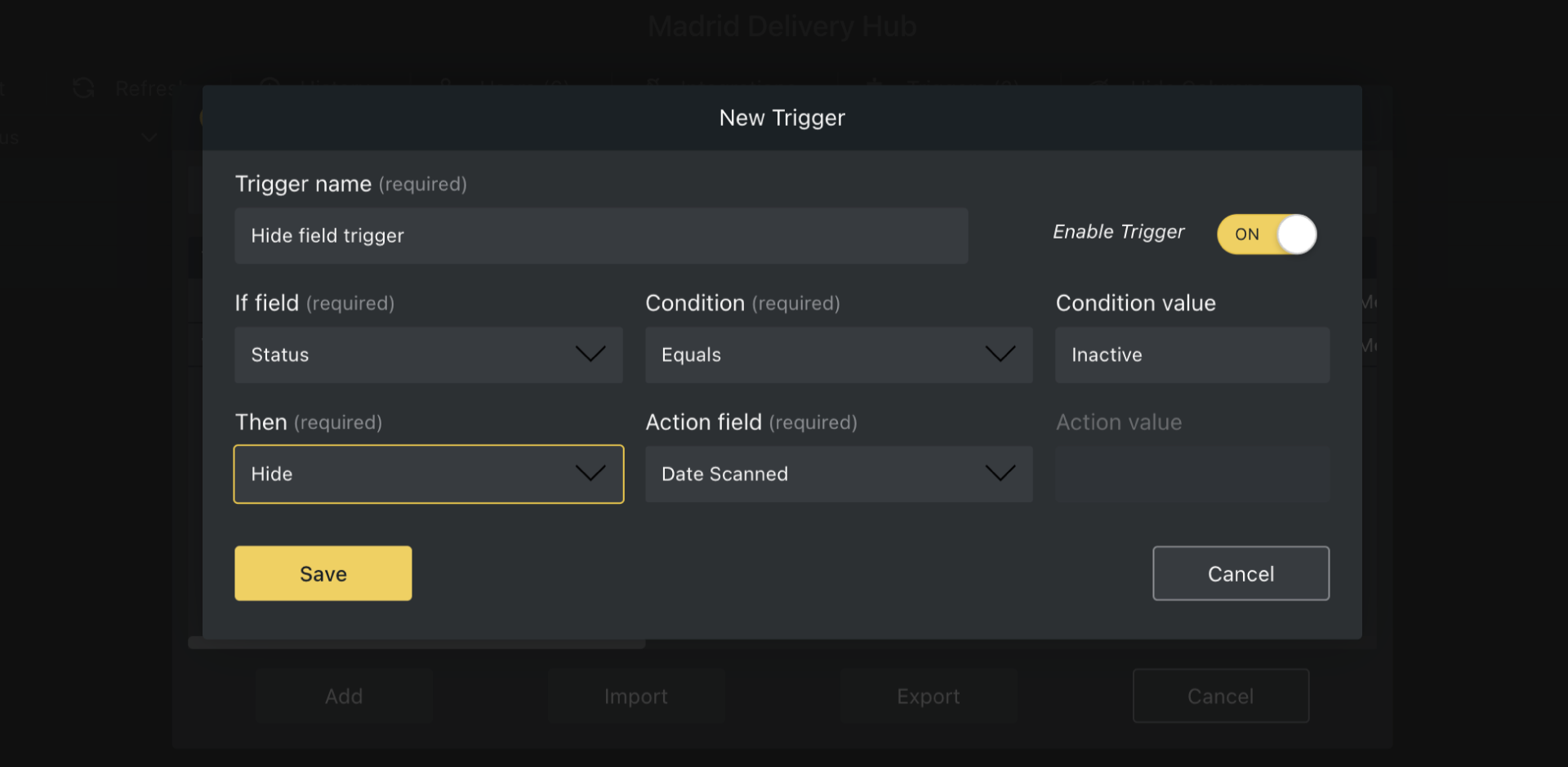
Use triggers in Orca Scan to automatically show or hide columns based on specific conditions.
- Open your sheet in the Orca Scan web app, and go to the triggers menu at the top of your sheet, click Add to create a new trigger
- In the New Trigger window, set the condition for your trigger
- If Field: Select the column to monitor (e.g., Status)
- Condition: Choose the condition (e.g, Equals)
- Condition Value: Enter the value that the trigger will action (e.g., Inactive)
- Define the action you want taken when the condition is met. Select either Show or Hide and choose which column to show or hide
- Click Save to activate the trigger. You can test your new trigger by updating the monitored field to match the condition and watch the column automatically show or hide
To learn more about using triggers, check out the Triggers Guide
Tips for Hiding Columns
- Use Descriptive Column Names: Clear names help to manage columns effectively
- Test your Settings: Check that your teams can still get the data they need, after hiding columns
- Leverage Triggers: Use Triggers to automate the data visibility in your workflow
Questions About Hiding Columns?
We’re always happy to help; chat with us live or drop us an email